
April 20, 2026
Book Series: Uploading Ebook or Audiobook Series
This tutorial will walk you through how to upload your books as a Series in Curios. If your books are serialized, it is best to upload them as a series as it gives Curios the ability to correctly recommend reading order and guide readers along to the correct next book.
Step 1: Login and Click "+ Publish"
Login to studio.curios.com and click "+ Publish" in the left hand menu.
Step 2: Select "Series" from the category options
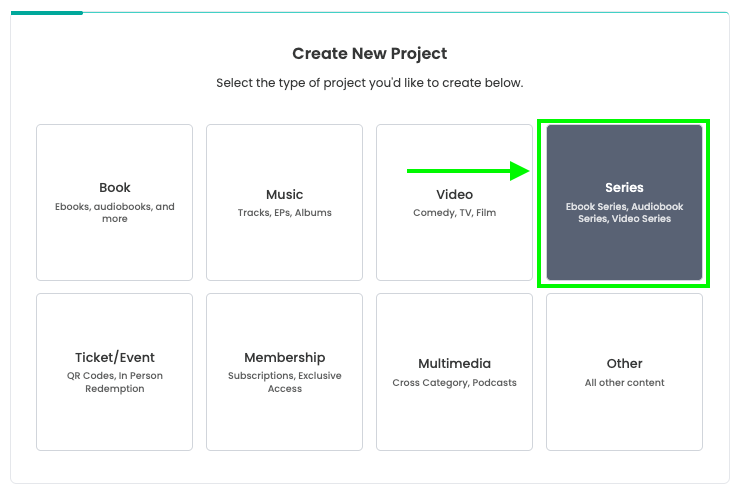
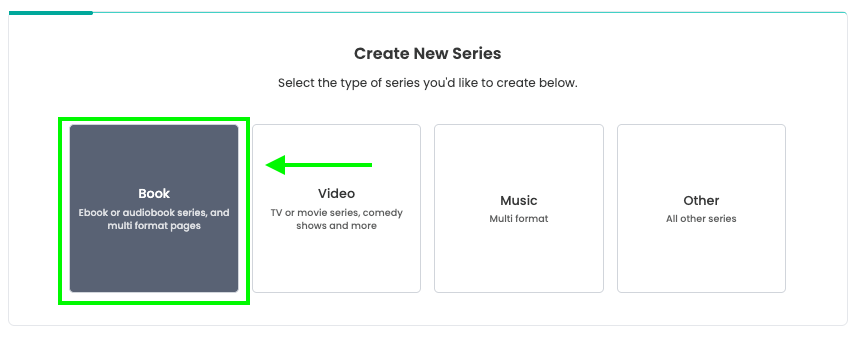
Step 3: Select "Book" From the Series Options
Note: Book is the right selection for both Ebooks and Audiobooks
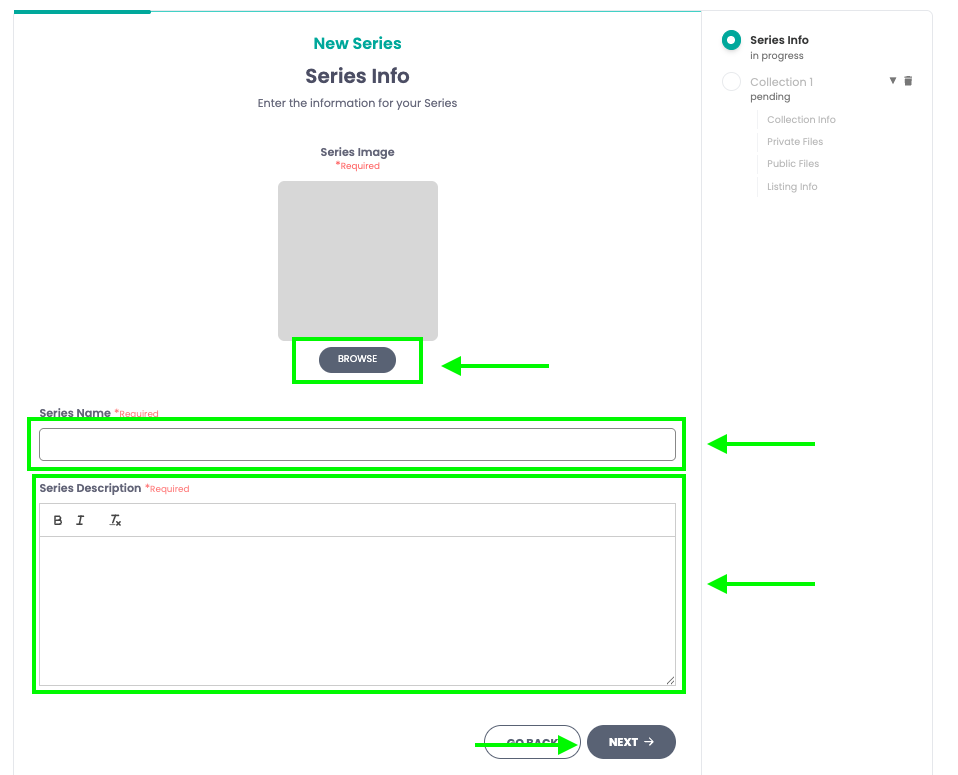
Step 4: Add the Series Information
Here you will add the series title, description, and a cover image for the series.
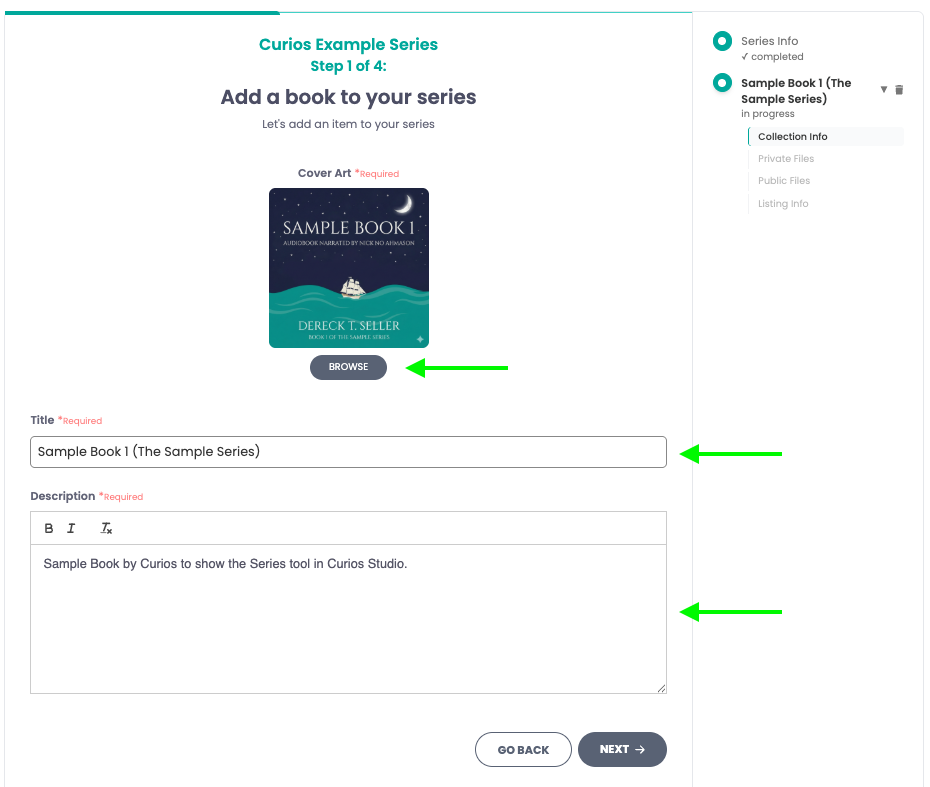
Step 5: Add the information for the first book in the series
Step 6: Add the files for the first book in the series
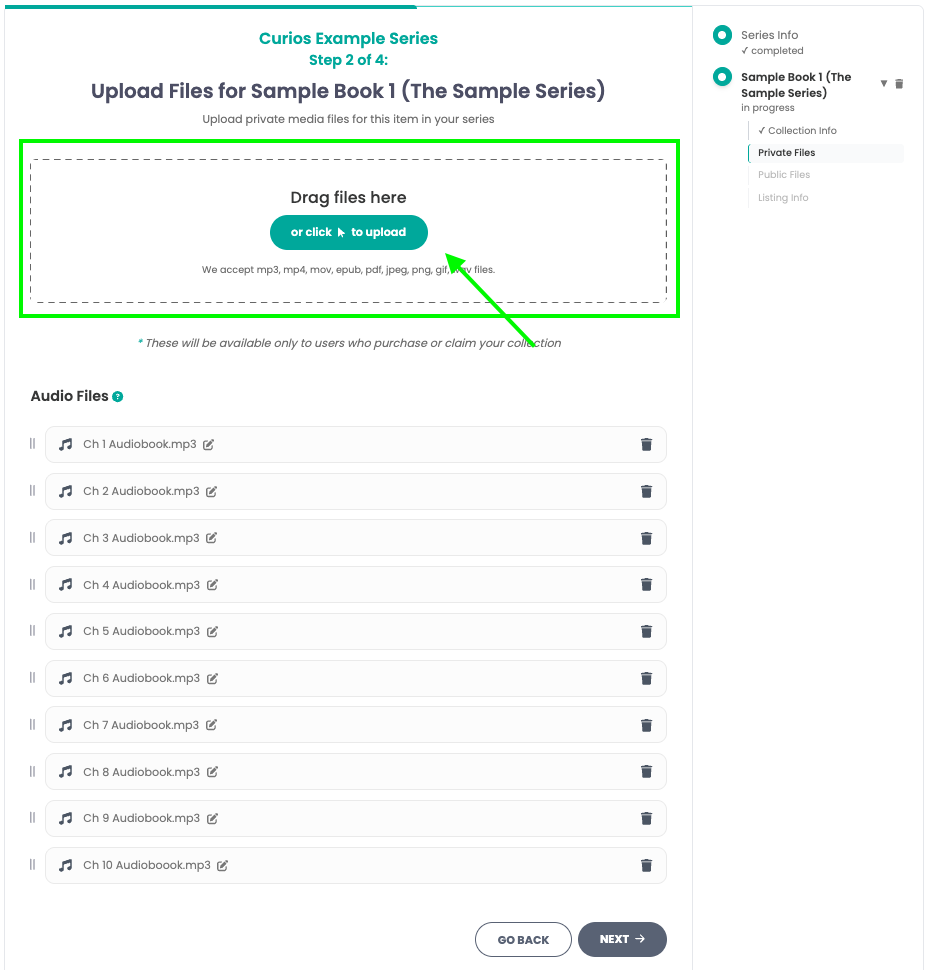
Any files that you upload will automatically show in the list below. Please check to make sure the order is correct and that you are not missing any chapters.
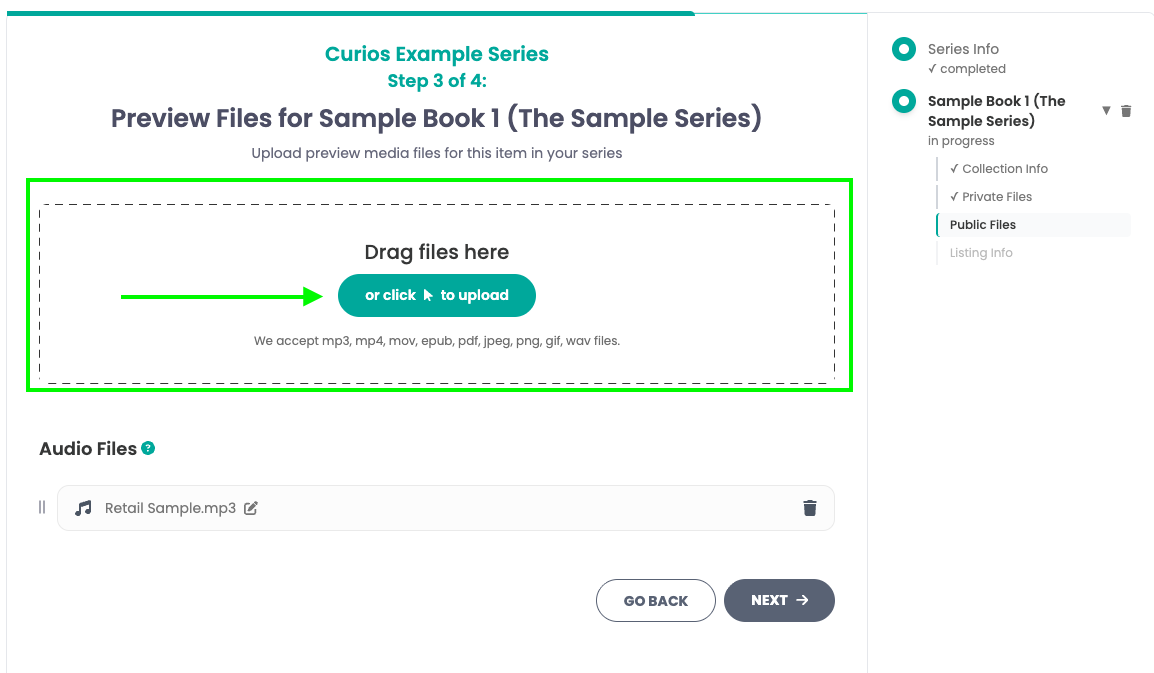
Step 7: Upload the Preview Files for Book 1
Step 8: Enter the price, book information, and set permissions
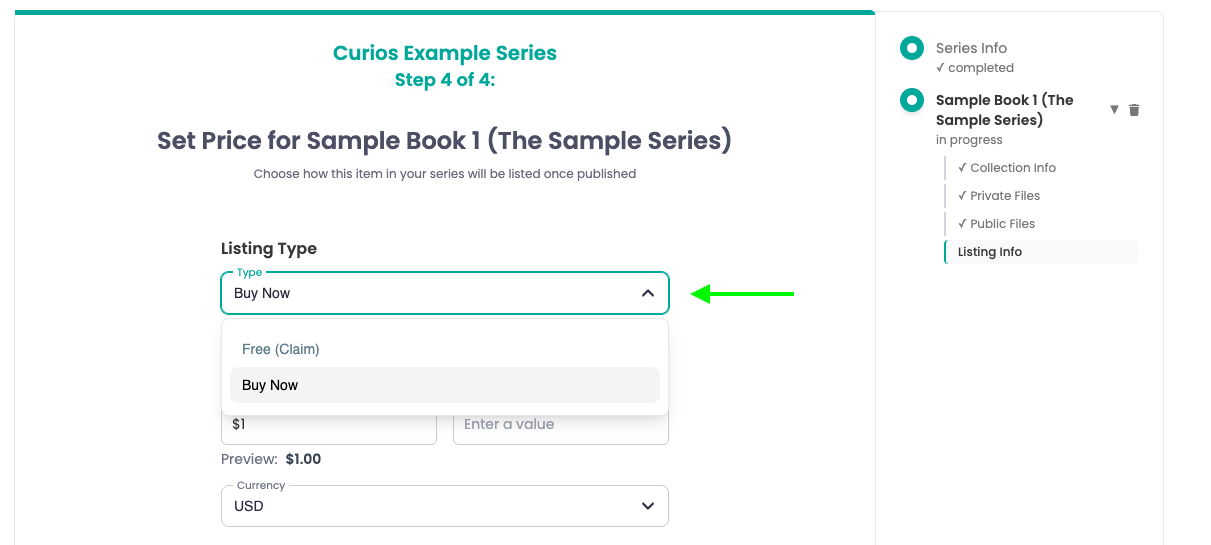
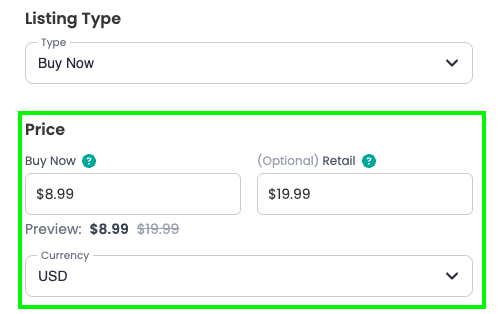
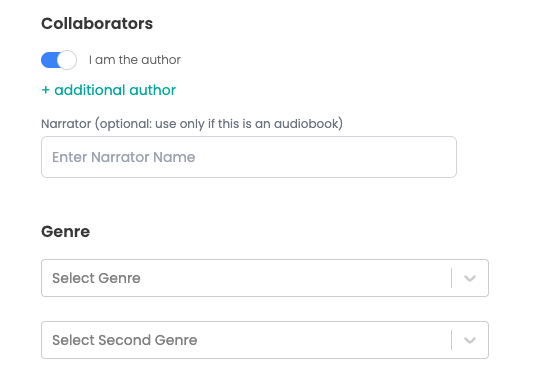
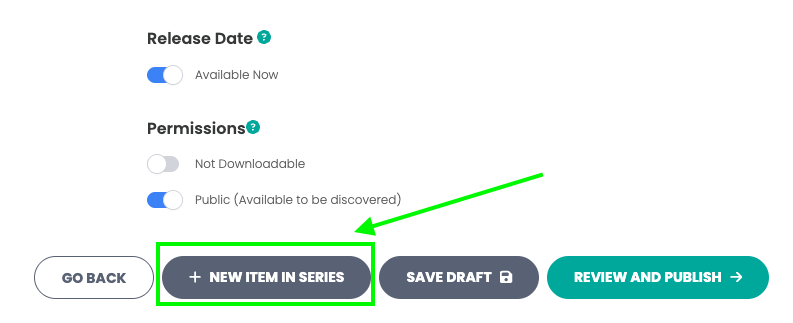

Step 9: Repeat Steps 5 through 8 for the next books in the series
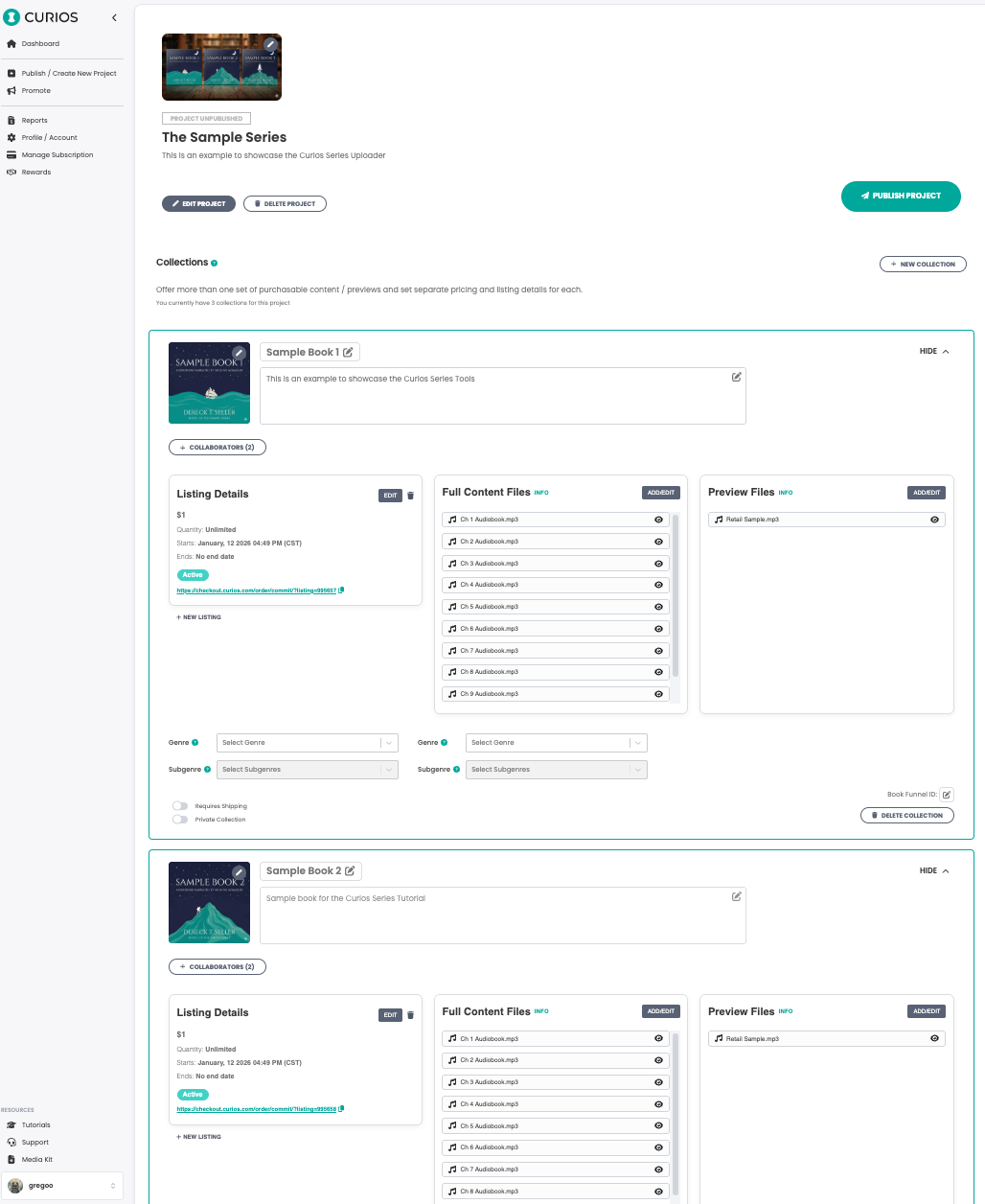
Once you have all the books for your series, click on either Save Draft to review all books on the Series detail page or you can click Review and Publish to put the series live on the Curios marketplace.
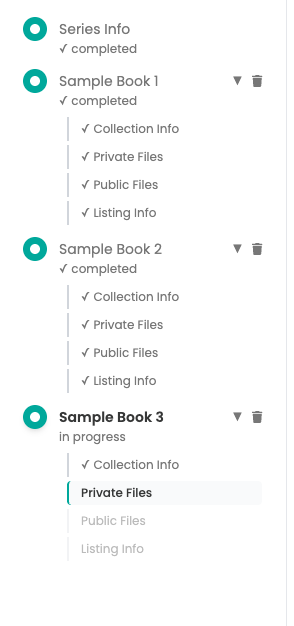
Step 10: Check
If you run into any issues you can always contact curios support, we are here to help!
Ready to sell direct and keep 100%?
No credit card required. Join creators building real businesses on their own terms.