
Self Fulfilled Shipping on Curios
You can sell physical books, including paperbacks, hardcovers, special editions, signed books, merchandise, and any combination of the above on Curios.
Note: This is currently in private beta, if you want access to this feature please email [email protected].
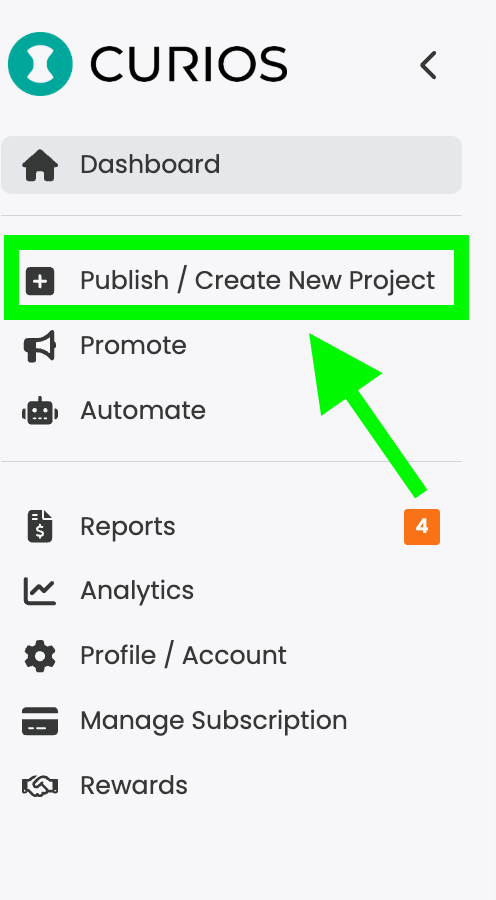
Step 1: Login to studio.curios.com and click "+ Publish/ Create New Project"
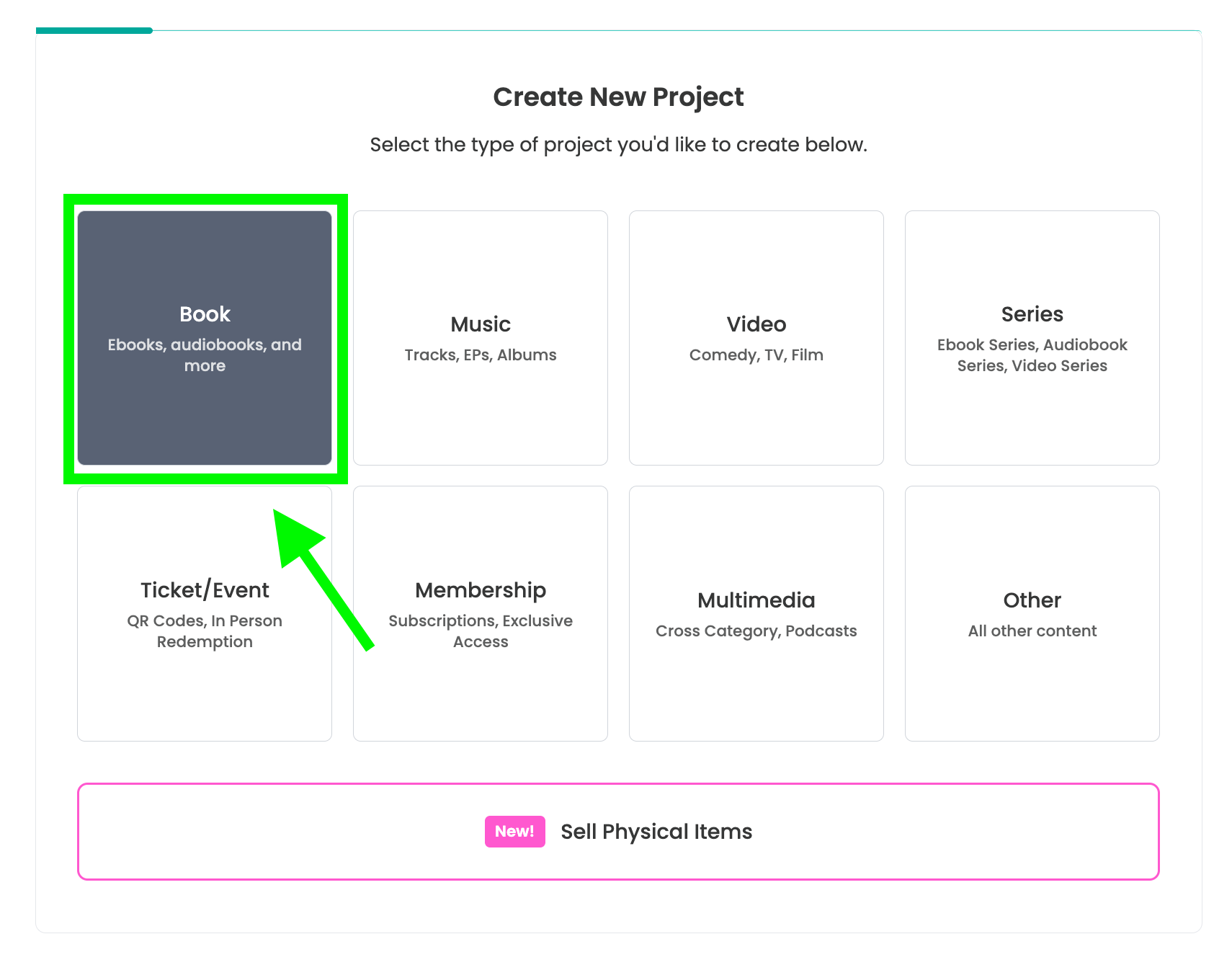
Step 2: Select "Book" from the Project Types
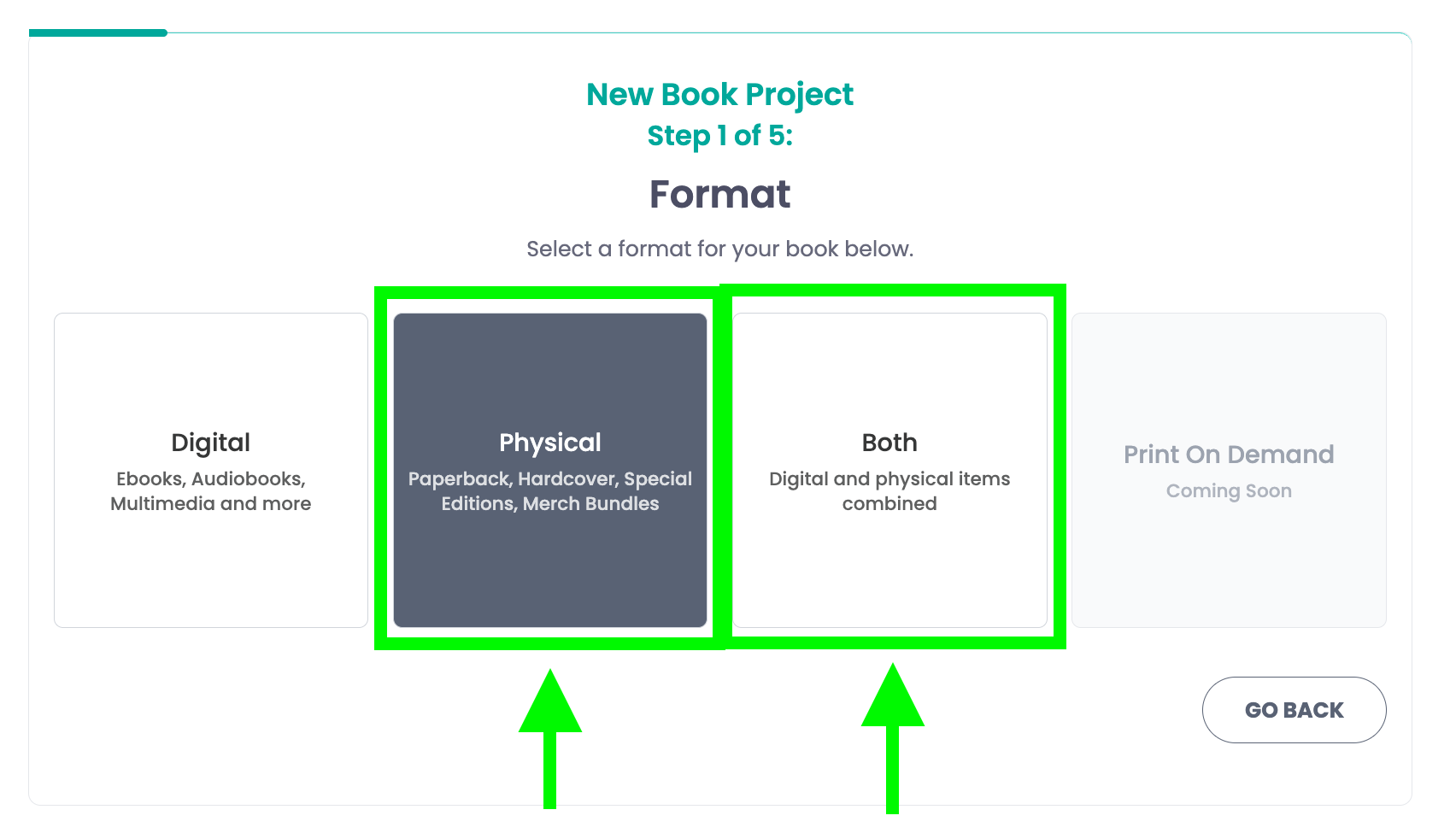
Step 3: Select either physical or both
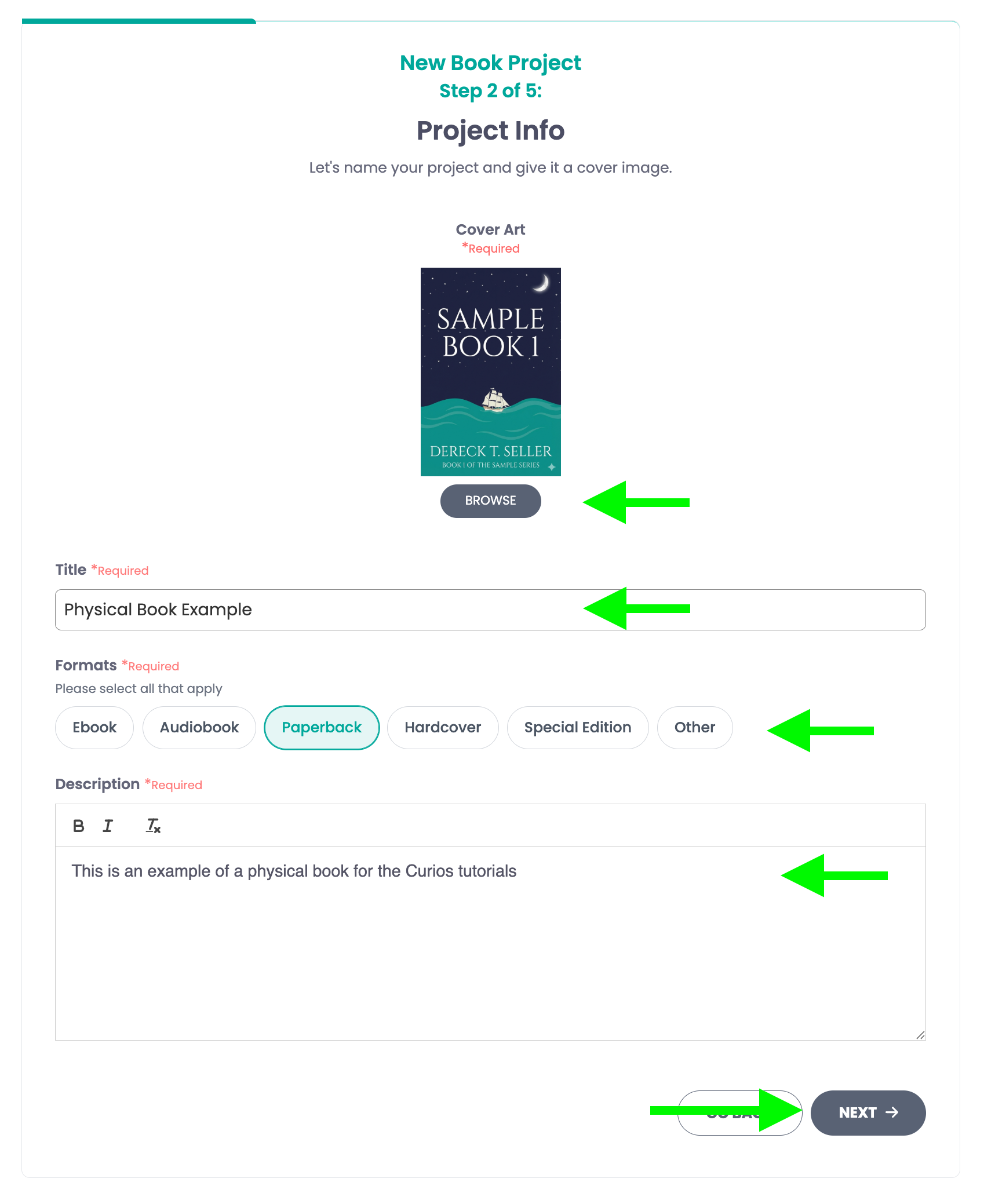
Step 4: Add a cover image, a title, select the format, and add a description
Note: Select only the formats included in this offering. If offering multiple formats, create a separate listing for each.
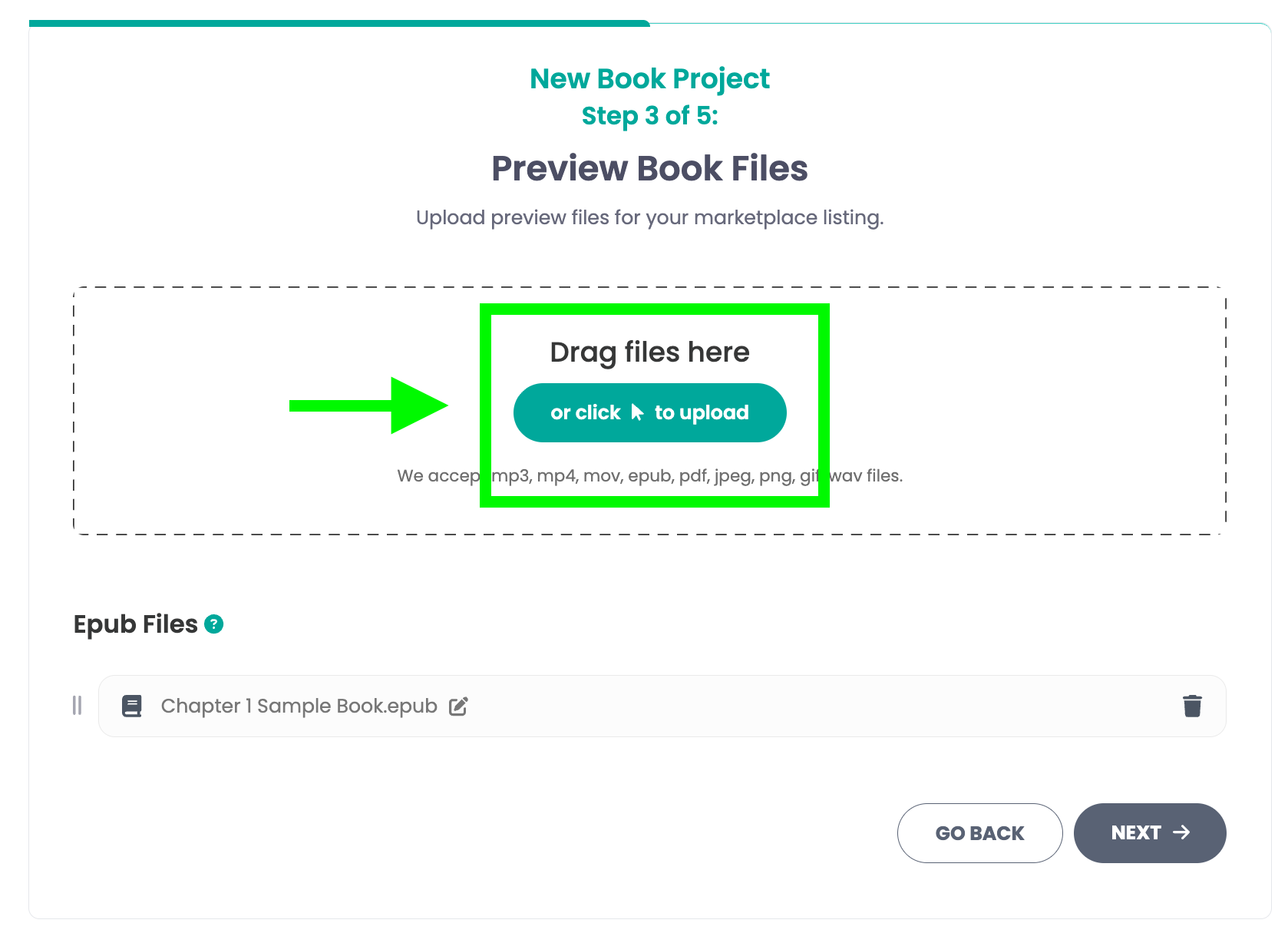
Step 5: Add a preview file
Add a preview file for your book if you have one, if not just click "Next" to skip.
Step 6: Enter the shipping information for this item, we will break down each part of this step.
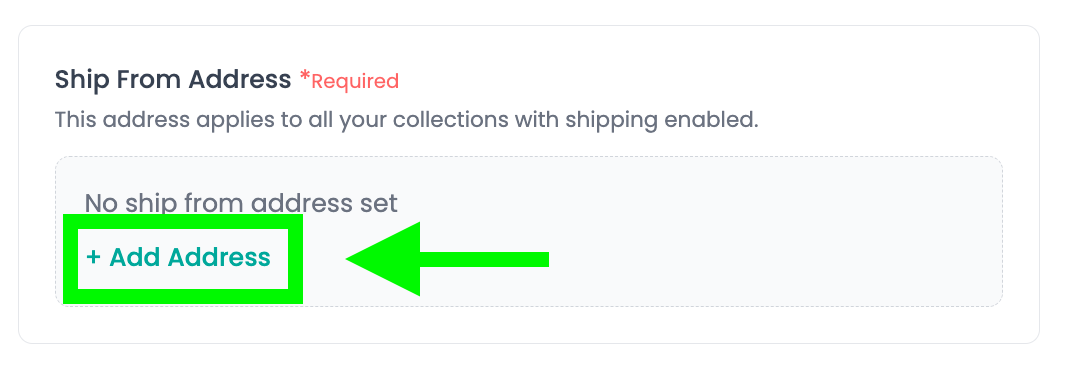
Step 6A: Set your "Ship From Address"
Click "+ Add Address" and fill out the information to set a "Ship From Address". This is the address that you will be sending the packages from. We will use this information to calculate how much to collect from the buyer for shipping.
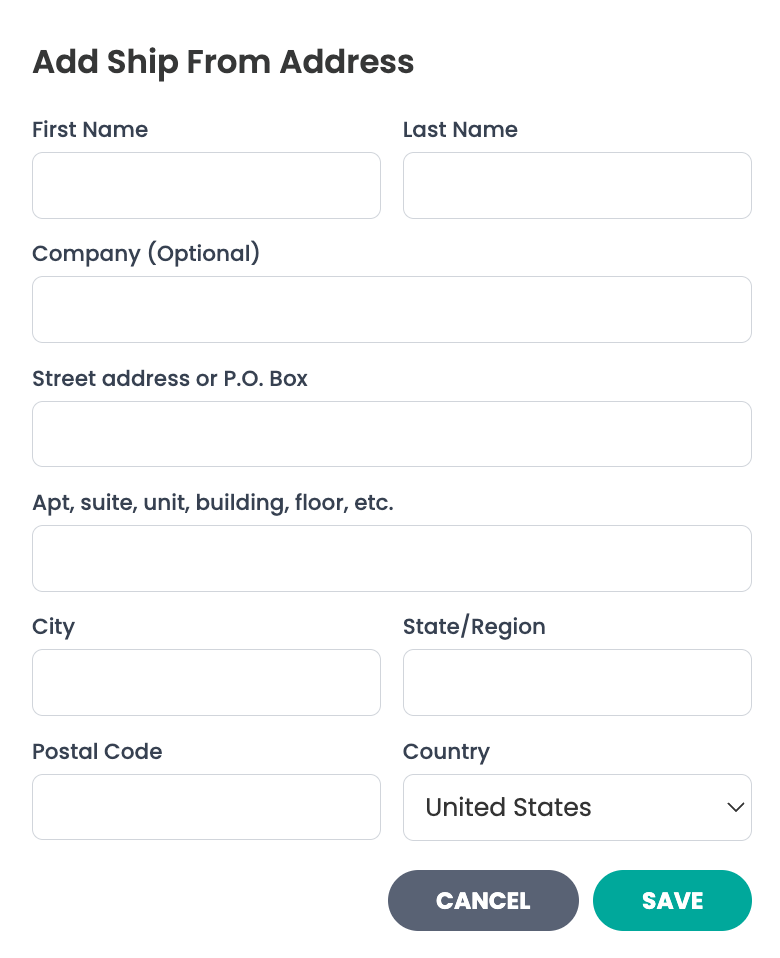
Note: In this current iteration of the feature, whatever address is set in this step will be the "Primary" shipping address for all items that you ship.
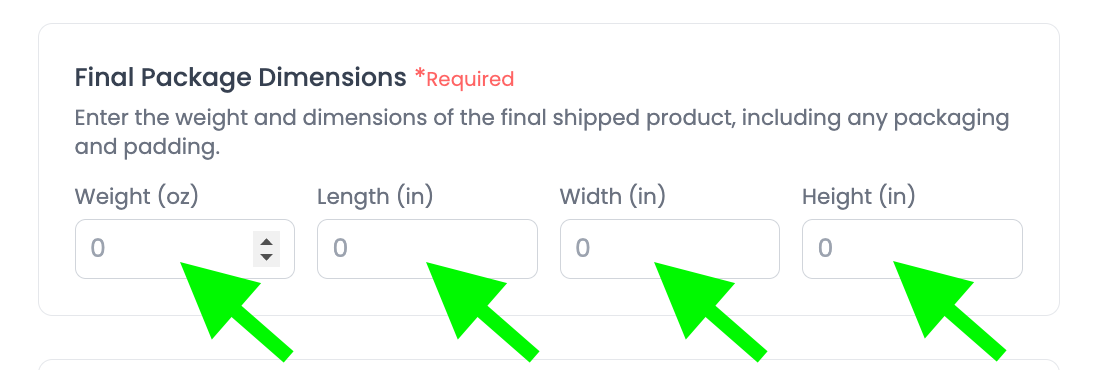
Step 6B: Enter the Package Dimensions
Enter the Dimensions for the Package you will be shipping.
Note: Enter the total weight and final package dimensions for the entire shipment, including all items in this collection and any packing materials (box, padding, inserts, etc.). For example, if this collection includes 4 paperbacks and 1 hardcover, you must provide the combined weight and the full dimensions of the package containing all 5 books.
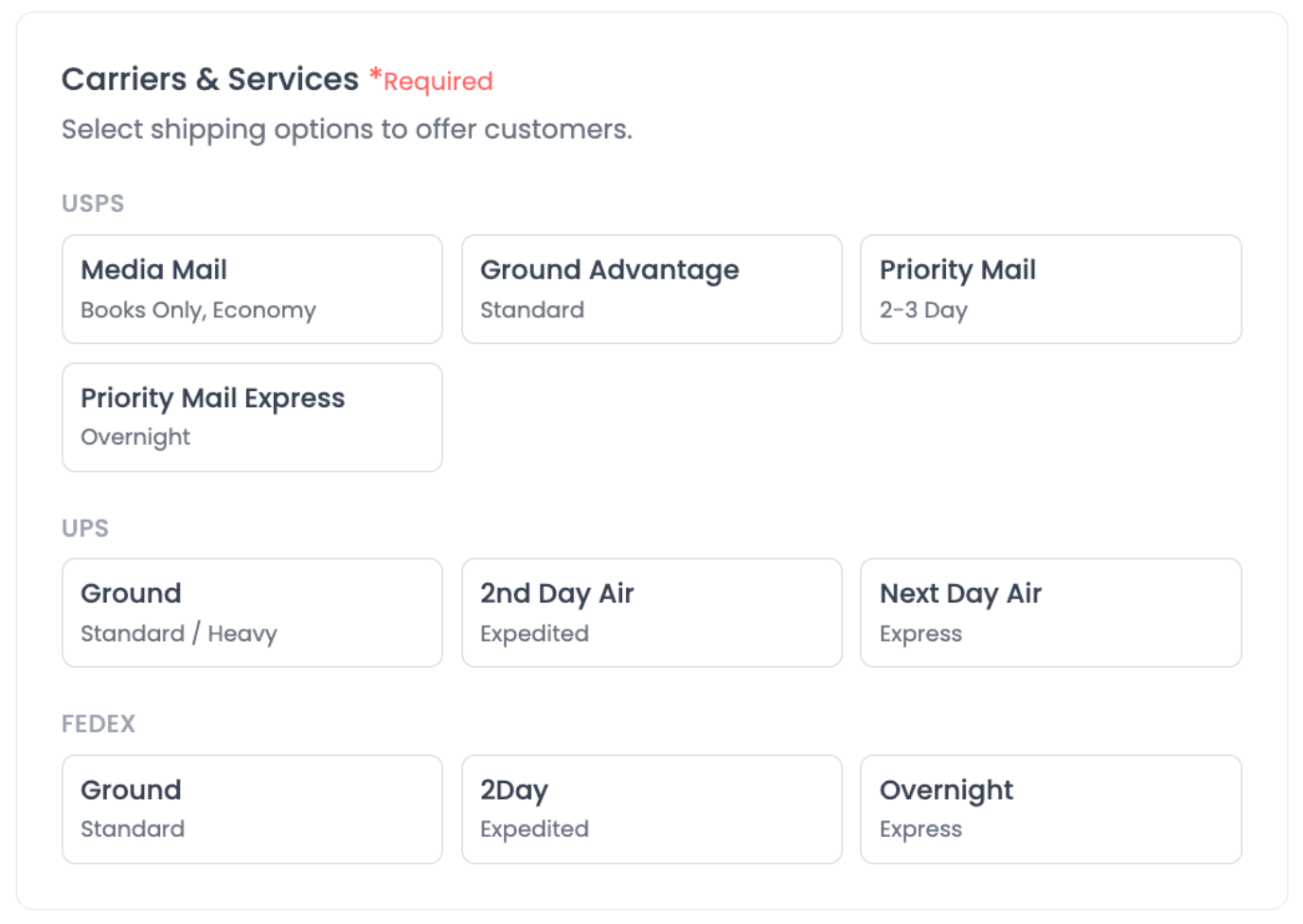
Step 6C: Select carriers and shipping speeds
Select which carriers and shipping speeds you would like to support. You can select as many as you would like.
Note: Curios collects the shipping costs from the buyer and provides you with a label to print when you get a purchase. You will still be responsible for packing the boxes and applying the labels and dropping them off at USPS, UPS, or Fedex, depending on your selections.
Step 7: Enter the price, book information, and set permissions
For the price you have two options, Buy Now and Free (Claim):
- Free (Claim) is when you give the book away for free and only receive email addresses of anyone who "claims it"
- Buy Now allows you to set a price for the book.
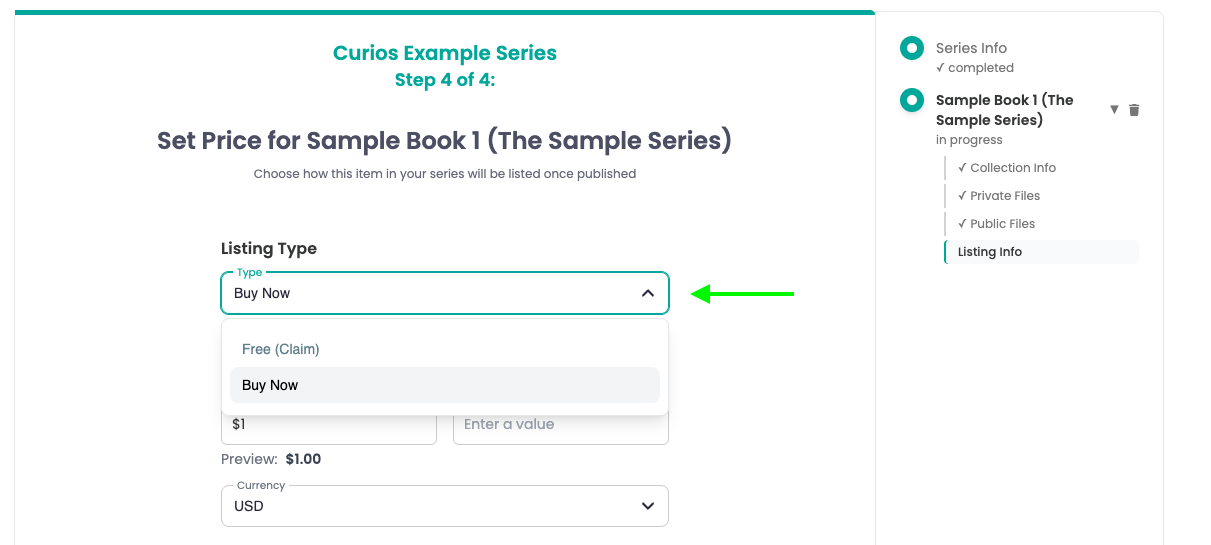
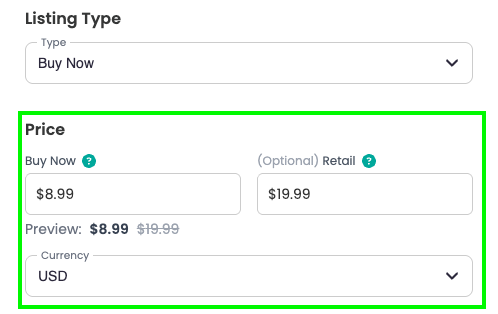
If you select Buy Now, you can set both a "Buy Now" price and a "Retail" price. The buy now price is the exact amount of money you will receive for each sale on Curios. The retail price allows you to run a "sale" and show a discount to your item.
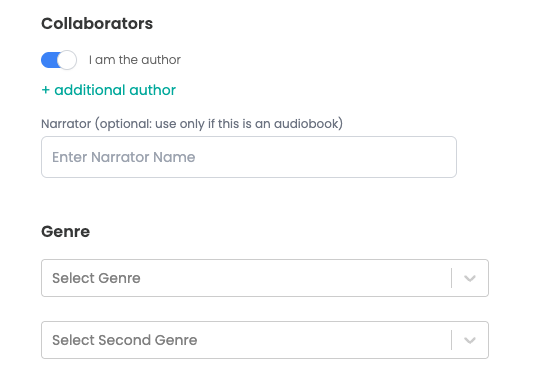
Additionally you are also able to add any collaborators, like co-authors as well as genre and sub genre information for your items.
Next you will set your permissions for the item:
- Setting a release date of "Available Now" places the item live on Curios as soon as you hit the green "Publish" button
- The "Not Downloadable" button specifies if any included digital content is downloadable or not.
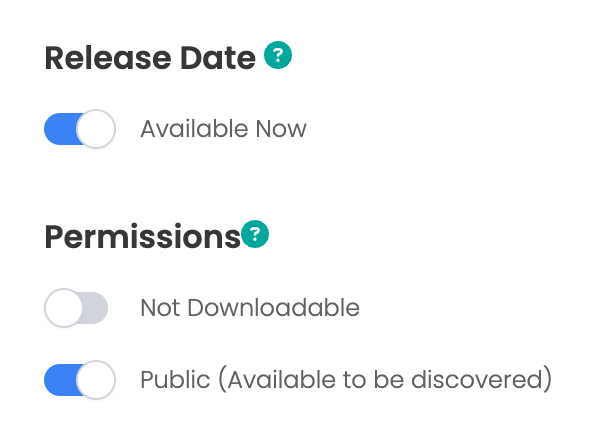
Note: Downloadability is not required. Your readers/listeners can always access their content on Curios via the website or the app and on any of our partner apps.
Finally, you can either save draft or publish the item live on the Curios marketplace.
Step 8: Check
Visit the Curios pages for each item uploaded and check to be sure all information was entered correctly. You can access your links in the dashboard on studio.curios.com
You can always update or change any information associated with this item in the studio.
What Happens When You Sell A Self-Fulfilled Physical Item on Curios?
For any physical books or merchandise sold on Curios, you will have to fulfill the orders.
Curios will provide a shipping label, but you will need to package the items, apply the label to the packages, and bring the packages to the correct carrier (USPS, UPS, or FEDEX)
Note: This is only for physical goods, for any digital content, Curios handles delivery of digital content to the end buyer.
Step 9: Locate Your Orders That Require Shipping
For any orders that require you to package and ship the item, you will see a notification on the Reports tab found on left side menu of studio.curios.com.
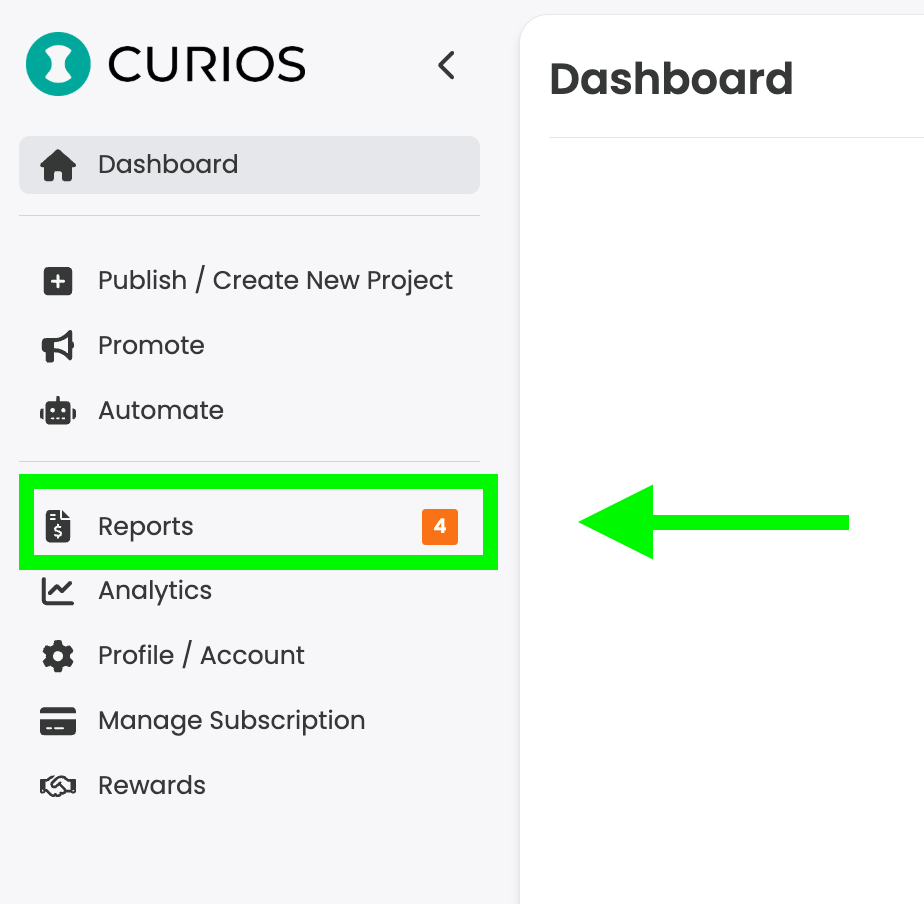
When you click on the Reports Item in the left hand menu, it will open automatically to the Action Required tab under the Shipments option.
Here you will see all items that need you to generate and print a shipping label for.
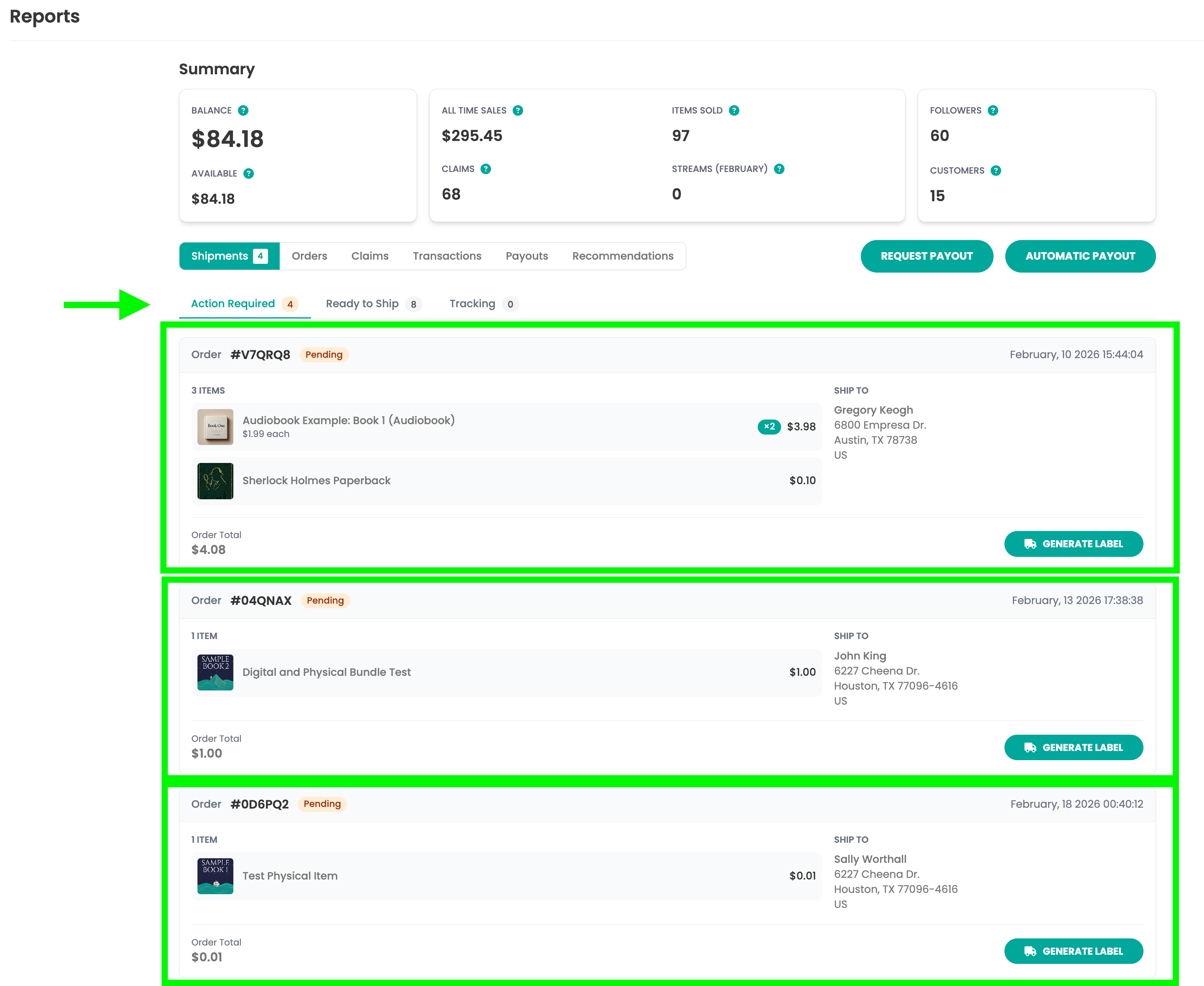
Step 10: Generate Shipping Label by clicking on the "Generate Label" button
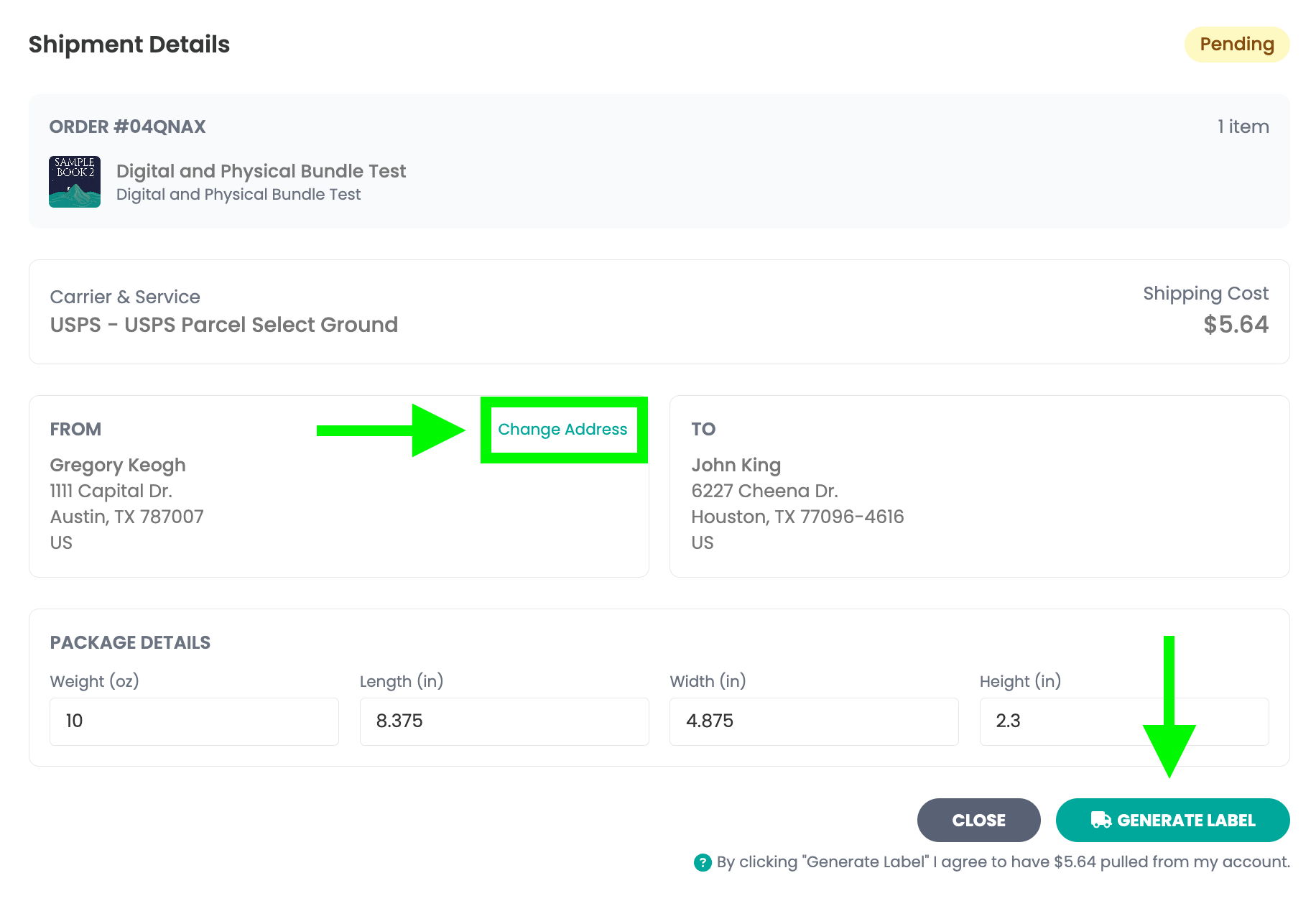
You will need to generate a shipping label for every order you receive. The label will be pre-populated with the information entered on Step 6. This allows you to edit the final package size and dimensions in case they change.
To do so, click on the green "generate label" button for each order.
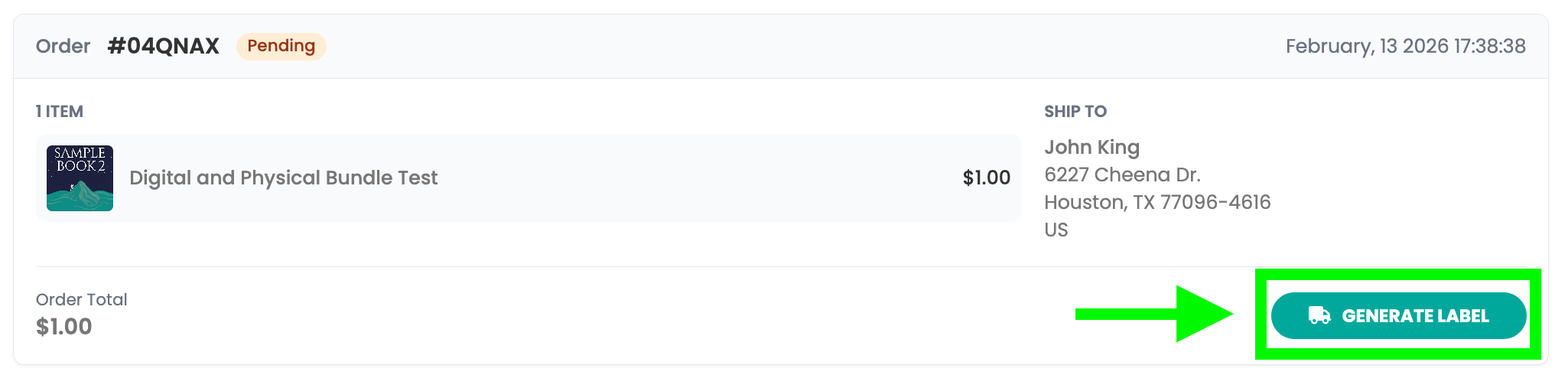
This will open a box where you can change any shipping dimensions or change your ship from address if this is coming from a different location.
Clicking Generate Label creates a shipping label that you can print and apply to your package.
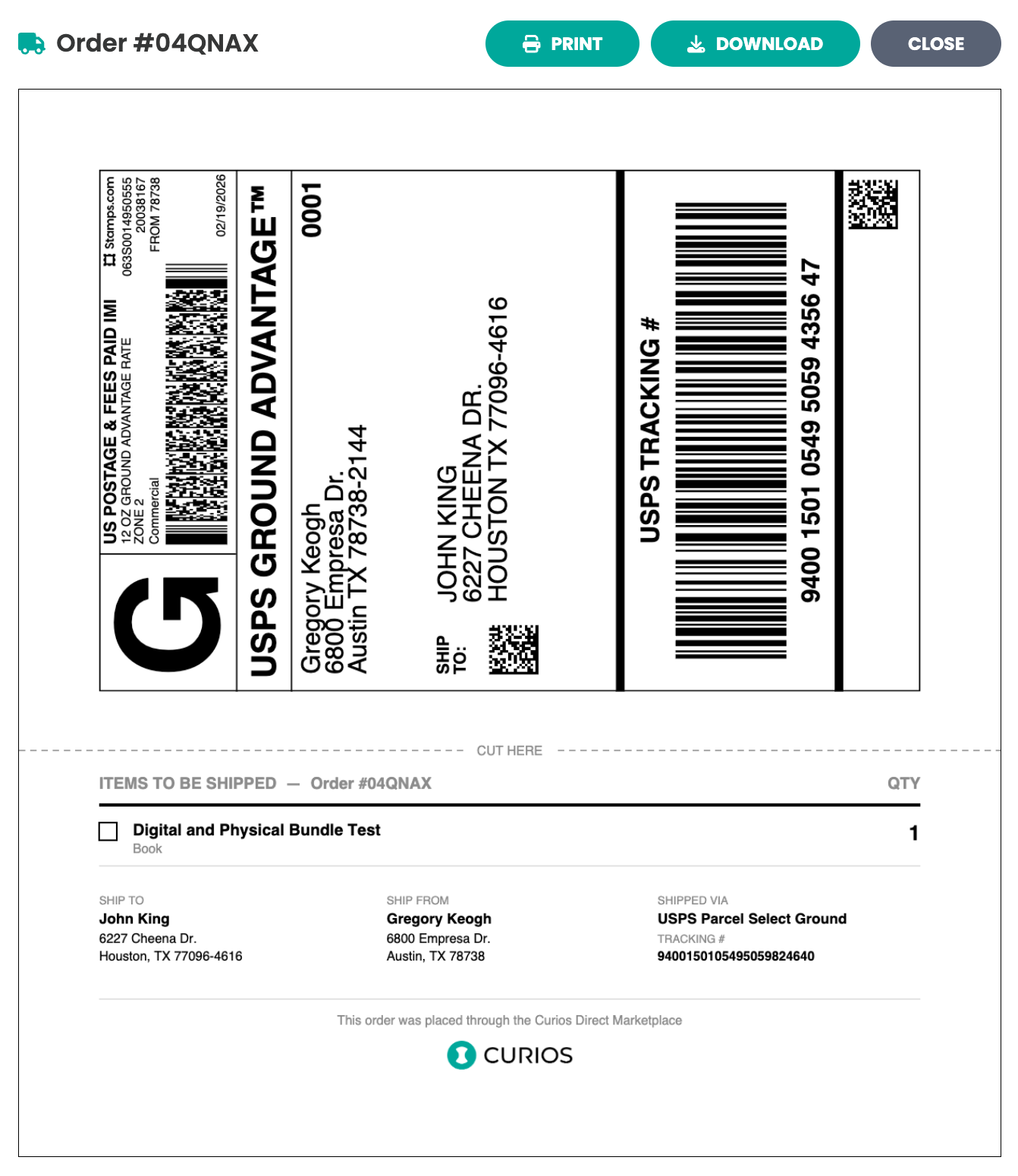
Note: Curios collects funds for shipping from the buyer, those funds are immediately applied to your balance upon purchase. Curios then removes those funds from your balance once you generate a shipping label.
Step 11: Apply the shipping label to your package and drop the package off with the appropriate carrier
Note: You will need to package the products sold, apply the label, and drop those items off with the correct carrier.
Simply cut the label out and place it on your package and then drop it off at the correct location.
- USPS packages need to be brought to a US Post Office
- UPS packages need to be brought to a UPS Store or accepted location
- FedEx packages need to be brought to a FedEx store or accepted location
Note: You can always access a shipping label in the Reports Section under the "Ready to Ship" Tab and you can track and see all shipments in the Reports Section under the "Tracking" tab.
If you run into any issues you can always contact Curios support, we are here to help!
Self Fulfilled Shipping on Curios
You can sell physical books, including paperbacks, hardcovers, special editions, signed books, merchandise, and any combination of the above on Curios.
Note: This is currently in private beta, if you want access to this feature please email [email protected].
Step 1: Login to studio.curios.com and click "+ Publish/ Create New Project"
Step 2: Select "Book" from the Project Types
Step 3: Select either physical or both
Step 4: Add a cover image, a title, select the format, and add a description
Note: Select only the formats included in this offering. If offering multiple formats, create a separate listing for each.
Step 5: Add a preview file
Add a preview file for your book if you have one, if not just click "Next" to skip.
Step 6: Enter the shipping information for this item, we will break down each part of this step.
Step 6A: Set your "Ship From Address"
Click "+ Add Address" and fill out the information to set a "Ship From Address". This is the address that you will be sending the packages from. We will use this information to calculate how much to collect from the buyer for shipping.
Note: In this current iteration of the feature, whatever address is set in this step will be the "Primary" shipping address for all items that you ship.
Step 6B: Enter the Package Dimensions
Enter the Dimensions for the Package you will be shipping.
Note: Enter the total weight and final package dimensions for the entire shipment, including all items in this collection and any packing materials (box, padding, inserts, etc.). For example, if this collection includes 4 paperbacks and 1 hardcover, you must provide the combined weight and the full dimensions of the package containing all 5 books.
Step 6C: Select carriers and shipping speeds
Select which carriers and shipping speeds you would like to support. You can select as many as you would like.
Note: Curios collects the shipping costs from the buyer and provides you with a label to print when you get a purchase. You will still be responsible for packing the boxes and applying the labels and dropping them off at USPS, UPS, or Fedex, depending on your selections.
Step 7: Enter the price, book information, and set permissions
For the price you have two options, Buy Now and Free (Claim):
- Free (Claim) is when you give the book away for free and only receive email addresses of anyone who "claims it"
- Buy Now allows you to set a price for the book.
If you select Buy Now, you can set both a "Buy Now" price and a "Retail" price. The buy now price is the exact amount of money you will receive for each sale on Curios. The retail price allows you to run a "sale" and show a discount to your item.
Additionally you are also able to add any collaborators, like co-authors as well as genre and sub genre information for your items.
Next you will set your permissions for the item:
- Setting a release date of "Available Now" places the item live on Curios as soon as you hit the green "Publish" button
- The "Not Downloadable" button specifies if any included digital content is downloadable or not.
Note: Downloadability is not required. Your readers/listeners can always access their content on Curios via the website or the app and on any of our partner apps.
Finally, you can either save draft or publish the item live on the Curios marketplace.
Step 8: Check
Visit the Curios pages for each item uploaded and check to be sure all information was entered correctly. You can access your links in the dashboard on studio.curios.com
You can always update or change any information associated with this item in the studio.
What Happens When You Sell A Self-Fulfilled Physical Item on Curios?
For any physical books or merchandise sold on Curios, you will have to fulfill the orders.
Curios will provide a shipping label, but you will need to package the items, apply the label to the packages, and bring the packages to the correct carrier (USPS, UPS, or FEDEX)
Note: This is only for physical goods, for any digital content, Curios handles delivery of digital content to the end buyer.
Step 9: Locate Your Orders That Require Shipping
For any orders that require you to package and ship the item, you will see a notification on the Reports tab found on left side menu of studio.curios.com.
When you click on the Reports Item in the left hand menu, it will open automatically to the Action Required tab under the Shipments option.
Here you will see all items that need you to generate and print a shipping label for.
Step 10: Generate Shipping Label by clicking on the "Generate Label" button
You will need to generate a shipping label for every order you receive. The label will be pre-populated with the information entered on Step 6. This allows you to edit the final package size and dimensions in case they change.
To do so, click on the green "generate label" button for each order.
This will open a box where you can change any shipping dimensions or change your ship from address if this is coming from a different location.
Clicking Generate Label creates a shipping label that you can print and apply to your package.
Note: Curios collects funds for shipping from the buyer, those funds are immediately applied to your balance upon purchase. Curios then removes those funds from your balance once you generate a shipping label.
Step 11: Apply the shipping label to your package and drop the package off with the appropriate carrier
Note: You will need to package the products sold, apply the label, and drop those items off with the correct carrier.
Simply cut the label out and place it on your package and then drop it off at the correct location.
- USPS packages need to be brought to a US Post Office
- UPS packages need to be brought to a UPS Store or accepted location
- FedEx packages need to be brought to a FedEx store or accepted location
Note: You can always access a shipping label in the Reports Section under the "Ready to Ship" Tab and you can track and see all shipments in the Reports Section under the "Tracking" tab.
If you run into any issues you can always contact Curios support, we are here to help!