
Upload and Sell Your Ebooks
For any ebook of yours on Curios:
• You keep 100% of any sales (you can also give books away for free)
• You get the contact information of your purchasers/readers
• You maintain total control of your IP at all times.
Step 1: Content Gathering/Prep
1. Have a tall rectangular jpeg of your cover art for each book.
a. The recommended size for an Ebook is a tall, rectangular image at 1,600 x 2,400 pixels.
b. Include the book title and the author name(s) in the cover image.
2. Have a compelling description for your ebook.
3. Have your book saved as an epub file
4. Have a sale price in mind. (free is an option on Curios as well)
Step 2: Login to The Curios Studio and Click "+ Publish"
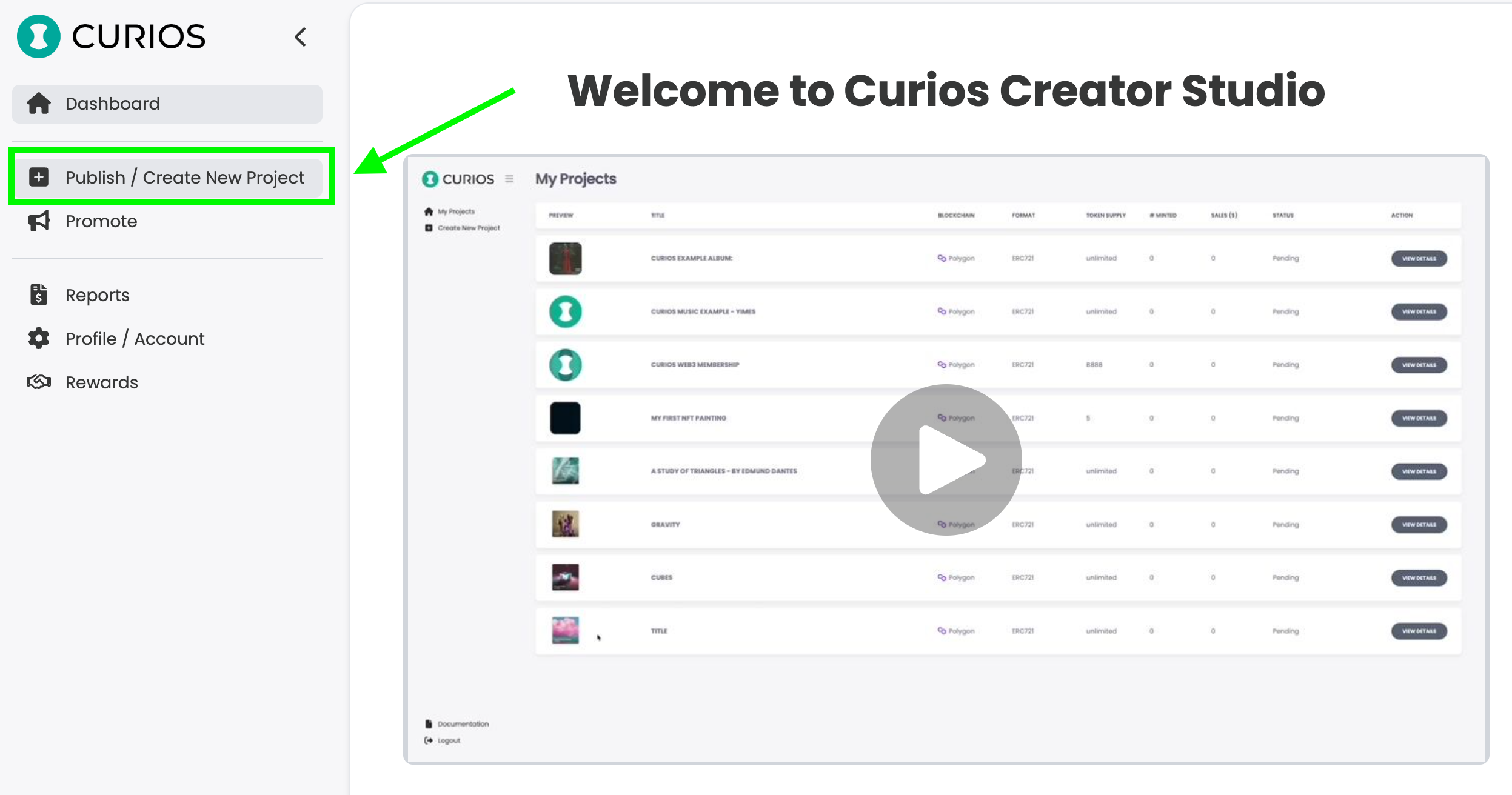
Login to studio.curios.com and click "+ Publish" in the left hand menu.
Next, select book from the options available.
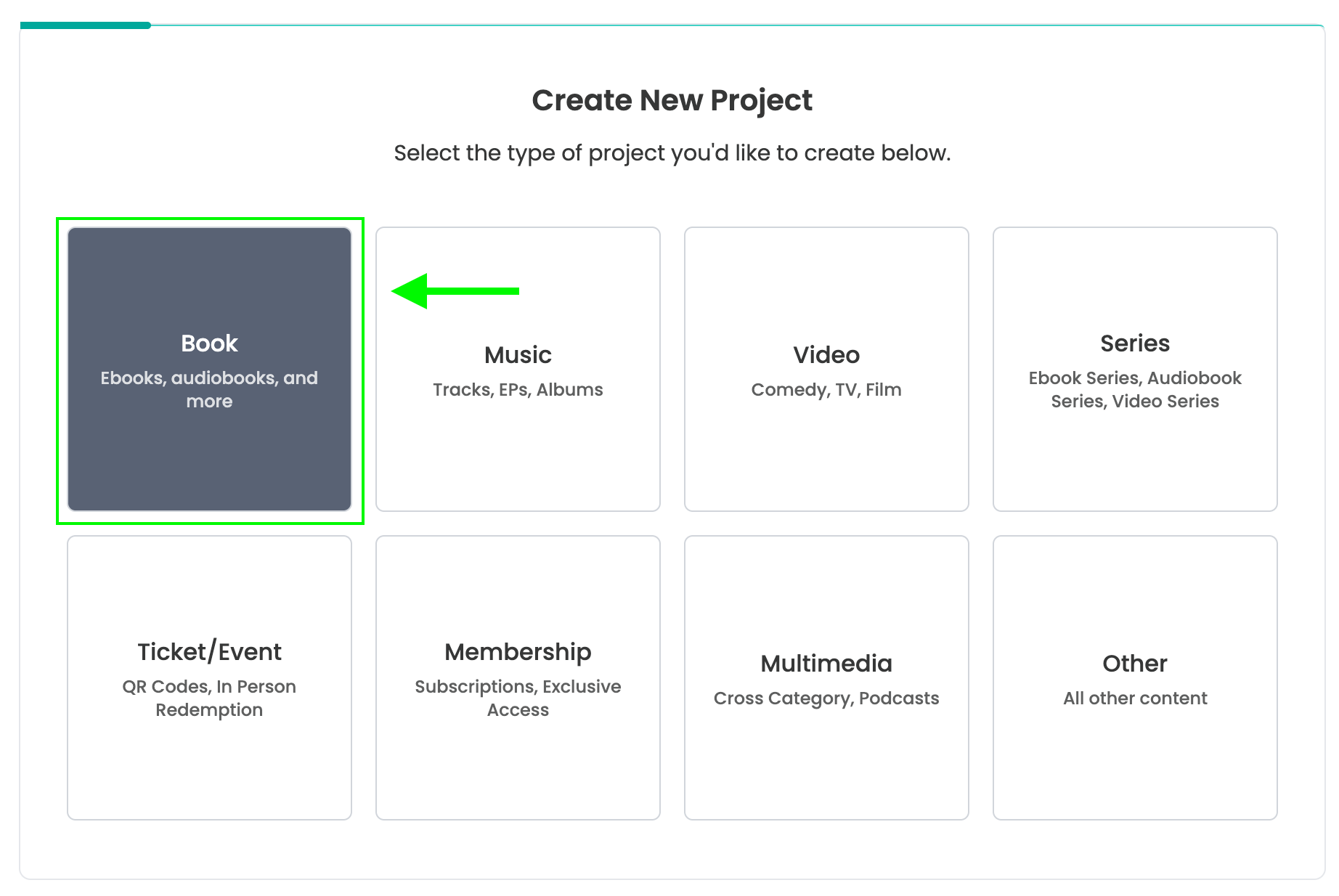
Note: if the ebook is part of a series, please select series and follow the tutorial found on studio.curios.com/tutorials/upload-book-series
Step 3: Add the information for your Ebook
You will need to add a cover image, a title and a description for the Ebook
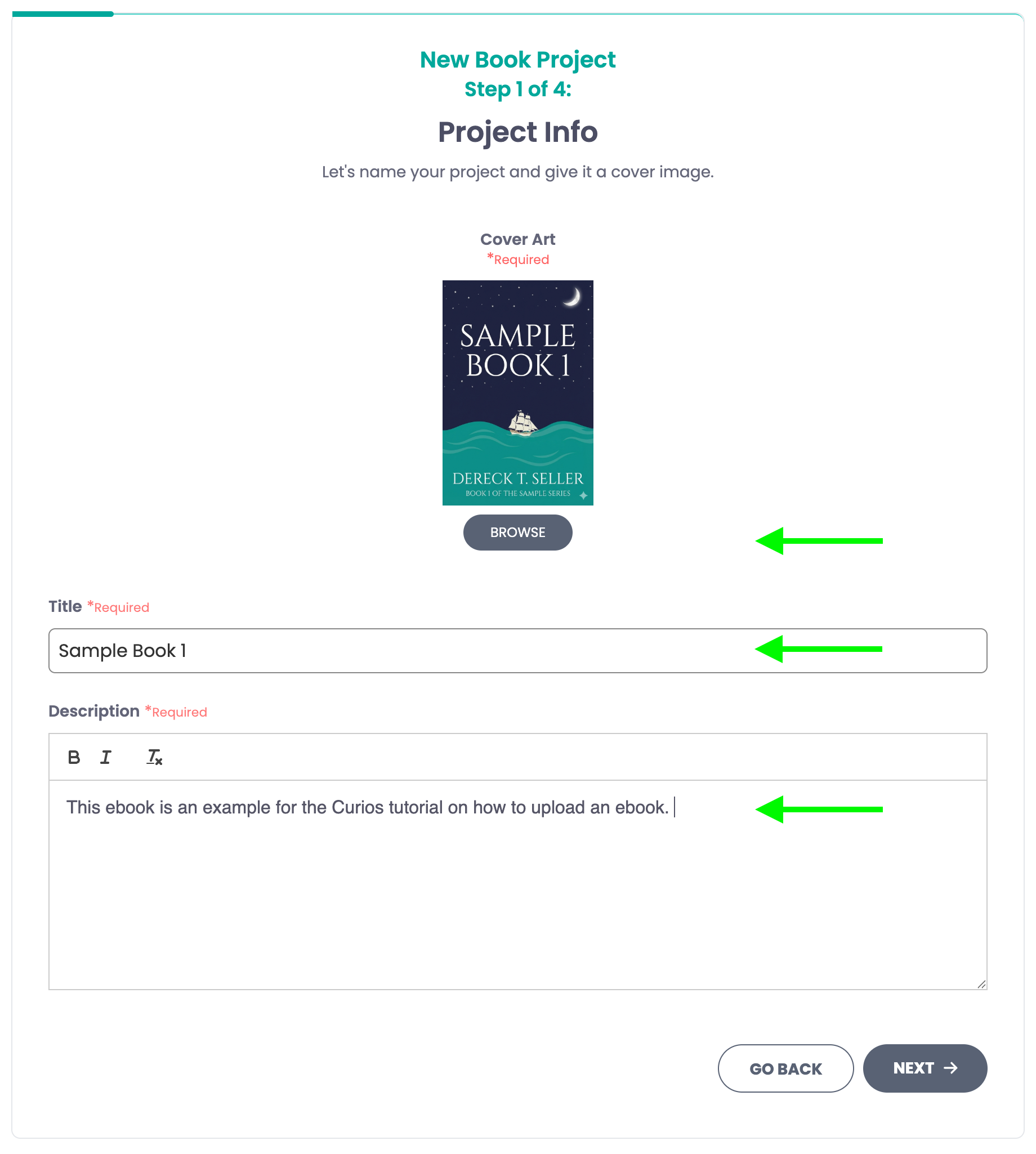
Step 4: Add the epub file for the Ebook
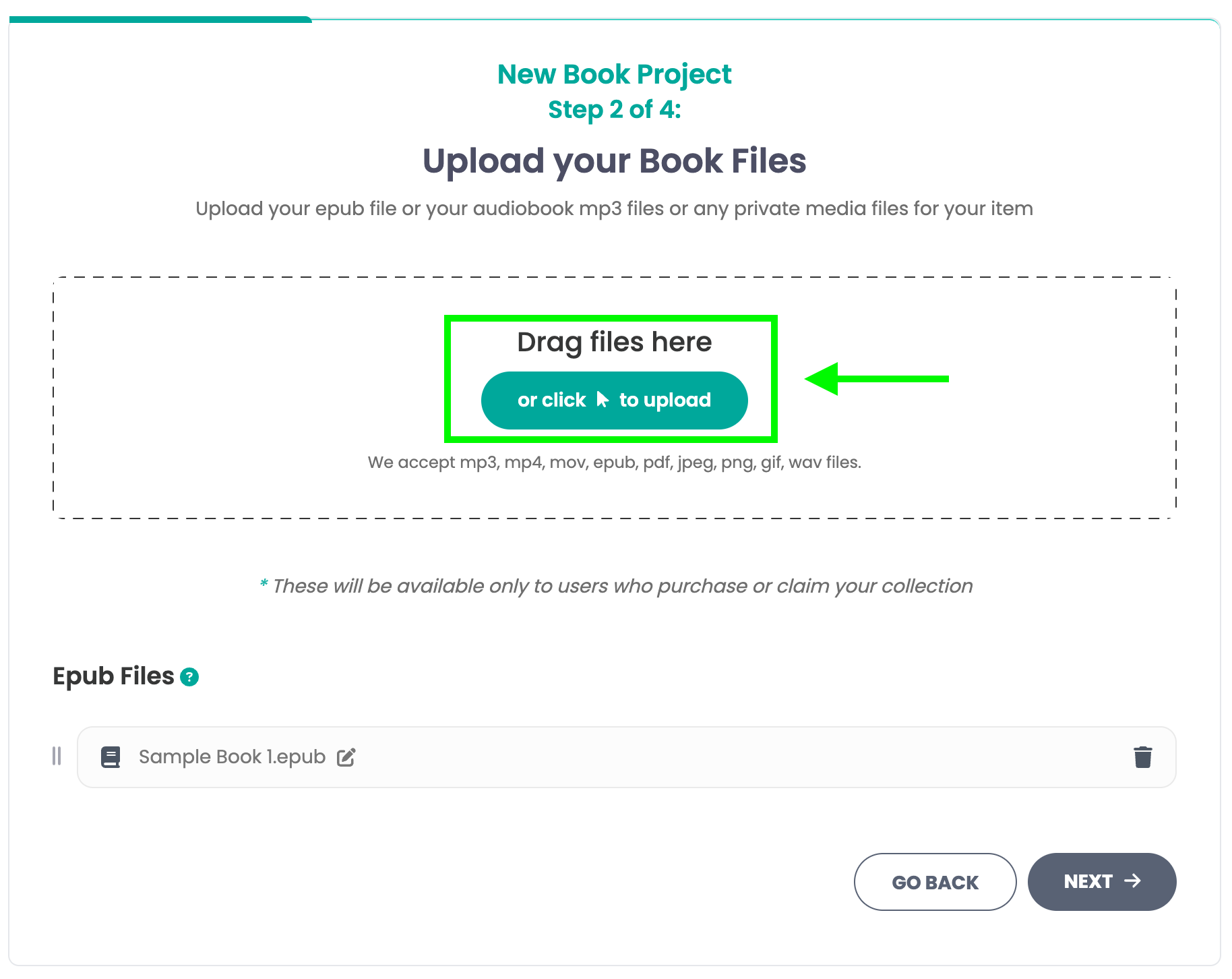
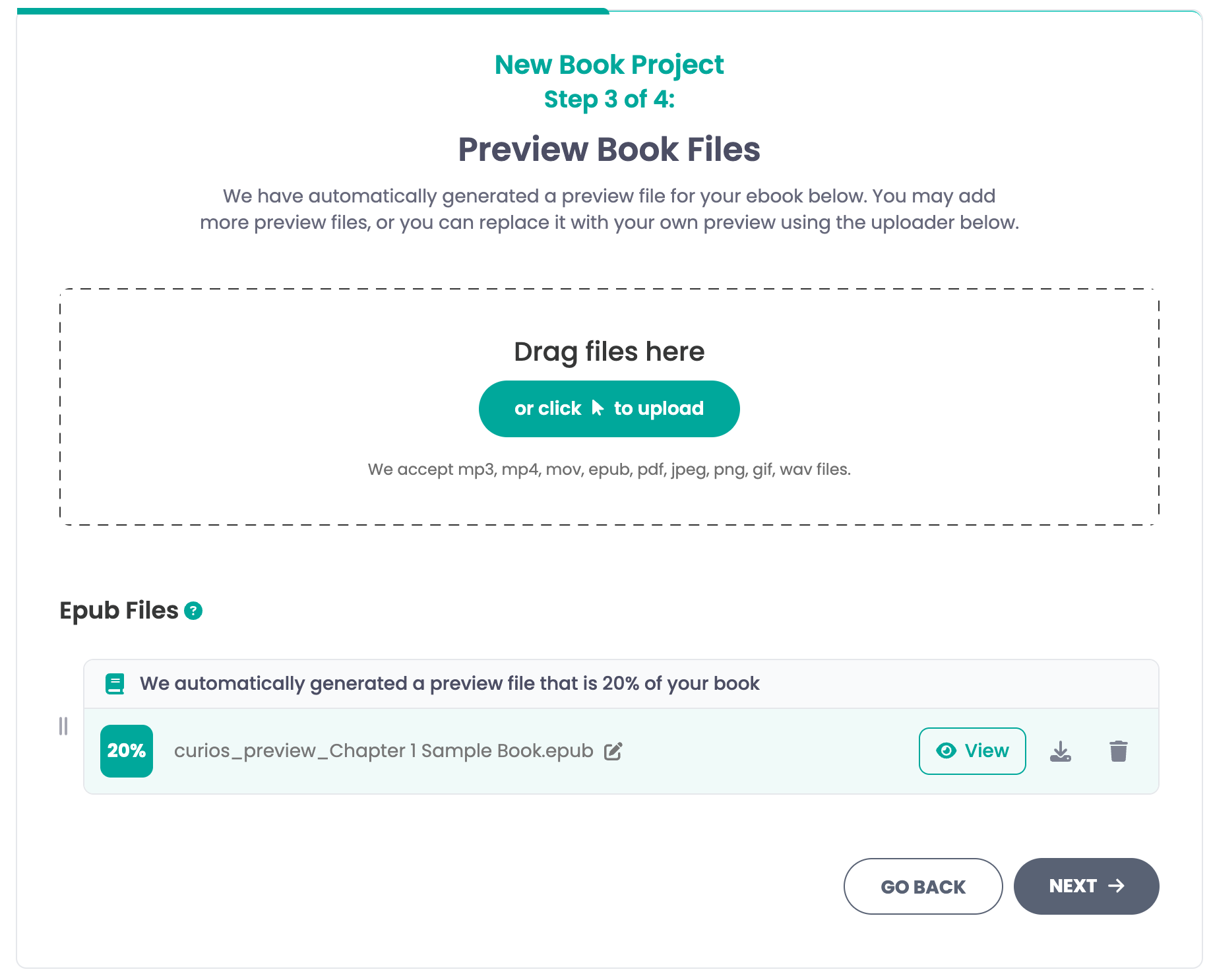
Step 5: Manage/Check Preview Files
For epub files, Curios automatically generates a preview file. You can delete this file and replace it with one of your own, and if you want you can always add more files here.
Step 6: Enter the price, book information, and set permissions
For the price you have two options, Buy Now and Free (Claim)
Free (Claim) is when you give the book away for free and only receive email addresses of anyone who "claims it"
Buy Now allows you to set a price for the book.
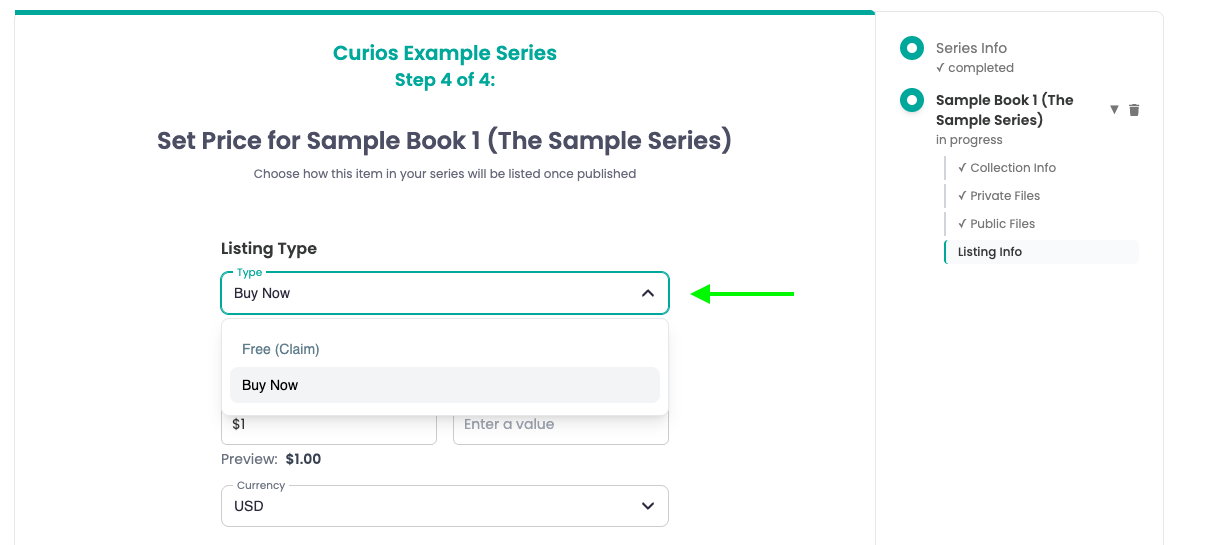
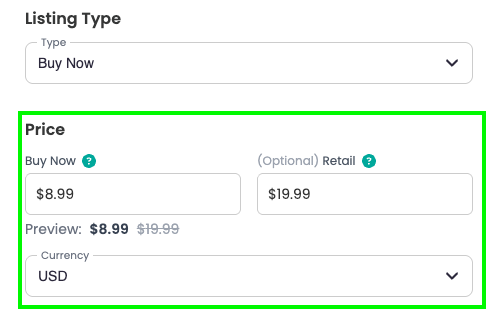
If you select Buy Now, you can set both a "Buy Now" price and a "Retail" price.
The buy now price is the exact amount of money you will receive for each sale on Curios. The retail price allows you to run a "sale" and show a discount to your ebook.
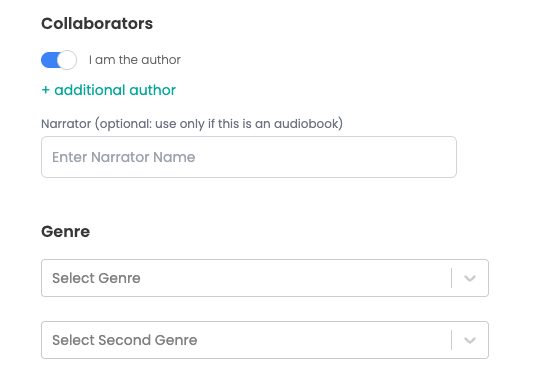
Additionally you are also able to add any collaborators, like narrators, and co-authors as well as an genre and sub genre information for your ebook.
Next for you will set your permissions for the ebook
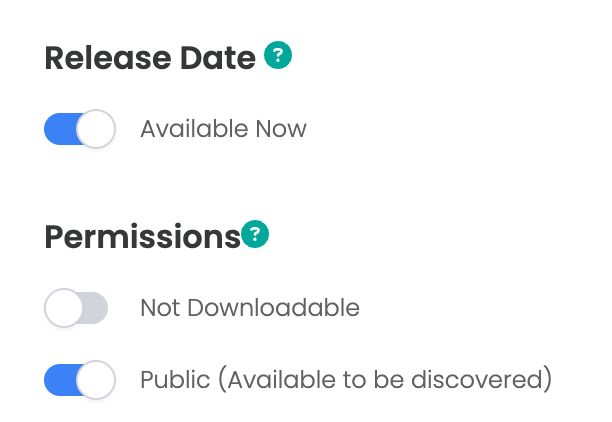
Setting a release date of "Available Now" places the ebook live on Curios as soon as you hit the green "Publish" button
The "Not Downloadable" button specifies if the book is downloadable or not.
Note: Downloadability is not required. Your readers/listeners can always access their content on Curios via the website or the app and on any of our partner apps like Kindle, Bookfunnel, Kobo, and Nook.
Finally, you can either save draft or publish the book live on the Curios marketplace.

Step 8: Check
Visit the Curios pages for each item uploaded and check to be sure all information was entered correctly. You can access your links in the dashboard on studio.curios.com
You can always update or change any information associated with this ebook in the studio.
If you run into any issues you can always contact curios support, we are here to help!
Upload and Sell Your Ebooks
For any ebook of yours on Curios:
• You keep 100% of any sales (you can also give books away for free)
• You get the contact information of your purchasers/readers
• You maintain total control of your IP at all times.
Step 1: Content Gathering/Prep
1. Have a tall rectangular jpeg of your cover art for each book.
a. The recommended size for an Ebook is a tall, rectangular image at 1,600 x 2,400 pixels.
b. Include the book title and the author name(s) in the cover image.
2. Have a compelling description for your ebook.
3. Have your book saved as an epub file
4. Have a sale price in mind. (free is an option on Curios as well)
Step 2: Login to The Curios Studio and Click "+ Publish"
Login to studio.curios.com and click "+ Publish" in the left hand menu.
Next, select book from the options available.
Note: if the ebook is part of a series, please select series and follow the tutorial found on studio.curios.com/tutorials/upload-book-series
Step 3: Add the information for your Ebook
You will need to add a cover image, a title and a description for the Ebook
Step 4: Add the epub file for the Ebook
Step 5: Manage/Check Preview Files
For epub files, Curios automatically generates a preview file. You can delete this file and replace it with one of your own, and if you want you can always add more files here.
Step 6: Enter the price, book information, and set permissions
For the price you have two options, Buy Now and Free (Claim)
Free (Claim) is when you give the book away for free and only receive email addresses of anyone who "claims it"
Buy Now allows you to set a price for the book.
If you select Buy Now, you can set both a "Buy Now" price and a "Retail" price.
The buy now price is the exact amount of money you will receive for each sale on Curios. The retail price allows you to run a "sale" and show a discount to your ebook.
Additionally you are also able to add any collaborators, like narrators, and co-authors as well as an genre and sub genre information for your ebook.
Next for you will set your permissions for the ebook
Setting a release date of "Available Now" places the ebook live on Curios as soon as you hit the green "Publish" button
The "Not Downloadable" button specifies if the book is downloadable or not.
Note: Downloadability is not required. Your readers/listeners can always access their content on Curios via the website or the app and on any of our partner apps like Kindle, Bookfunnel, Kobo, and Nook.
Finally, you can either save draft or publish the book live on the Curios marketplace.
Step 8: Check
Visit the Curios pages for each item uploaded and check to be sure all information was entered correctly. You can access your links in the dashboard on studio.curios.com
You can always update or change any information associated with this ebook in the studio.
If you run into any issues you can always contact curios support, we are here to help!