
Setting up your creator profile
On this page
Your creator profile is the first thing potential fans see when they discover your work on Curios. Make it count with these optimization tips.
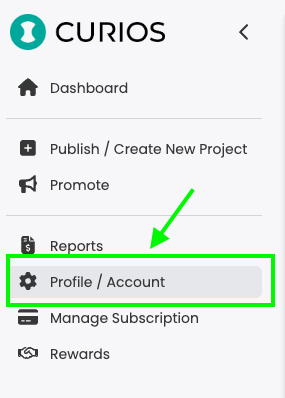
First, login to studio.curios.com with your email, then click on the "My Profile/Account" item in the left hand menu.
Here you will see a place to upload your photo, and enter details about you or your group.
Display Name
Display Name is what is shown across our website. This should be your band name, pen name, group name, or whatever your fans know you by.
Username
Username is what we use for your url. The Username has no spaces or special characters.
Description
A good description helps your fans get to know you and understand that you are the right creator they are looking for. You'll want to be descriptive about who you are and what you make so if you share a name with another creator, your description and photo can help people tell who is who.
Profile Photo Guidelines
A professional, high-quality profile photo builds trust and helps fans connect with you as a creator.
High resolution: Use at least 400x400 pixels for crisp display across all devices.
Clear and professional: Choose a photo where your face is clearly visible and well-lit.
Brand consistency: Use the same photo across your social media for recognition.
Recent photo: Keep your profile photo current and representative of you today.
Related articles
- TutorialTrack Your Meta Ad Conversions on Curios: Setting Up Meta Pixel and the Conversions APICurios places your Meta Pixel on your marketplace pages and reports every sale server-side through the Conversions API, so Facebook and Instagram ads can be optimized against real purchases.
- TutorialLet Your Creator Friends Sell Your Work: How to Use the Curios Affiliate ProgramDecide which products other creators can promote and what they earn per sale. Curios handles the tracking and the payout math, so your friends just share a link.
- TutorialRecommendations and reviews on content: what they are, how they work, and how to make the most of themCurios uses recommendations rather than star ratings, giving customers a simple way to endorse the work they love. Learn how recommendations differ from traditional reviews, where to find them in Creator Studio, and how to feature or hide the ones you've received.