
Connect Meta Pixel and Conversions API
On this page
Connect Meta Pixel and Conversions API
See which Facebook and Instagram ads actually sell your work, not just which ones get clicks. Setup takes about five minutes and needs no developer.
Measure real sales
Meta reports purchases and order value for each campaign, so you can see your return on ad spend.
Reach likely buyers
Meta can optimize your ads toward people who buy, and build retargeting and lookalike audiences.
Count blocked sales too
The Conversions API reports sales from our servers, even when a buyer's browser blocks tracking.
What you'll need
A Meta Business account with access to Events Manager, and a Meta Pixel (Meta also calls it a "dataset"). You need admin access to the pixel to create the Conversions API token.
How the two pieces work together
When Meta receives the same purchase both ways, it counts it once, so you won't see doubled sales in Ads Manager.
1Find your Pixel ID in Meta
- Open Events Manager in your Meta Business account.
- Select your pixel in the data sources list. No pixel yet? Go to Connect data sources → Web → Meta Pixel to create one.
- Copy the Pixel ID: the 15 to 16 digit number under the pixel's name.
2Add your Pixel ID in Creator Studio
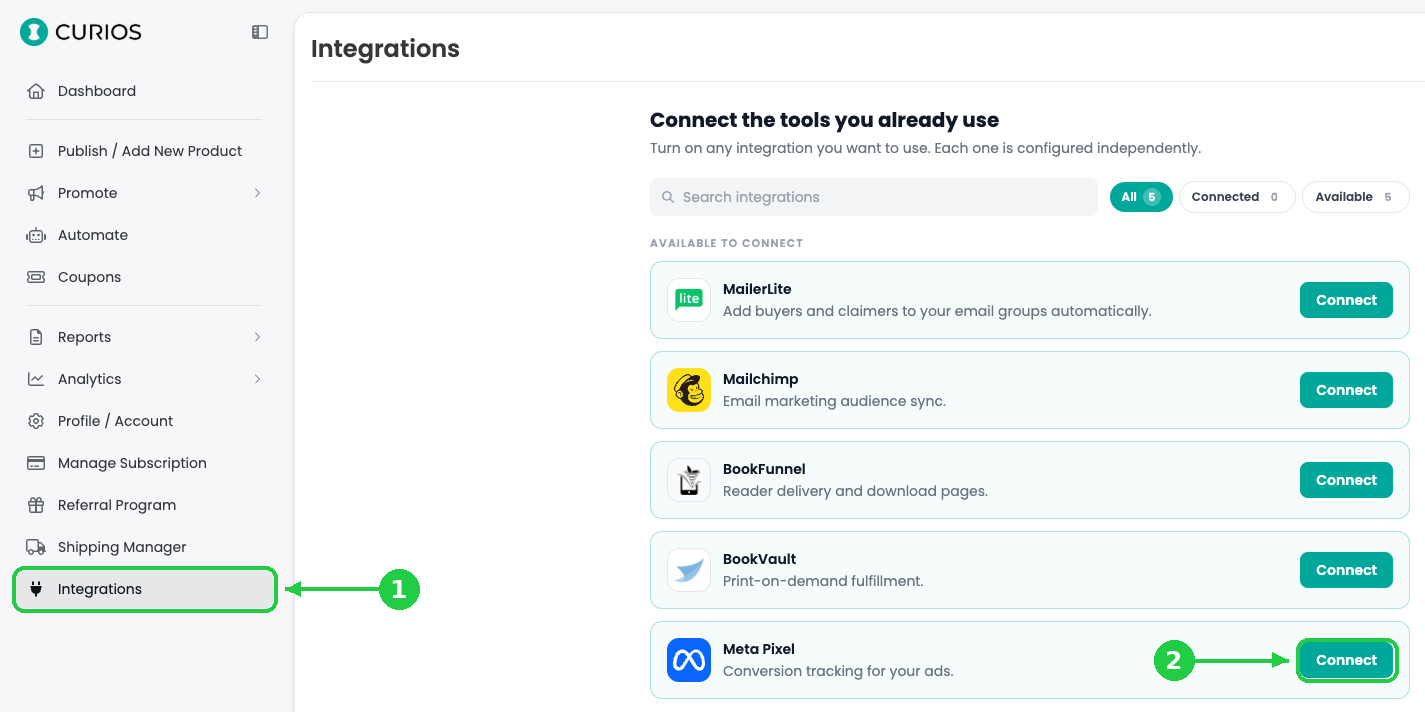
- Log in at studio.curios.com and click Integrations in the left menu (1).
- Under Available to connect, find Meta Pixel and click Connect (2).
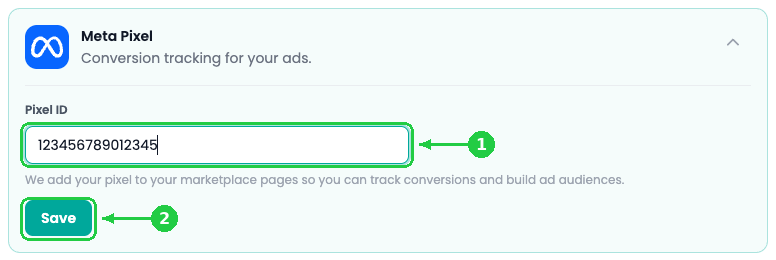
- Paste your Pixel ID into the Pixel ID field (1).
- Click Save (2). Meta Pixel moves to Already connected with a Connected badge.
3Create a Conversions API token in Meta
- In Events Manager, select your pixel and open the Settings tab.
- Scroll to Conversions API. Under Set up manually, click Generate access token.
- Copy the token. Meta shows it only once. If you lose it, generate a new one.
4Connect the Conversions API in Creator Studio
- Back in Integrations, click Manage on the Meta Pixel card.
- Under Conversions API access token (it shows Not connected), paste your token (1).
- Click Connect (2).
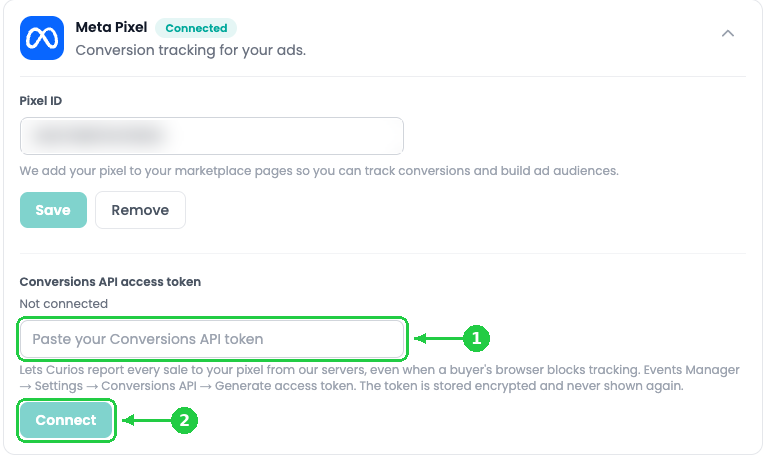
The token is stored encrypted and never shown again. Keep your own copy if other tools need it.
5Check that events arrive
- In Events Manager, select your pixel and open Test events.
- Visit one of your Curios product pages. Within a minute you should see events with the connection method Browser. After a purchase, you'll also see Server.
- A day later, check the Overview tab for the Event match quality score and deduplication rate.
What Curios sends to Meta
For every completed order, Curios sends a Purchase event to your pixel with the order value and currency. Curios sends only what Meta needs to match a purchase to an ad.
Put the data to work
Change or remove the connection
- To change your pixel, click Manage, edit the Pixel ID and click Save.
- To replace the Conversions API token, generate a new one in Meta and connect it. It replaces the old one.
- To disconnect, click Remove. This also stops server-side events.
FAQ
Can I use more than one pixel?
Does the pixel track visitors from affiliate links?
Will this slow down my product pages?
Do I need a developer?
Stuck? Contact Curios support. We're here to help.
Related articles
- TutorialCreate Coupon CodesRun a sale, reward your newsletter or thank a superfan. Create a discount code and choose what it covers, when it runs and how many times it can be used.
- TutorialSet Up Your Affiliate ProgramLet other creators and fans sell your work for a commission you set. Choose your products, check your take-home, and share your catalog link.
- TutorialEarn Money Promoting Other CreatorsRecommend books your audience will love and earn up to 50% of every sale your link brings in. Here's how to find titles, get your link and get paid.