
Create Coupon Codes
On this page
Create Coupon Codes
Make a discount code for your newsletter, a launch week, a convention or one loyal fan. You choose how much it takes off, which products it covers and when it stops working.
Reward the right people
Give a code to subscribers, event crowds or superfans. Nobody else sees it.
Run timed sales
Set a start and end date for flash sales and launch codes.
Stay in control
Cap total uses, require a minimum order or pause a code at any time.
Your code only discounts your products
If a customer has other creators' items in the same cart, your code leaves them alone.
1Open Coupons
- Log in at studio.curios.com.
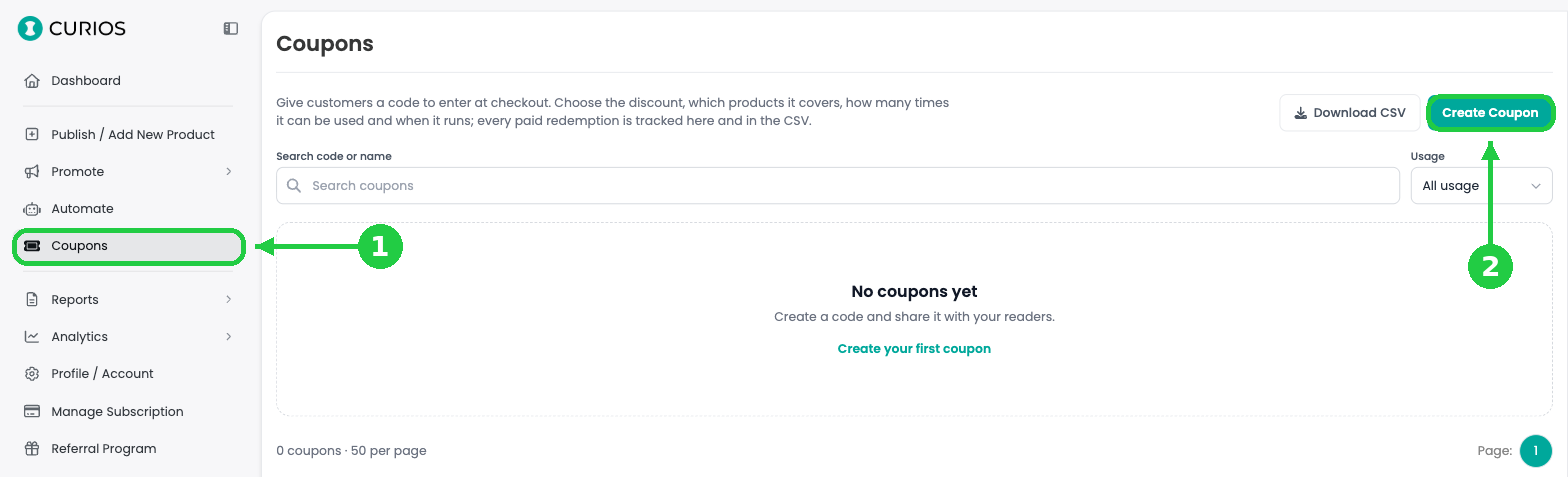
- In the left menu, click Coupons (1).
- Click Create Coupon (2).
2Name your code
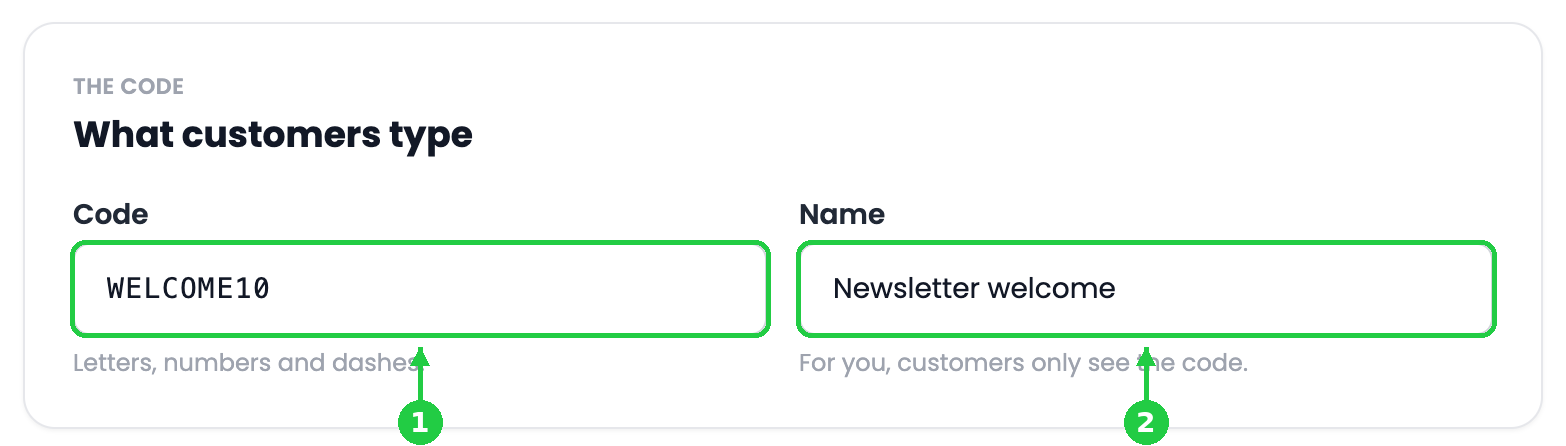
- Code (1): what customers type at checkout. Use letters, numbers and dashes. Studio capitalizes it for you.
- Name (2): a label only you see, such as "Newsletter welcome" or "Con giveaway".
3Set the discount
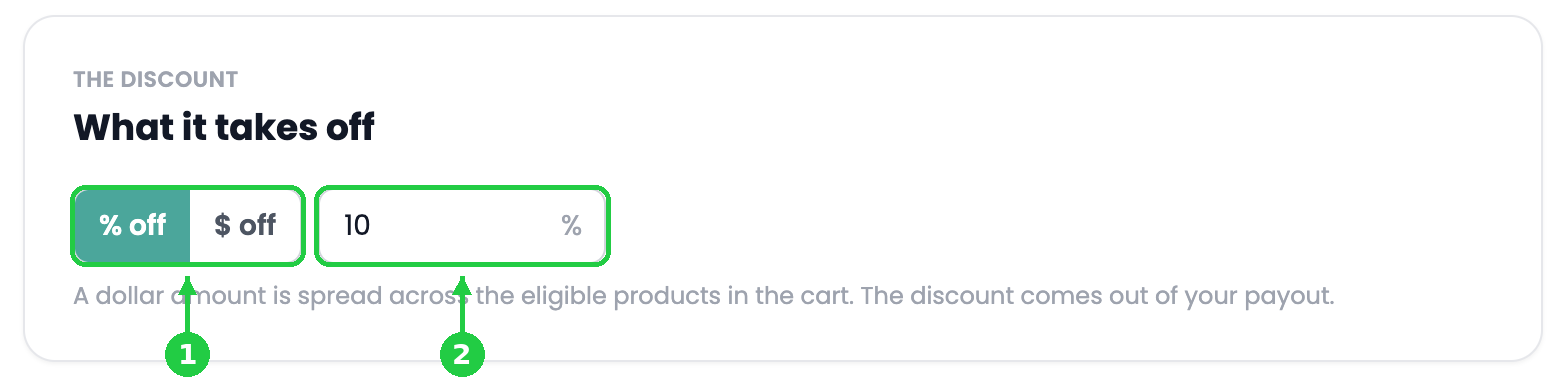
- Choose % off or $ off (1).
- Enter the amount (2). A percentage can go up to 100.
4Choose which products it covers
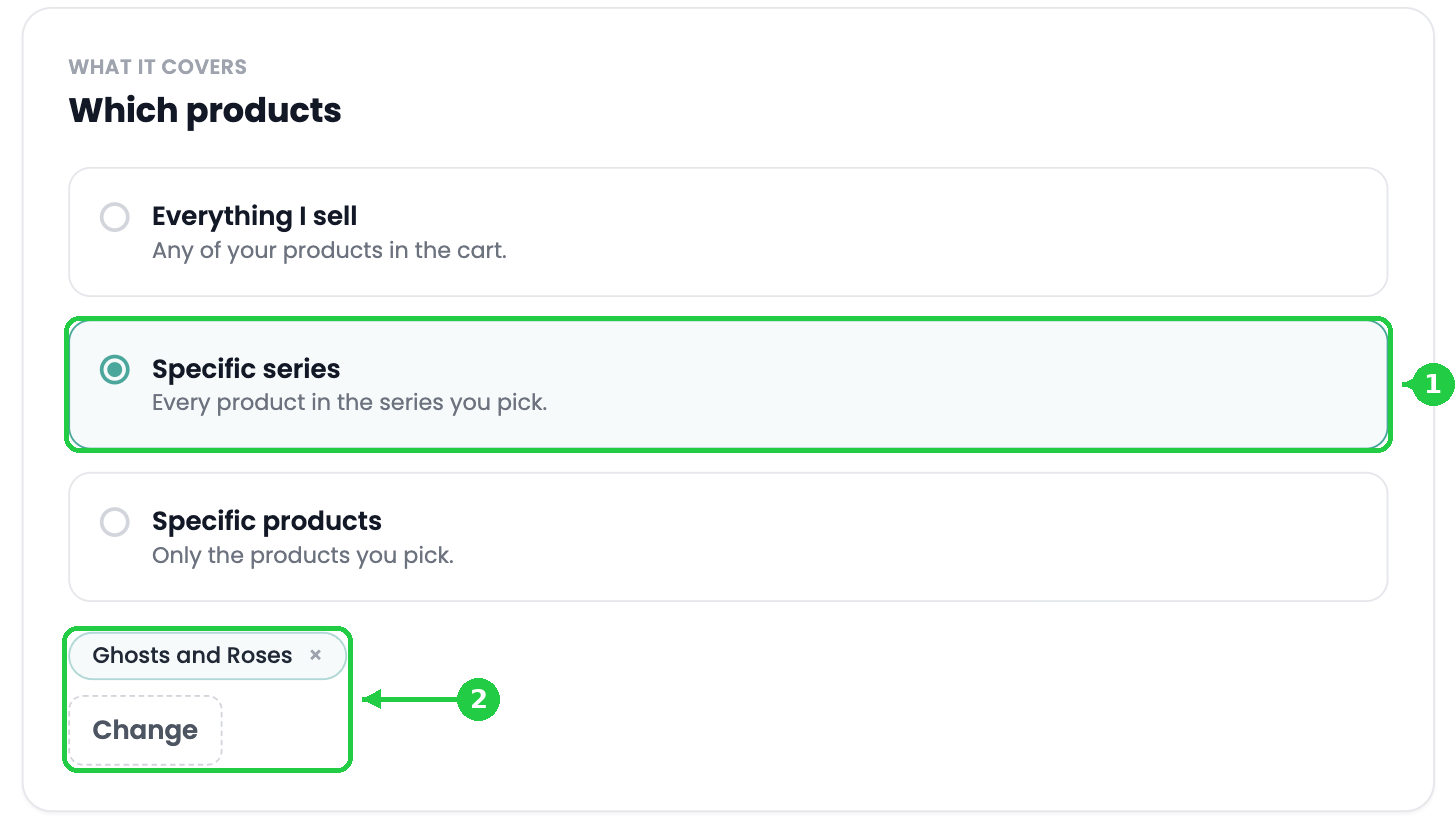
- Click Specific series or Specific products. A picker opens.
- Search or filter your catalog, then click the circle next to each item you want (1).
- Click Select (or Add products) (2).
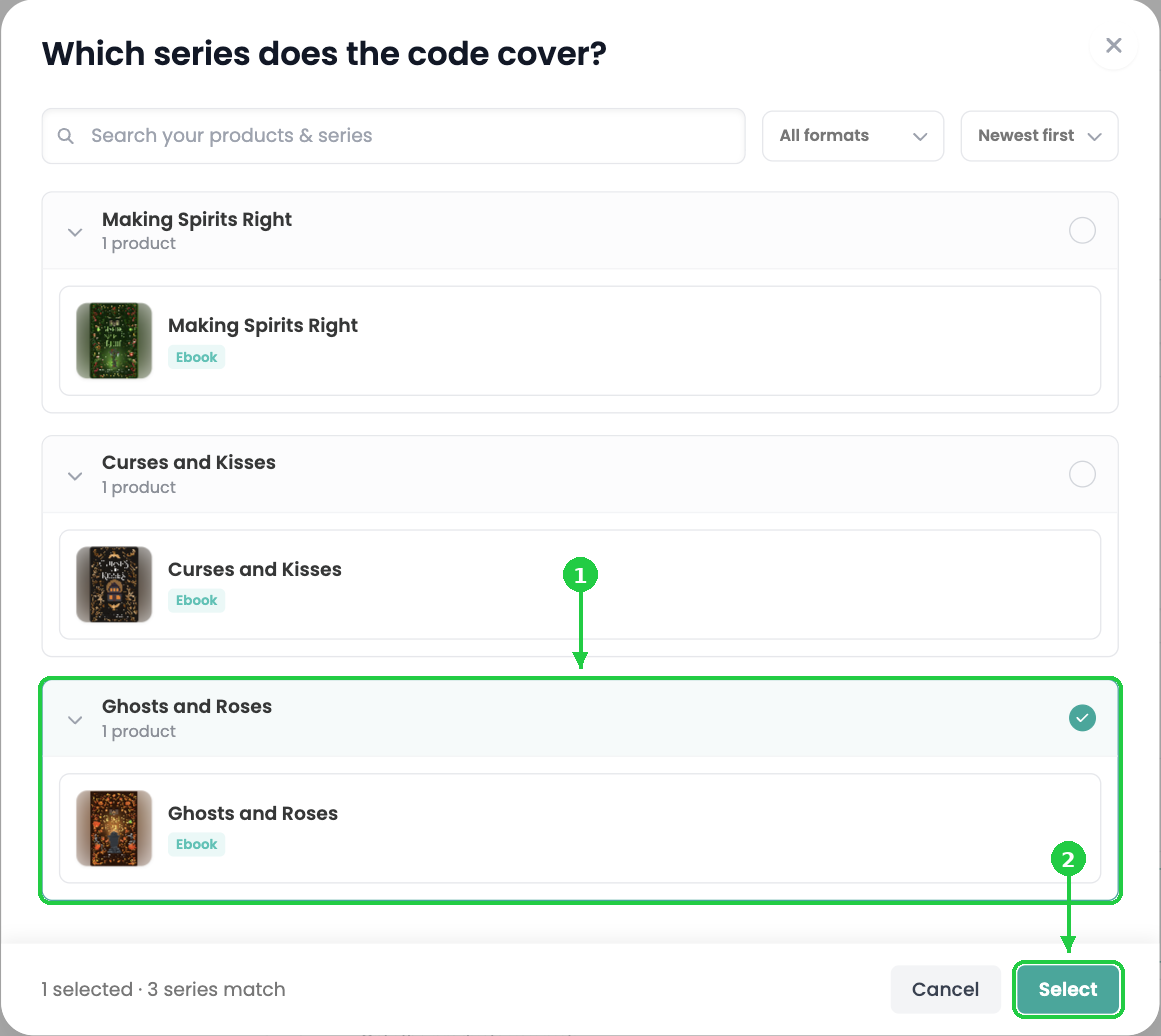
- Your picks appear under the options (2). Click Change to edit them.
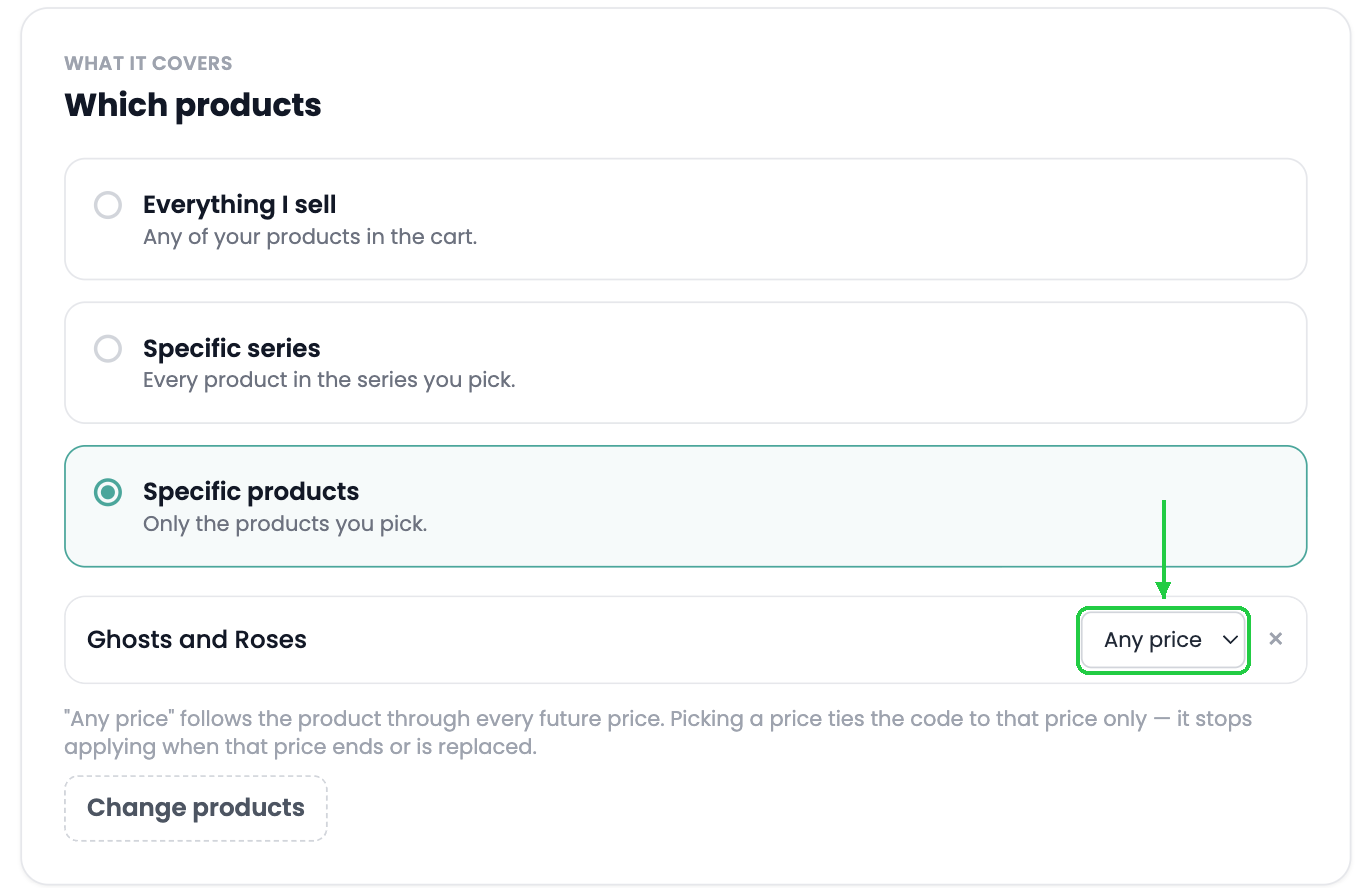
If you picked specific products, each one gets a price menu.
- Leave Any price to keep the code working if you change the price later. Pick one price to tie the code to that price only. It stops applying when that price ends or is replaced.
Products that can't be bought right now show NOT FOR SALE in the picker and can't be selected. Turn on Show private to include private products.
5Set when it works
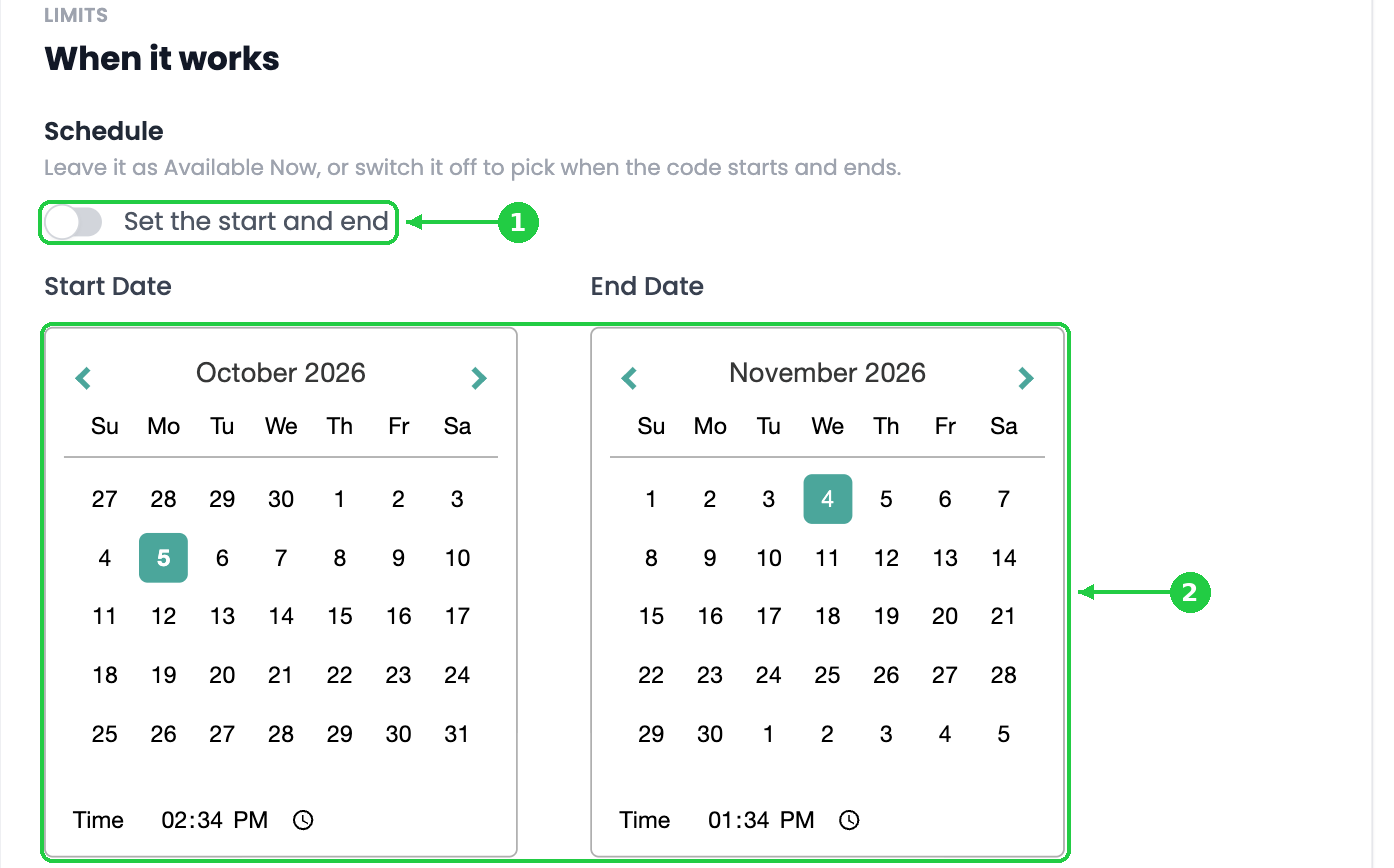
- Leave Available Now switched on to start the code as soon as you save. It runs until you stop it.
- For a timed sale, switch it off (1). The label changes to Set the start and end.
- Pick a Start Date and End Date, then set each time (2). The end must be after the start.
6Add limits
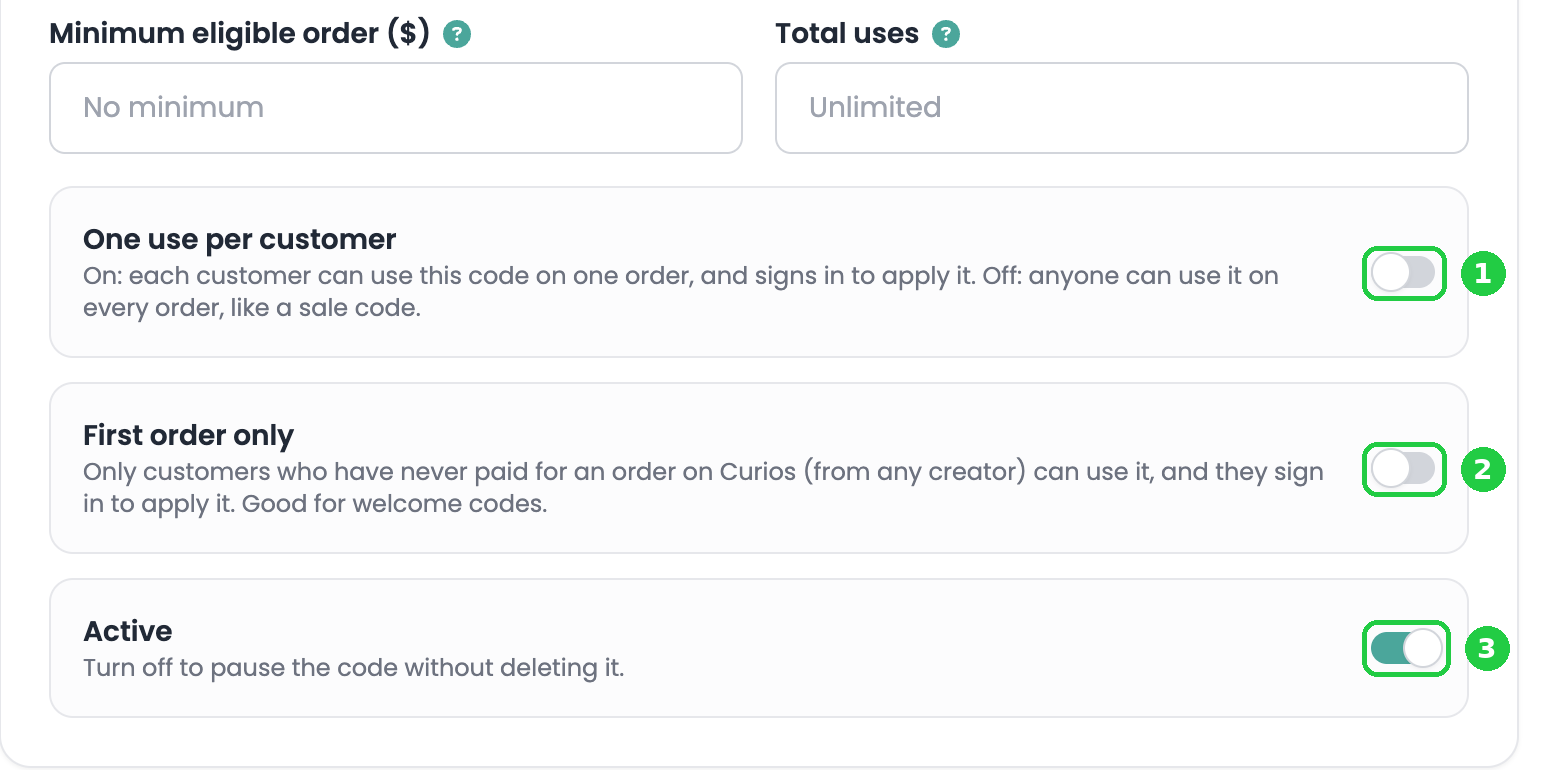
All limits are optional. Leave a field empty for no limit.
Default: off
Default: off
Default: on
7Save your coupon
- Click Create coupon at the bottom right.
- Share the code with your readers.
Manage your coupons
Each code on the Coupons page shows a status:
| Status | Meaning |
|---|---|
| Active | Working right now. |
| Scheduled | Saved, but the start date hasn't arrived. |
| Expired | Past its end date. |
| Fully redeemed | Reached its total-use cap. |
| Inactive | Paused with the Active switch. |
- Click the pencil icon to edit a coupon. You can change anything, including the code.
- Click the trash icon to delete it. Orders that already used it keep their discount. To keep the code for later, pause it with Active instead.
Ready-made setups
| Goal | Discount | Covers | Limits |
|---|---|---|---|
| Newsletter welcome | 10% off | Everything I sell | First order only |
| Launch week | 20% off | Specific series (the new book) | Start and end dates for launch week |
| Superfan thank-you | $5 off | Specific products, pinned to today's price | Minimum order $15, one use per customer, total uses = number of fans |
| Clear old stock | 30% off | Specific products (that edition) | Total uses = copies on hand |
| Convention code | 15% off | Everything I sell | Start and end dates for the event, one use per customer off |
What customers see
At checkout, customers type the code into the Coupon code field and click Apply. The total updates right away, and a Remove link appears.
If a code doesn't apply, check the minimum order, the covered products, the schedule and the use limits.
FAQ
Can customers use more than one code?
Does a coupon combine with an affiliate link discount?
How does a coupon affect my payout?
Can I reuse a code after deleting it?
Can I see who used a code?
What happens if a covered product becomes unavailable?
Stuck? Contact Curios support. We're here to help.
Related articles
- TutorialConnect Meta Pixel and Conversions APISee which Facebook and Instagram ads actually sell your books. Connect your Meta Pixel and the Conversions API in about five minutes, with no developer needed.
- TutorialSet Up Your Affiliate ProgramLet other creators and fans sell your work for a commission you set. Choose your products, check your take-home, and share your catalog link.
- TutorialEarn Money Promoting Other CreatorsRecommend books your audience will love and earn up to 50% of every sale your link brings in. Here's how to find titles, get your link and get paid.