TutorialsGeneral

Let Your Creator Friends Sell Your Work: How to Use the Curios Affiliate Program

On this page

If you've ever ended a newsletter with "and if you liked my book, check out my friend's new release," you already understand affiliate marketing. The Curios Affiliate Program formalizes that: you decide which of your products other creators can promote and how much they earn per sale, and Curios handles the tracking and the payout math. Your friends get a link, they share it with their audience, and every purchase through that link pays them a commission.

This tutorial covers both sides: setting up your products as the creator, and how an affiliate finds and shares your links.

How it works in 30 seconds

  1. You opt your products into the program and set a commission rate (and, optionally, a buyer discount).
  2. Your products appear in the affiliate marketplace, and your catalog gets its own URL: https://partners.curios.com/catalog/{your-username}.
  3. A fellow creator (or any partner) opens your catalog, copies a link to a product, and shares it in their newsletter, social posts, or website.
  4. When someone buys through that link, the affiliate earns the commission you set. You keep the rest, minus the Curios platform fee.

Part 1: Opt your products in (creator side)

Step 1: Open the Affiliate Program page

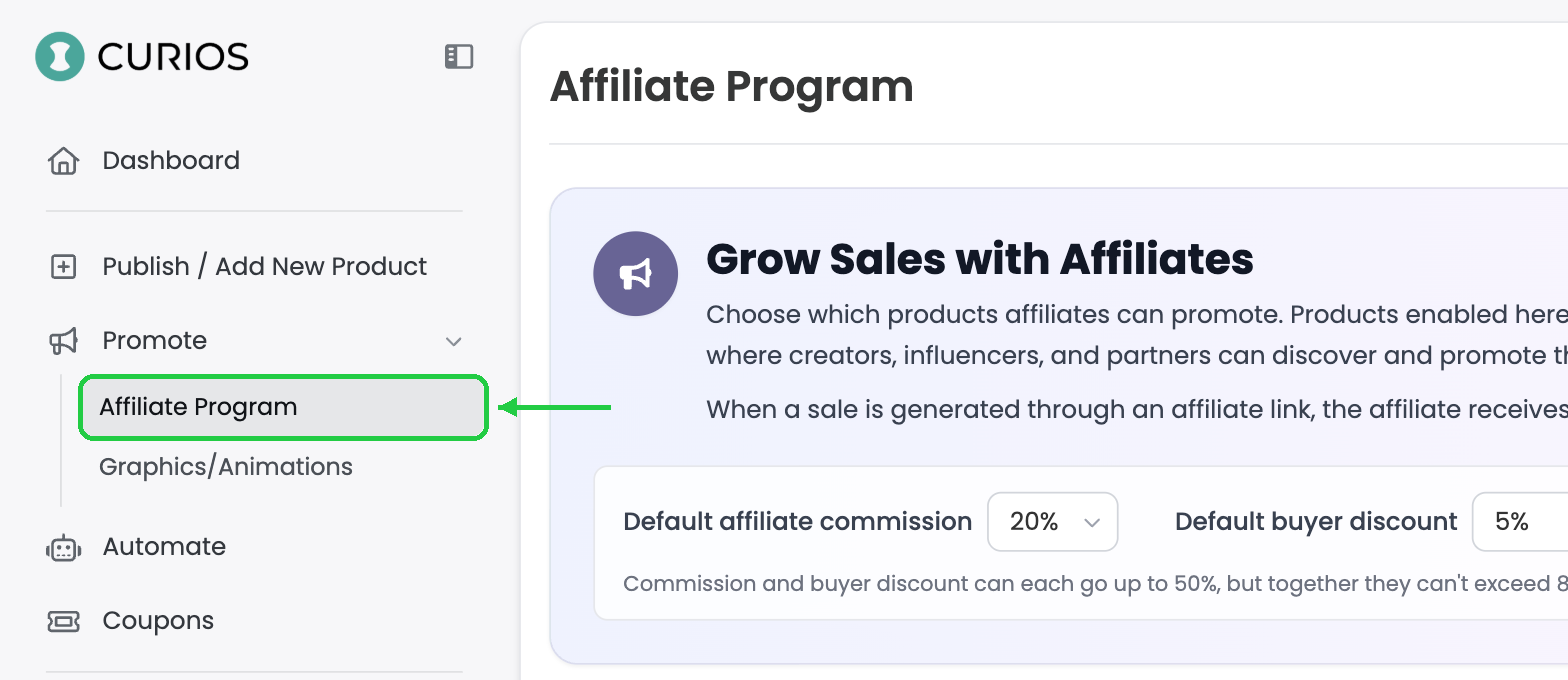
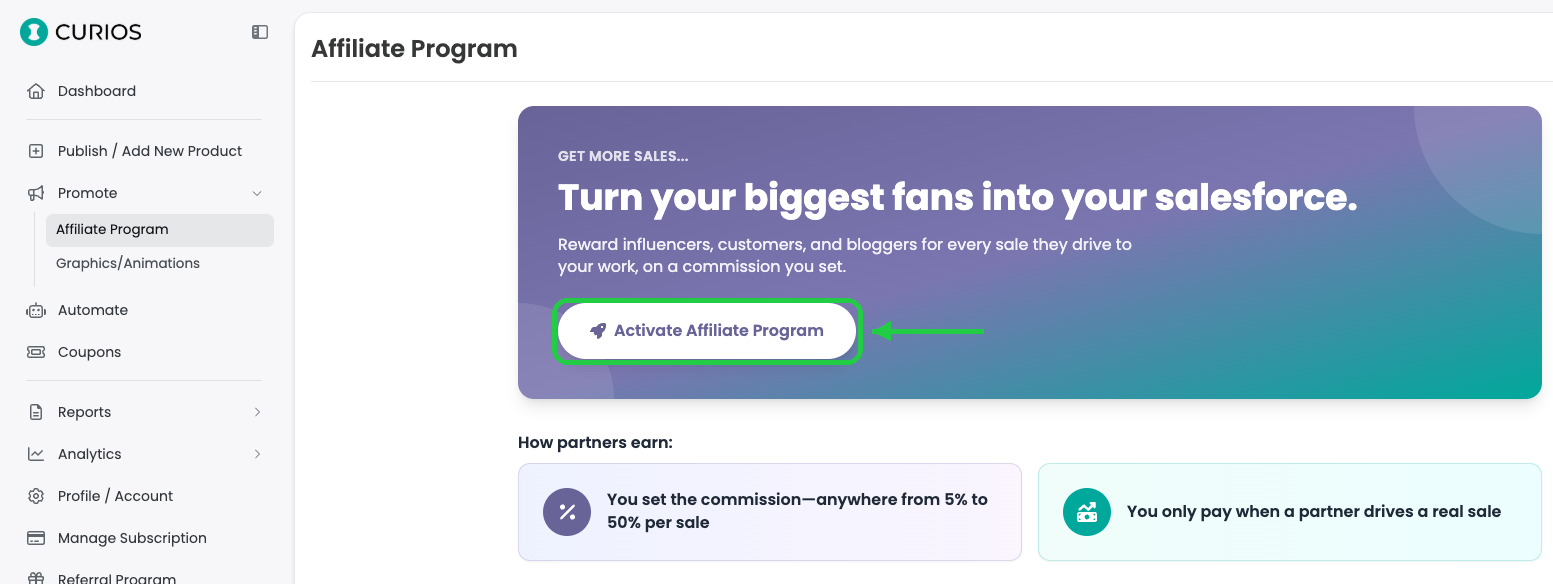
In Creator Studio, go to Promote → Affiliate Program, or head straight to studio.curios.com/promote/affiliate.

Step 2: Set your defaults

At the top of the page you'll find two dropdowns that apply to every product you enable:

  • Default affiliate commission (5%–50%): the share of the sale price the affiliate earns.
  • Default buyer discount (0%–50%): an optional discount the buyer receives when purchasing through an affiliate link. A discount gives your affiliate something concrete to offer their audience ("get 10% off with my link"), which usually lifts conversion.

One rule to keep in mind: commission and buyer discount can each go up to 50%, but together they can't exceed 80%.

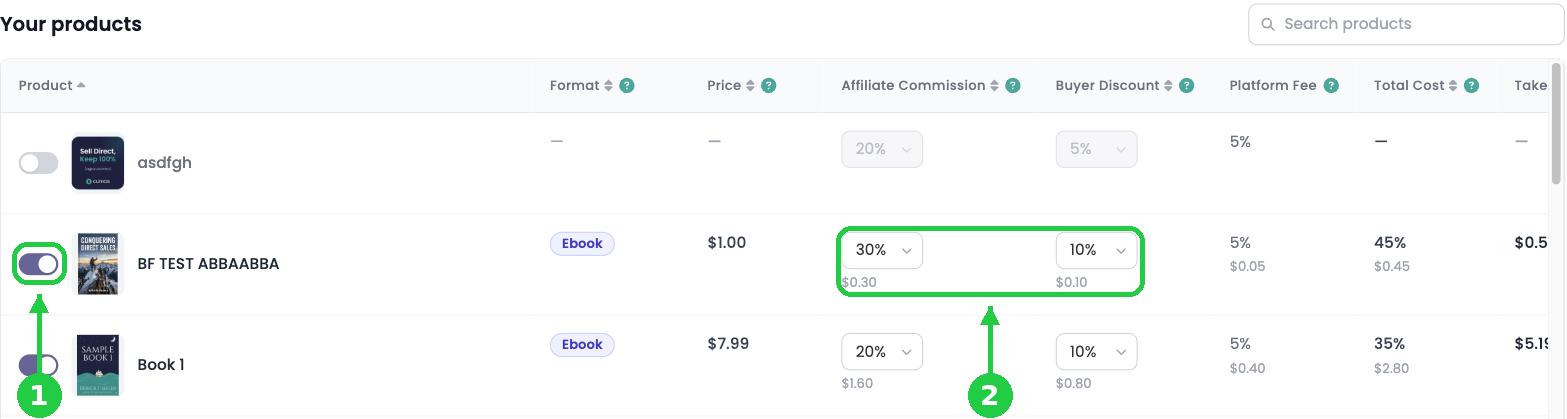
Step 3: Enable products

You have two options:

  • Enable all: turns on every product in your catalog at the default rates.
  • Per-product toggles: flip the switch next to individual products. Use the search box if you have a large catalog.

Once a product is enabled, its commission and discount dropdowns become editable, so you can override the defaults for specific items. A common pattern is a higher commission on a low-priced ebook to encourage promotion, and a lower one on a hardcover where margins are tighter.

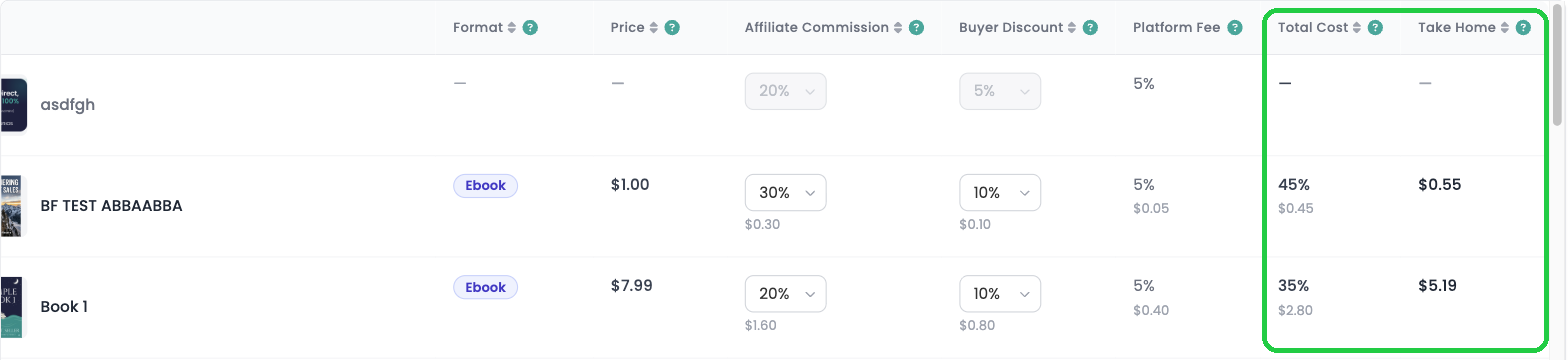
Step 4: Check your take-home before you commit

Each product row shows you exactly what a sale will look like:

ColumnWhat it means
FormatThe format(s) this product is available in (ebook, paperback, audiobook, etc.)
PriceYour current selling price. If you've set a higher retail price, it appears struck through. Dollar figures in the row are based on the selling price.
Affiliate CommissionThe percentage and dollar amount the affiliate earns per sale
Buyer DiscountThe percentage and dollar amount the buyer saves
Platform FeeCurios' fee on each affiliate-driven sale. It depends on your subscription plan: 10% Lite, 7% Plus, 5% Pro. Click Lower fee to upgrade.
Total CostEverything that comes out of the sale: commission + discount + platform fee
Take HomeWhat you keep per sale after all three. This does not include print costs for paperback or print-on-demand products.

Example: a $1.00 product with a 20% commission, 10% buyer discount, and 7% platform fee has a total cost of 37% ($0.37) and a take-home of $0.63.

Changes save automatically. There's no separate "publish" step.

Part 2: How your affiliates promote you

Your affiliates never need access to your Creator Studio. Everything they need lives on the Curios Partners site at partners.curios.com.

Every creator in the program gets a personal catalog page:

https://partners.curios.com/catalog/{your-username}

For example: https://partners.curios.com/catalog/GrantPowell

Send this link to the creators you'd like promoting your work. It shows only the products you've enabled, each with the commission the affiliate earns and any buyer discount you've set. The page header also summarizes your program at a glance: your top commission rate, how many titles are available, and the program's standing terms: no exclusivity, commissions credited instantly on each sale, and links that never expire.

What the affiliate does

  1. Signs in at partners.curios.com. Joining is free: they enter an email address (or sign in with Google or Apple) and confirm a one-time security code. There's no application or approval step.
  2. Opens your catalog link, or browses the full Product Catalog across all participating creators. The catalog is searchable by title, creator, or genre, and can be filtered and sorted by commission, price, or discount.
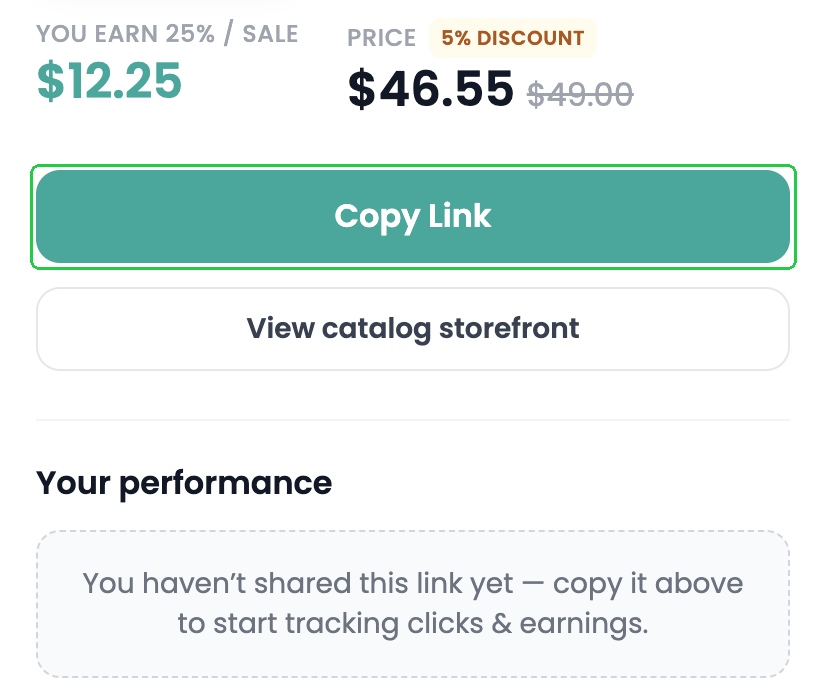
  3. Clicks Copy Link on the product they want to promote. Details opens a side panel with the product, the commission per sale, and a View catalog storefront link.
  4. Pastes that link into their newsletter, social post, or website.

There's also a Copy your storefront link button at the top of your catalog page, which gives the affiliate a single link to your entire storefront rather than one product.

What the affiliate sees afterward

The Partners Dashboard shows clicks, unique visitors, conversions, and earnings, both in total and per product. Bot and crawler clicks (link previews, search engines) are filtered out automatically, so the numbers reflect real people. The Earnings tab lists every commission with its date and amount.

Each sale is credited to the affiliate's available balance immediately. Withdrawing is a separate step: they click Request Payout whenever they want to cash out, or turn on Auto Pay to have payouts sent automatically.

Bonus: invite creators, earn 1%

Affiliates can also invite creators who aren't on Curios yet via the Invite Creators tab. If someone joins as a seller through their invite link, the affiliate earns 1% of every sale that creator makes for a year. That's a nice extra incentive for your friends to bring their own peers onto the platform.

Putting it to work: the newsletter swap

The most natural use of this program is a reciprocal arrangement between creators with overlapping audiences.

  1. You and a fellow author both opt in to the affiliate program.
  2. You each open the other's catalog page and copy the links for the books you want to feature.
  3. In your next newsletter, add a short "What I'm reading" section with your friend's book and your affiliate link. They do the same for you.
  4. Both of you earn a commission on the sales you drive for each other, and both of your readers discover a new author, possibly at a discount.

Because commission rates are set per product, you can be generous on the items you most want promoted and conservative on the rest.

Tips

  • Add a buyer discount. "10% off with my link" gives your affiliate a reason to feature you and gives their readers a reason to click now.
  • Watch the take-home column on print products. Print costs aren't included in that figure, so leave enough margin on paperbacks and print-on-demand items.
  • Consider your plan. If affiliate sales become a meaningful channel, the Plus (7%) or Pro (5%) platform fee versus Lite (10%) can add up. Use the Lower fee link on any product row to compare plans.
  • You can change rates any time. Raise a commission for a launch window, then dial it back afterward.

FAQ

Can I enable only some formats of a book?
Each format (ebook, audiobook, paperback, etc.) is its own row in the product table, so yes: toggle and price them independently.

Does the buyer discount come out of my share or the affiliate's?
Yours. The affiliate's commission is unaffected by the discount. Take Home shows what's left for you after commission, discount, and platform fee.

What if I don't want to offer a discount at all?
Set Default buyer discount to 0%. Commission alone is enough to run the program.

Do my affiliates have to promote only me?
No. There's no exclusivity. An affiliate can promote as many creators as they like, and you can have as many affiliates as you like.

How long does a referral count for?
An affiliate link is credited for 90 days. If a buyer clicks a link and purchases anytime within that window, the affiliate earns the commission.

What if two affiliates both referred the same buyer?
The most recent referring affiliate wins the commission.

Do affiliate links expire?
No. A link an affiliate copies today keeps working (and keeps paying them) as long as the product stays enabled in your program.

Where do I find my username for the catalog URL?
It's the name shown in the bottom-left corner of Creator Studio (your account switcher). Your catalog lives at partners.curios.com/catalog/ followed by that username.

Ready to sell direct and keep 100%?

No credit card required. Join creators building real businesses on their own terms.

Get Started Free