
Sending Advanced Reader Copies (ARC)
On this page
Send ARCs and see who read them
This tutorial shows you how to send advance reader copies (ARCs) on Curios: list your ebook for free, keep it private, share the link with your ARC team, then see who claimed it and how many readers finished.
Only your ARC team can find it
A private book is hidden from the Curios marketplace. Only people with your link can claim it.
See who claimed it
Every claim is listed with the reader's email, so you know exactly who has your book.
Know who finished
Analytics show how far your ARC readers got and what percentage finished the book.
How it works
Set up your ebook as free and private
Upload the ARC like any ebook, choose the Free (Claim) listing type, and make it private.
Share the link with your ARC readers
Email your private link to your ARC team. They claim the book for free and read it in the Curios reader or app.
Track claims and reading
Use Reports > Claims to see who got the book, and Analytics > Content to see who finished it.
Which plan do I need?
Private books need a paid plan: Lite, Plus or Pro. Free trial accounts can't use private pages. Each plan also has a limit on free claims, so check Pricing if you have a big ARC team.
1Start a new book
- Log in at studio.curios.com.
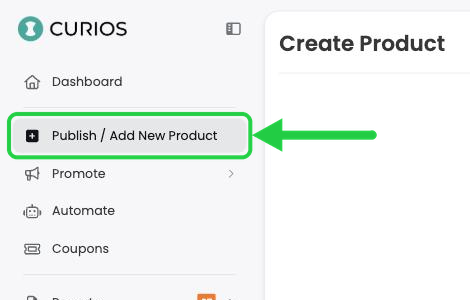
- In the left menu, click Publish / Add New Product.
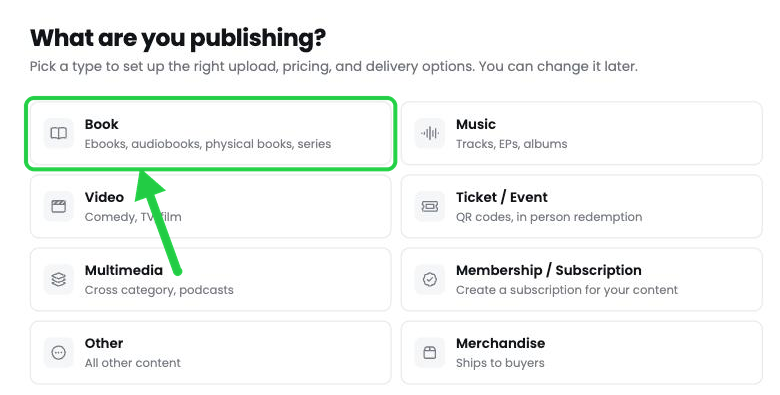
- Under What are you publishing?, click Book.
2Establish the Series Information
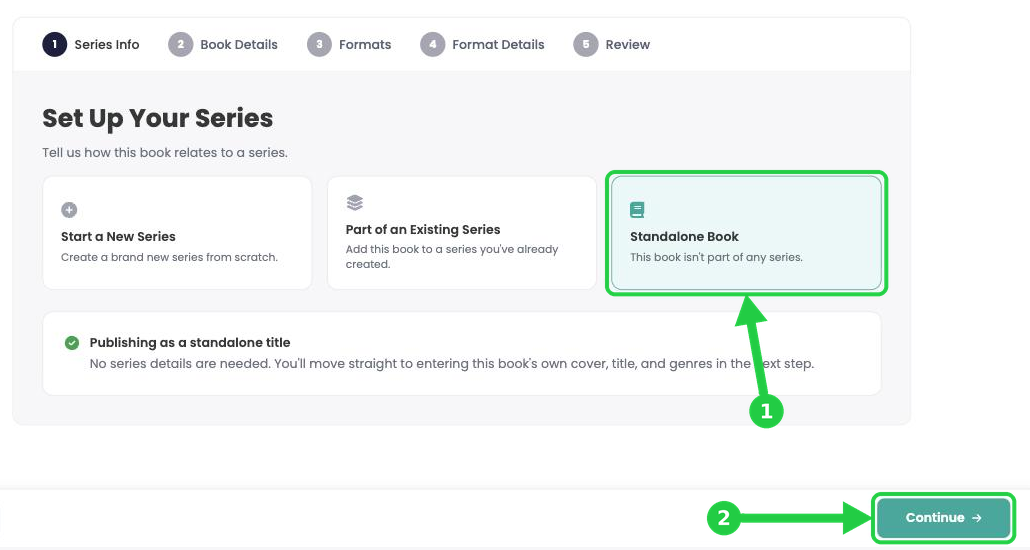
For this example we will select standalone book, but if this book is part of a series then you can specify that here.
- Click Standalone Book.
- Click Continue at the bottom right.
3Add your book details
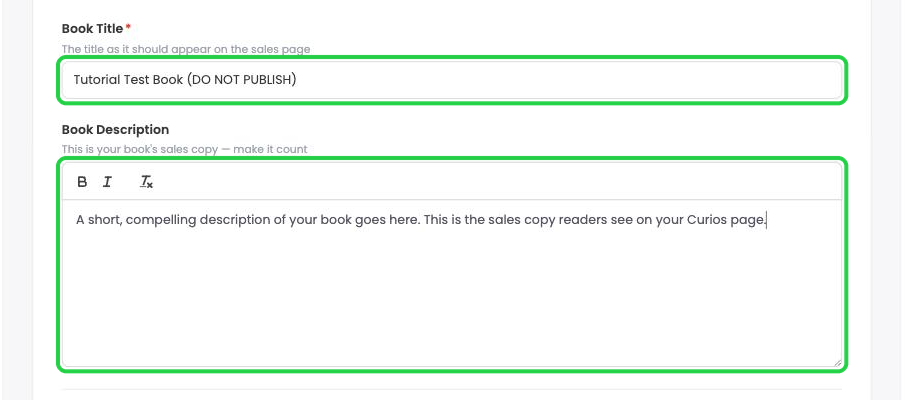
- Book Title: enter your title. Adding "ARC" to the title (for example, The Lighthouse Keeper (ARC)) makes it easy to tell apart from your launch edition in your reports.
- Book Description: add a short note for your ARC readers, such as when you'd like reviews by.
- Choose a Genre, then click Continue.
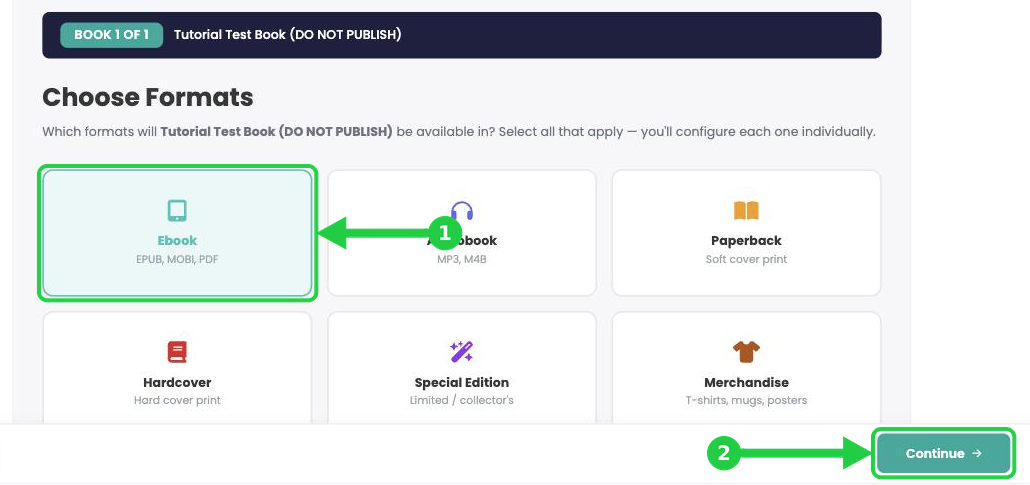
4Choose the Ebook format
- Click Ebook.
- Click Continue.
5Upload your cover
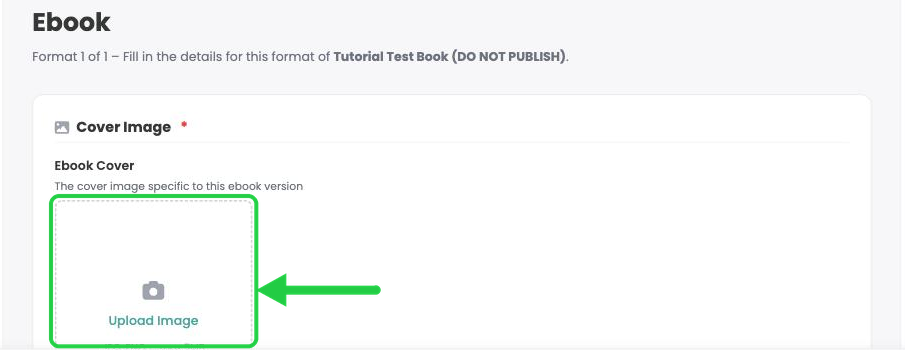
Everything for your ARC (cover, listing type, file and permissions) is set on this one page. Work from top to bottom.
- Under Cover Image, click Upload Image and choose your cover file.
6List it as free
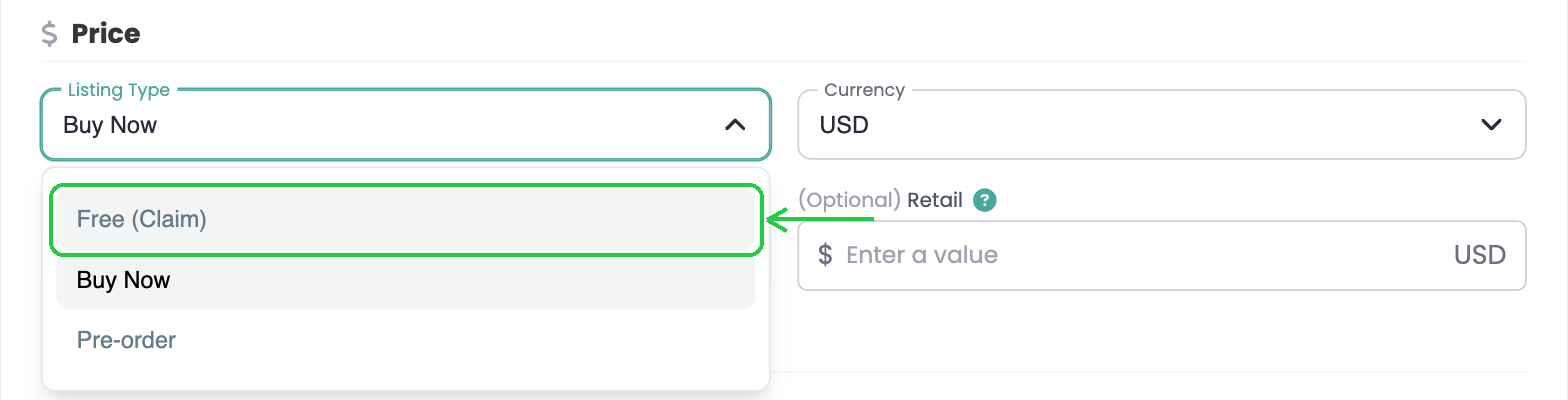
- Click Listing Type and choose Free (Claim).
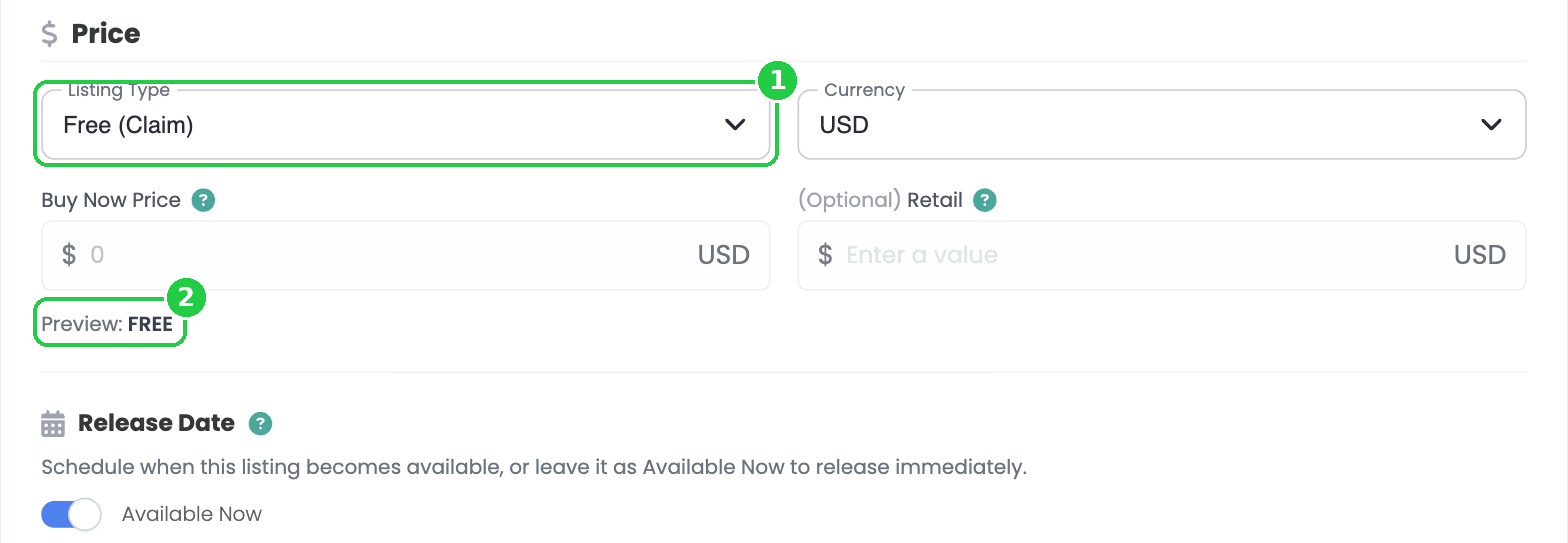
- Listing Type now shows Free (Claim) (1), and the price preview reads FREE (2). Your ARC readers won't be asked to pay.
- Leave Available Now switched on so readers can claim the book as soon as you share the link.
7Upload your ARC file
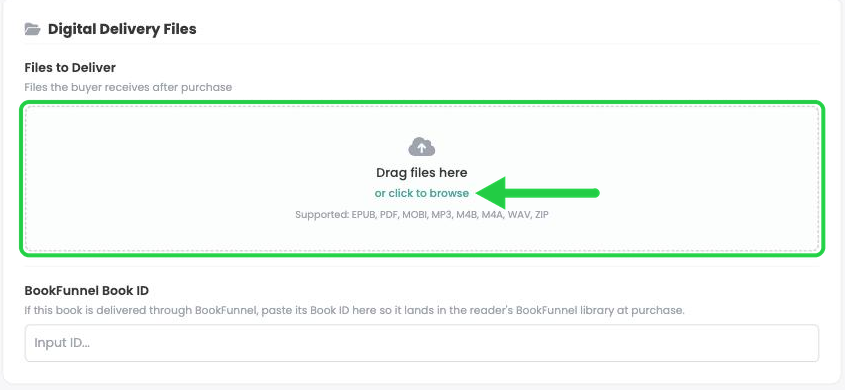
- Under Digital Delivery Files, drag your EPUB into the Files to Deliver box, or click or click to browse. PDF and MOBI also work.
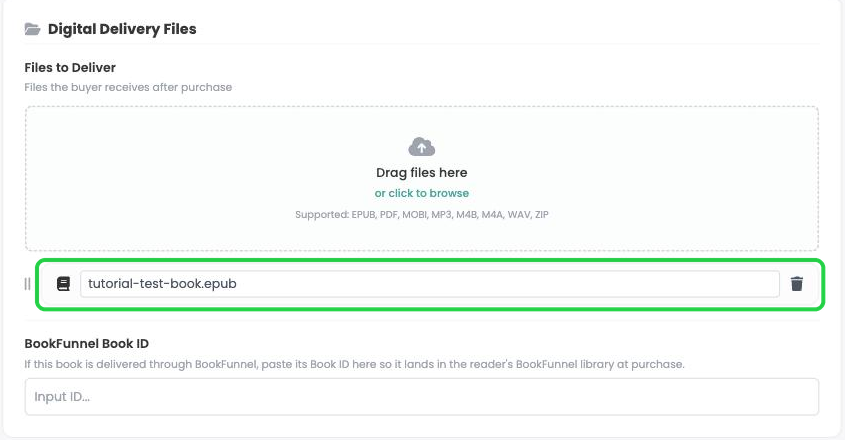
- Your file appears under the upload box when it's done. This is the file your ARC readers receive.
8Make it private
Scroll down to Permissions. These two switches keep your ARC in your readers' hands only.
- Downloads (1): leave it off so it shows Not Downloadable. Readers read in the Curios reader, so the file can't be passed around.
- Visibility (2): switch it off so it shows Private (Unlisted). Your book won't appear on the Curios marketplace, and only people with the link can find it.

9Review and publish
- Click Series Review at the bottom right. If a warning says you have no preview files, click Continue. ARCs don't need a preview.
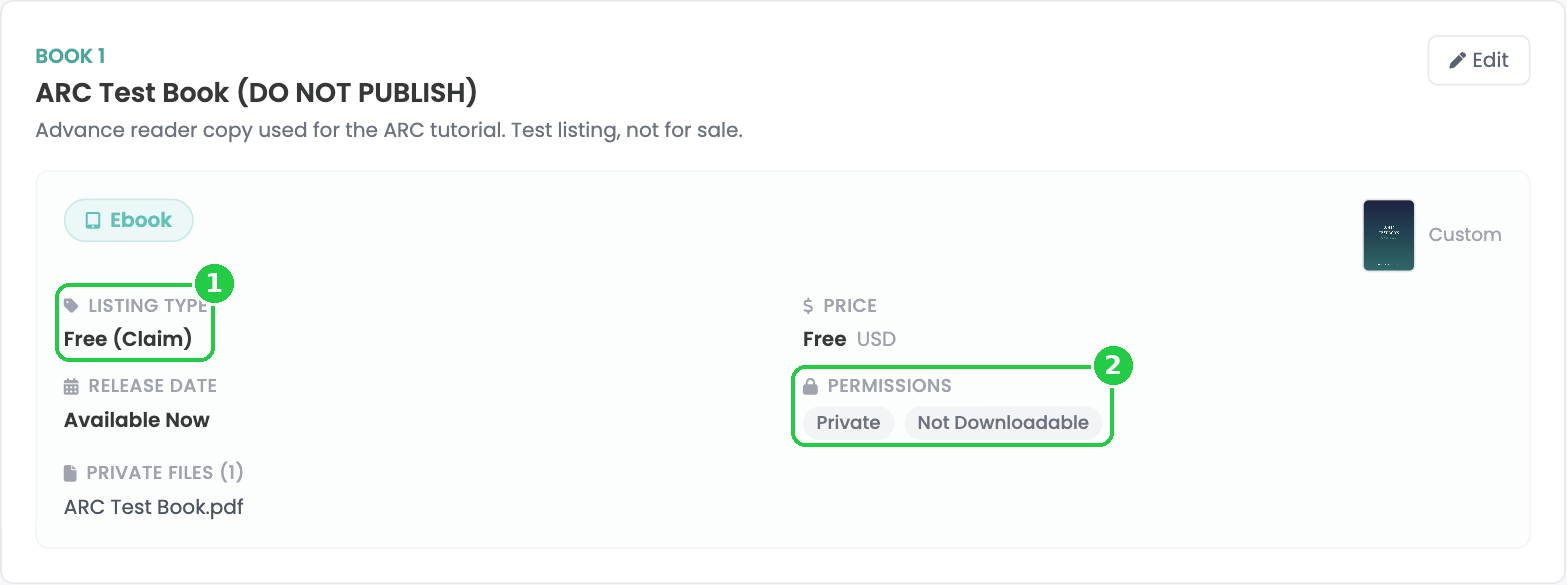
- Check that Listing Type says Free (Claim) (1) and Permissions show Private and Not Downloadable (2).
- Click Save Draft (1) to check the product page first, or Publish (2) to make your ARC link live now.

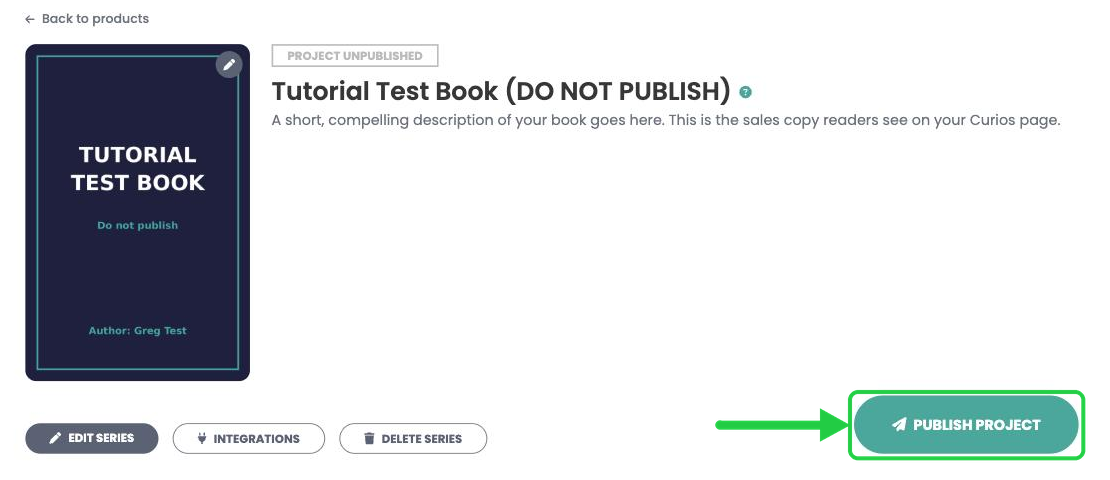
- If you saved a draft, click Publish Project at the top of the product page when you're ready.
Publishing is safe. Your ARC link only works once the book is published, but because it's private, it stays off the marketplace and out of search. Only people you send the link to can claim it.
10Share your link with your ARC readers
Your links are on the book's product page in Studio. Click the book on your dashboard to open it, then scroll down to your ebook.
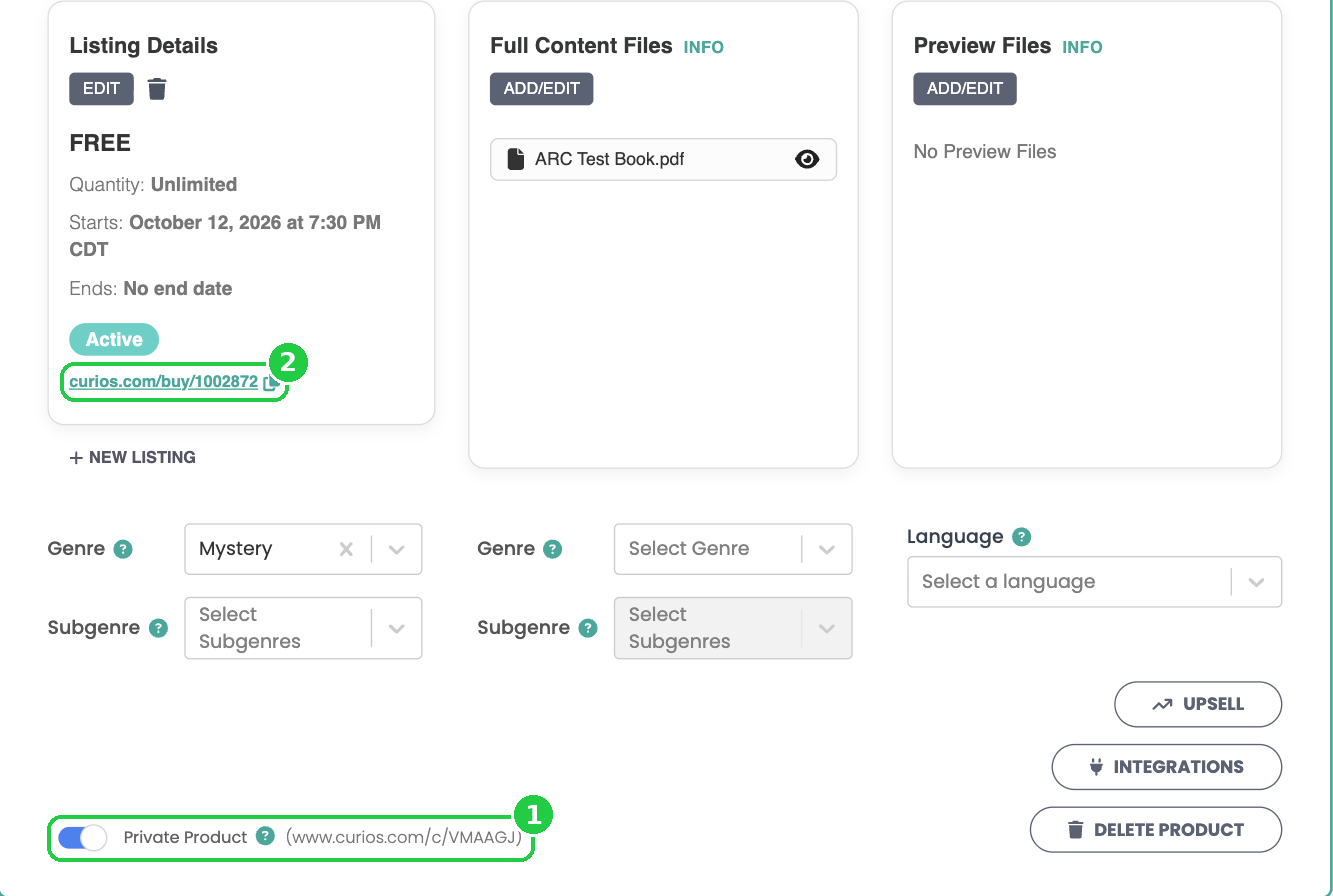
- Next to Private Product (1) is your book's private page link (www.curios.com/c/...). This is the link to send your ARC readers. They'll see your cover and description and can claim the book for free.
- The link under Listing Details (curios.com/buy/...) (2) takes readers straight to the free checkout. You can use either one.
- Copy the link and email it to your ARC team, or paste it into your ARC sign-up confirmation.
What your readers do: they open your link, claim the book with their email, and it's added to their Curios library. They can read it on the web or in the Curios app.
11See which ARC readers got the book
- In the left menu, click Reports, then Claims.
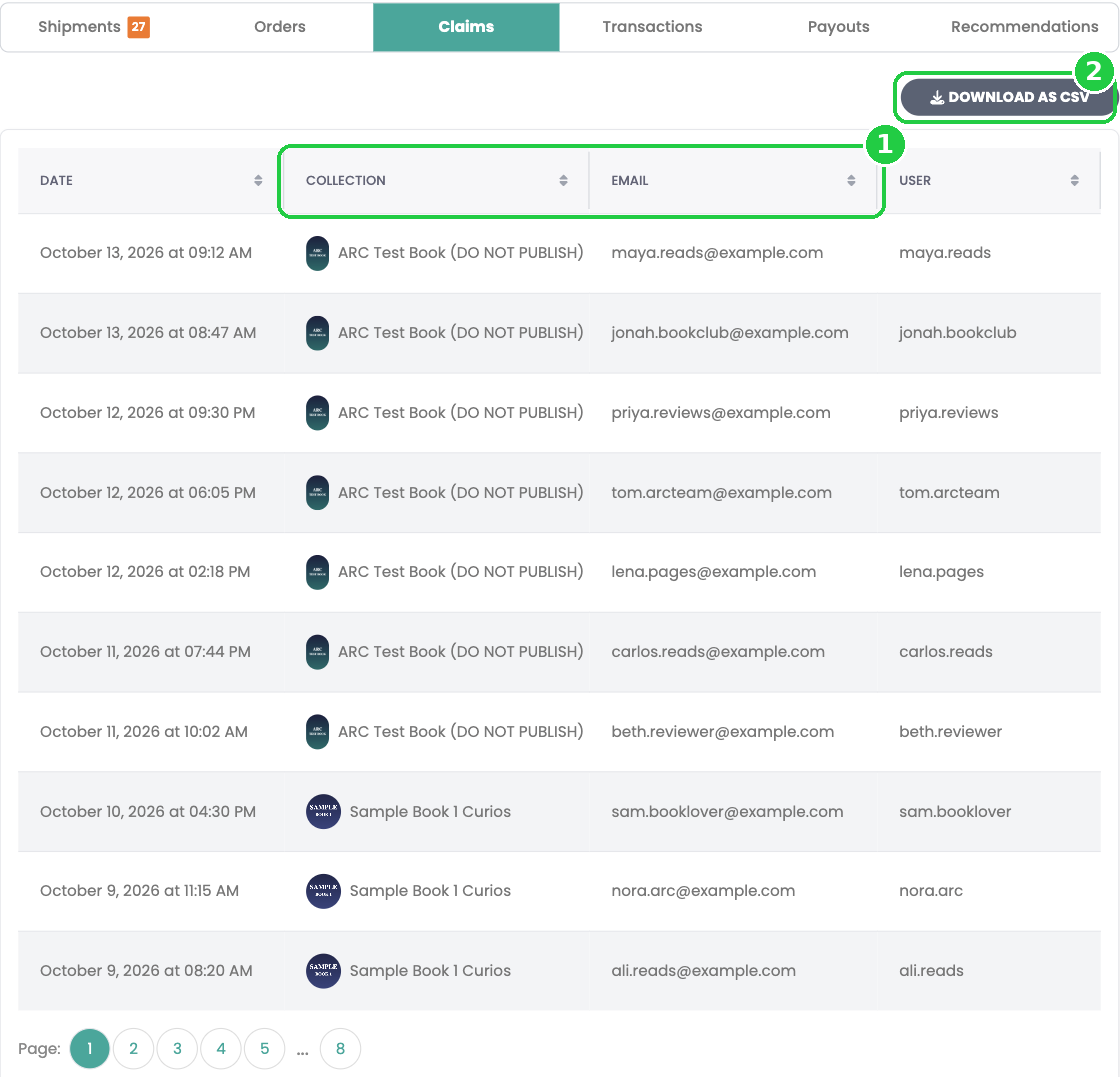
- Every claim is listed with the date, the book (Collection) and the reader's Email (1). Click the Collection heading to sort by book, so your ARC claims sit together.
- Compare the list with your ARC team to see who has claimed the book, and send a reminder to anyone who hasn't.
- Click Download as CSV (2) to export the list for your spreadsheet or email tool.
12See how many readers finished
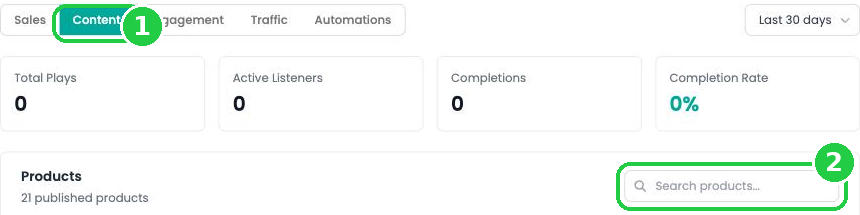
- In the left menu, click Analytics, then Content.
- You're on the Content tab (1). Use the date menu at the top right to cover the whole ARC period, for example Last 90 days.
- Type your ARC's title into Search products (2), then click the book.
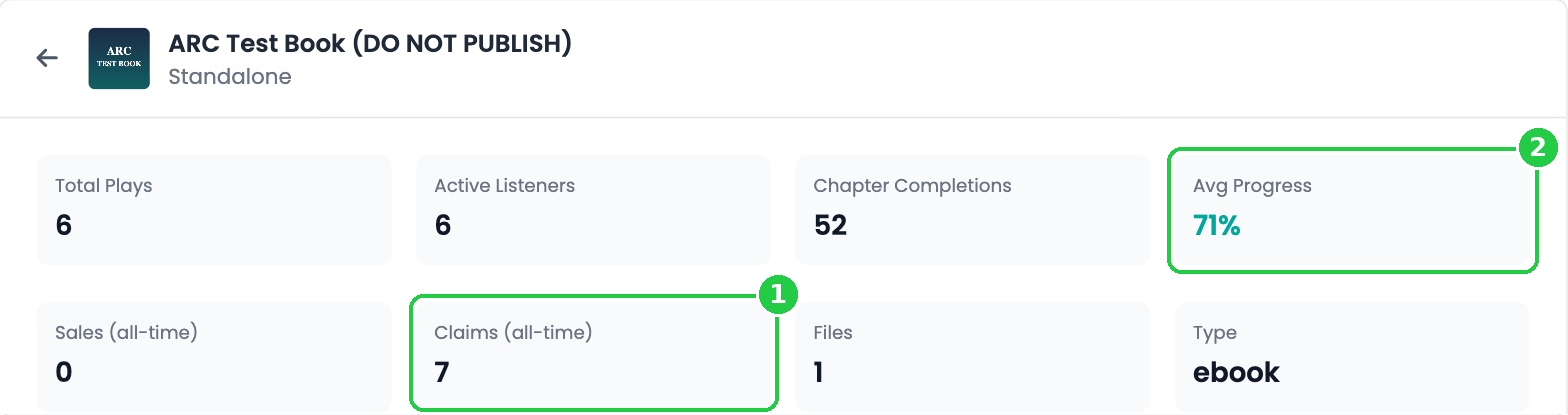
- The top of the page shows how many readers claimed the book (1) and their Avg Progress through it (2).
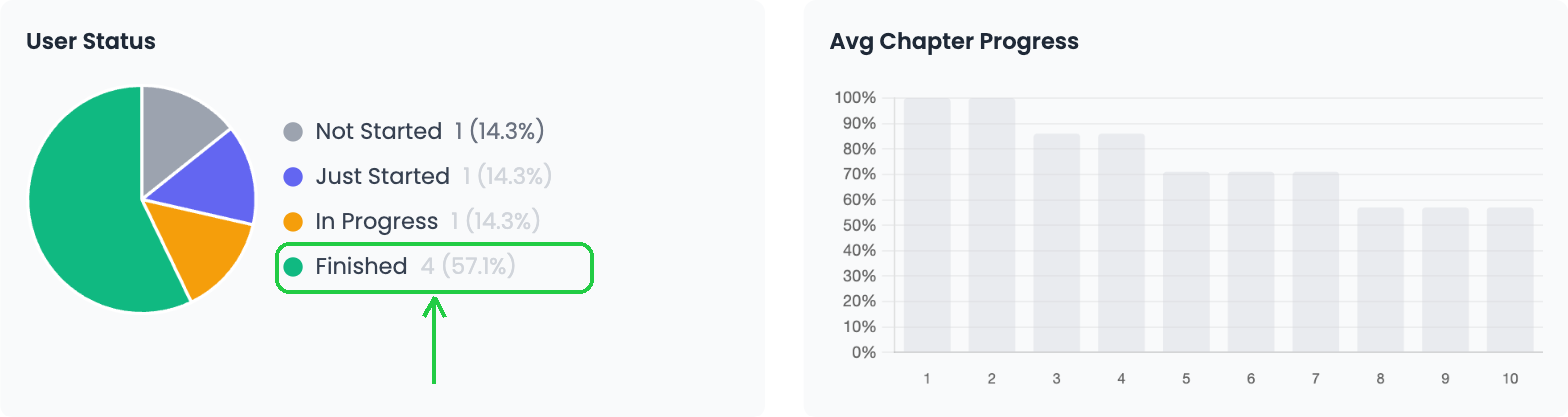
- Scroll down to User Status. It splits your readers into Not Started, Just Started, In Progress and Finished, with the percentage for each. In this example, 4 of 7 ARC readers (57.1%) finished the book.
- Avg Chapter Progress shows how far readers got in each chapter, so you can spot where people stopped.
- Under Individual User Progress, see how far each reader got.
Good to know: analytics have a 24-hour delay, so give readers a day before you check. Reading progress comes from the Curios reader and app, which is another reason to leave your ARC Not Downloadable.
You're always in control. You can replace the ARC file, change the description or remove the book at any time. Click the book on your Studio dashboard to open its product page.
Stuck? Contact Curios support. We're here to help.
Related articles
- TutorialUpload a Multi-Format Book SeriesThis tutorial walks you through setting up a three-book series on Curios, with an ebook, an audiobook, a paperback and a combo pack for every book, all in one pass.
- TutorialCreate a Combo Pack on CuriosThis tutorial walks you through creating a combo pack, such as an ebook plus a signed paperback, sold together at one price.
- TutorialSell Merchandise on CuriosThis tutorial walks you through listing merchandise (such as t-shirts, mugs or posters) on Curios and shipping orders yourself.