
Sell Merchandise on Curios
On this page
Sell merchandise alongside your books
This tutorial walks you through listing merchandise (such as t-shirts, mugs or posters) on Curios and shipping orders yourself.
Keep 100% of your price
You set the price. Shipping is charged to the reader separately.
Sell more than books
T-shirts, mugs, posters and other items for your fans.
Ship it your way
Calculated or flat-rate shipping, packed and sent by you.
1Start a new book
- Log in at studio.curios.com.
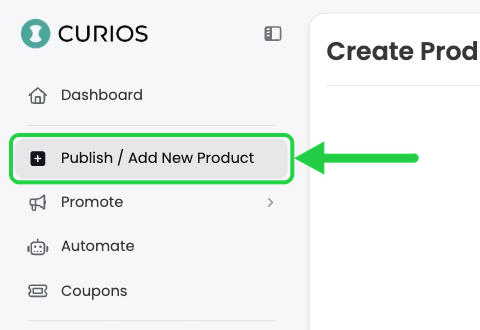
- In the left menu, click Publish / Add New Product.
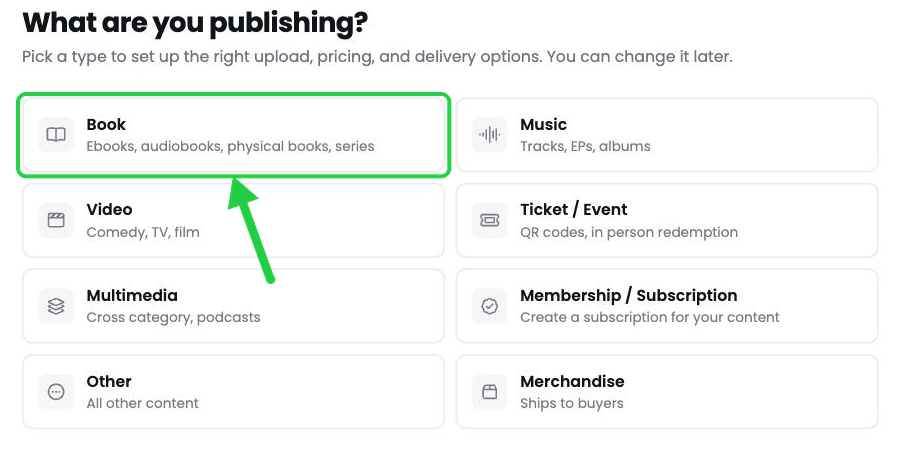
- Under What are you publishing?, click Book.
2Establish the Series Information
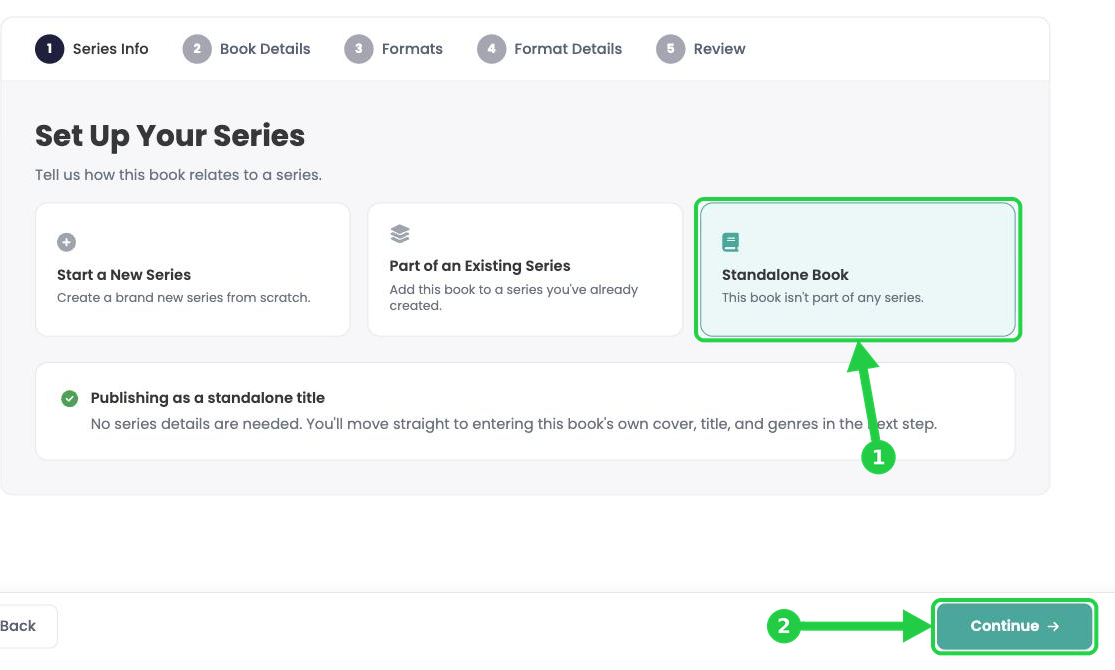
For this example we will select standalone book, but if this book is part of a series then you can specify that here.
- Click Standalone Book.
- Click Continue.
3Add your book details
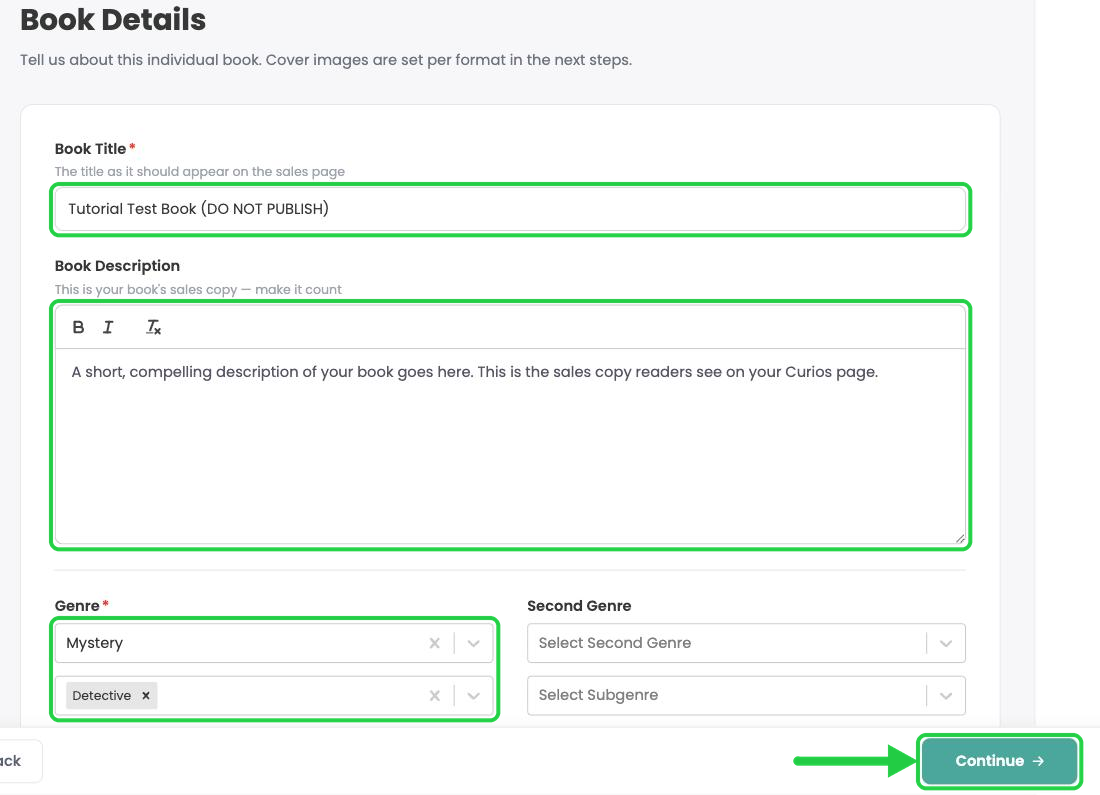
- Book Title: enter the title exactly as it should appear on your sales page.
- Book Description: paste your sales copy. You can use bold and italics.
- Genre: choose a genre (required), then choose one or more subgenres. You can add a Second Genre too.
- Click Continue.
4Choose the Merchandise format
- Click Merchandise.
- Click Continue.
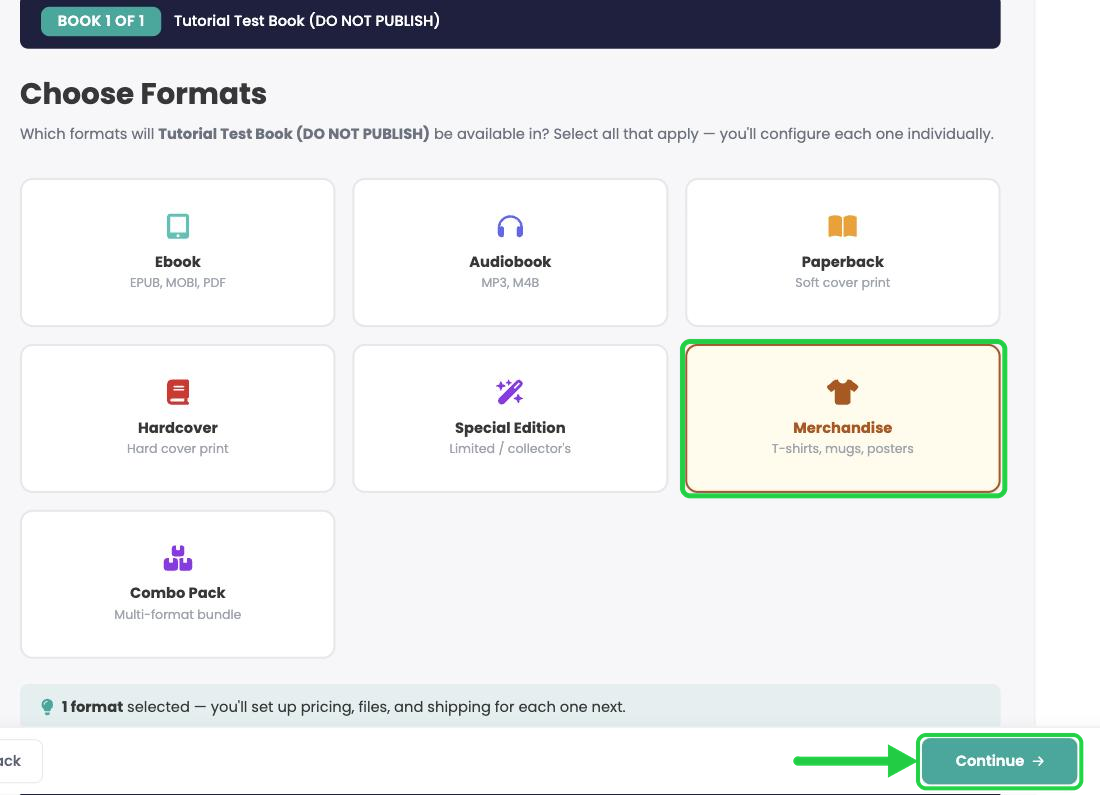
Tip: Selling other formats of this book too? Select them all now and you'll set each one up in turn. You can also add formats later with Add a Format to an Existing Book.
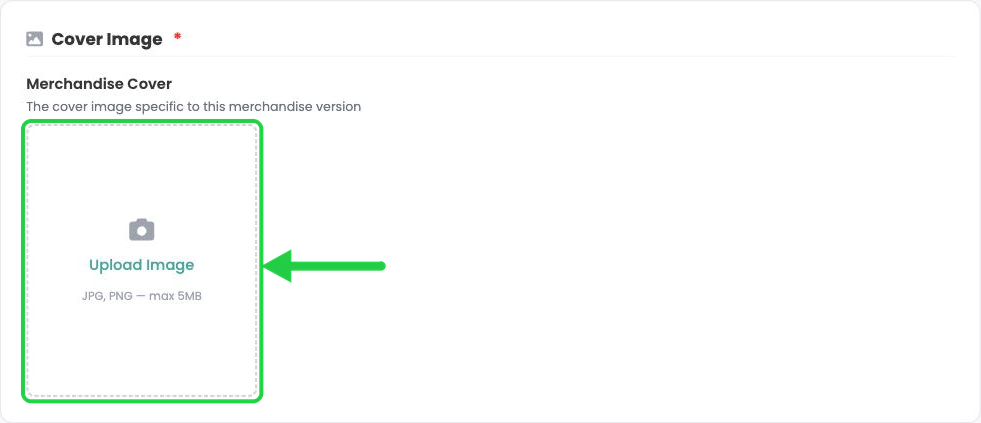
5Upload your product image
Everything for your merchandise is set on this one page. Work from top to bottom.
- Under Cover Image, click Upload Image and choose your file.
- Your image appears when the upload finishes.
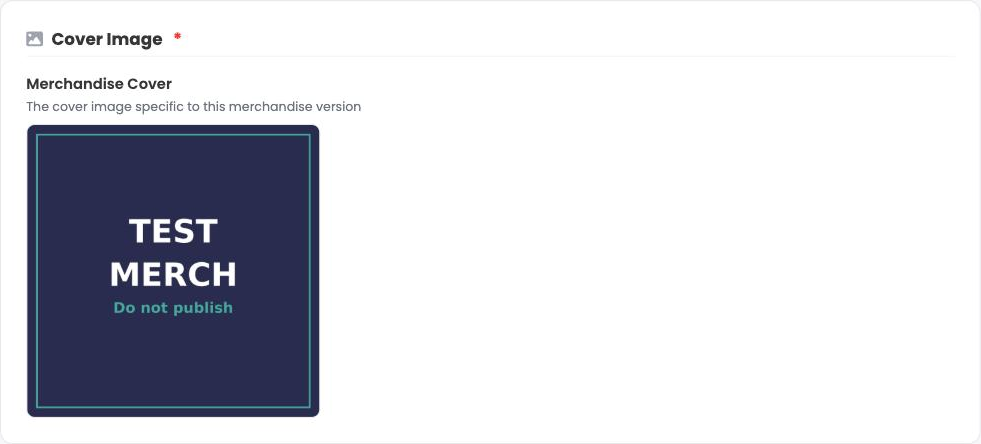
Image specs: JPG or PNG, up to 5 MB. Use a clear photo or mockup of the item.
6Set your price and release date
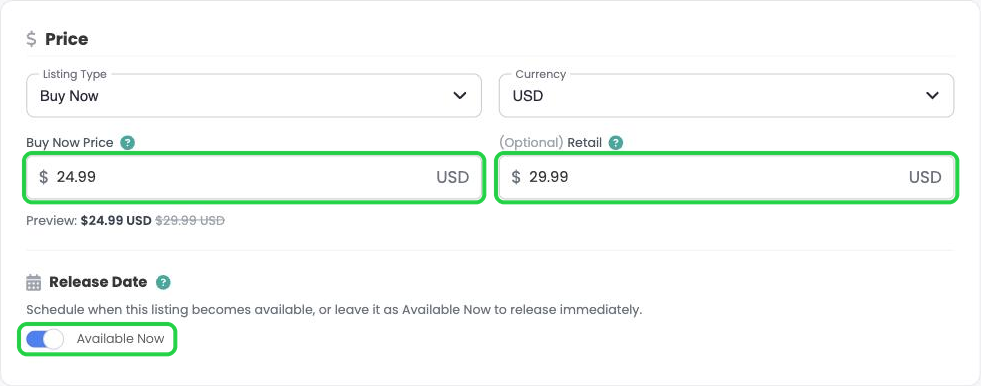
- Click Listing Type and choose one:
- Free (Claim): readers get it for free, and you get the email address of everyone who claims it.
- Buy Now: readers buy it at the price you set.
- Pre-order: take orders before release day. See Setting Up a Pre-Order on Curios.
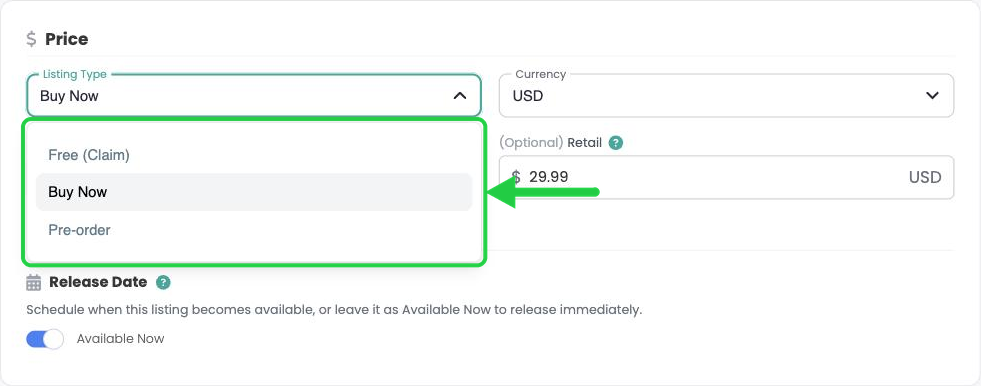
- Buy Now Price: enter your price.
- (Optional) Retail: enter a higher "was" price to show a discount. Readers see it crossed out next to your Buy Now price.
- Release Date: leave Available Now switched on to release as soon as you publish, or switch it off to schedule a date and time (in your local time zone).
7Choose how orders are fulfilled
Under How will this be fulfilled?, pick one of the options below. (3rd Party Warehouse & Logistics is marked Coming Soon.)
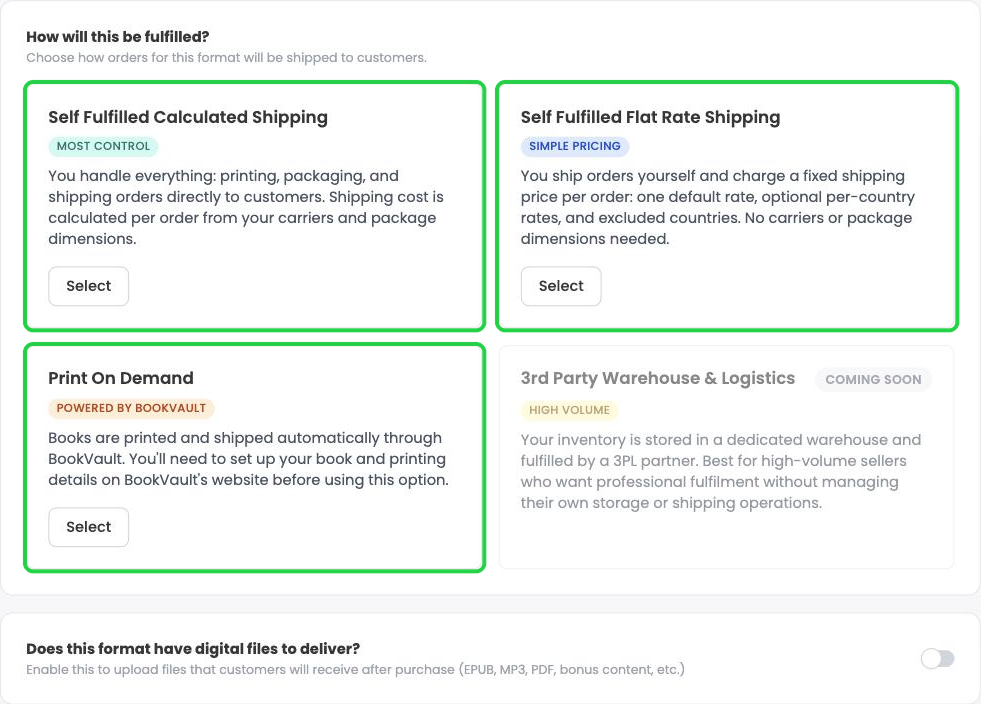
Option A: Ship it yourself (self-fulfilled)
You pack and ship each order. Choose how shipping is charged:
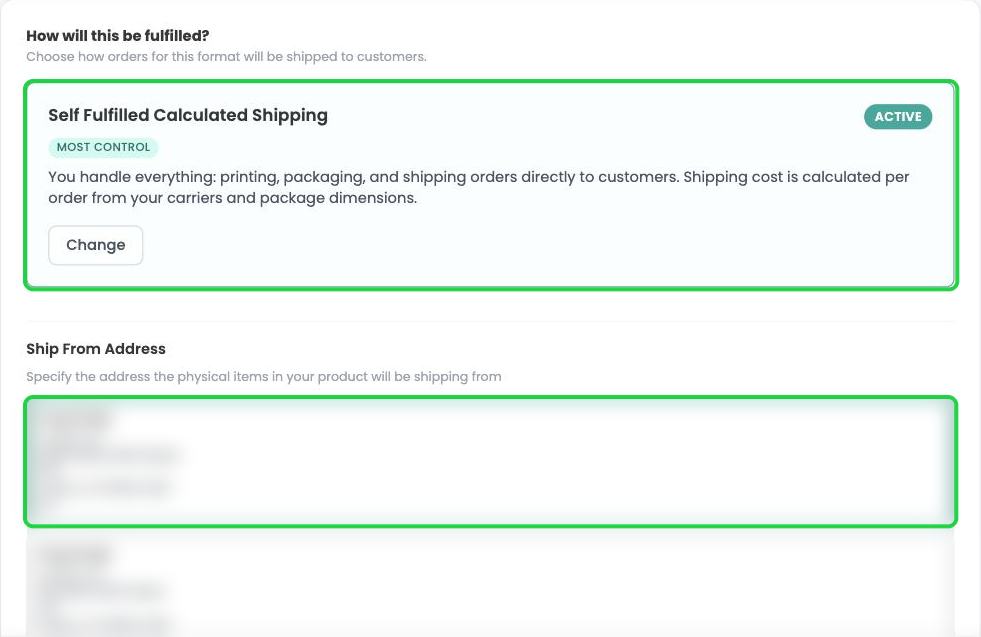
- Calculated shipping. Click Select under Self Fulfilled Calculated Shipping. Then pick your Ship From Address (or click + Add New Address).
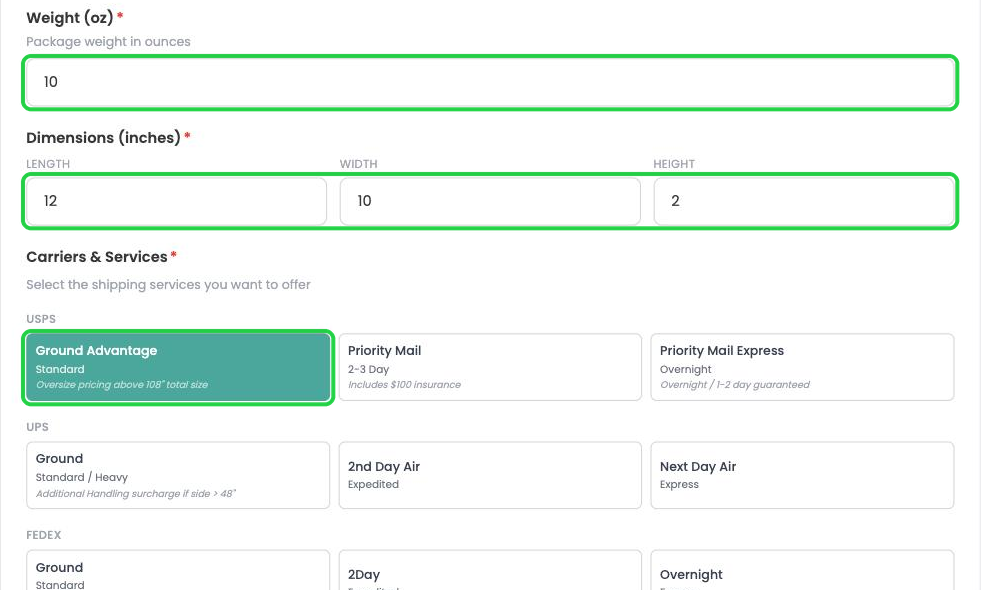
- Enter the package Weight (oz) and Dimensions (inches), then click each carrier service you want to offer under Carriers & Services. (USPS Media Mail is not offered for merchandise, because it is for books and media only.)
- Flat rate shipping. Click Select under Self Fulfilled Flat Rate Shipping. Enter one default rate on the Every country row. Optionally set a different rate for a country, or click Exclude to stop shipping there.
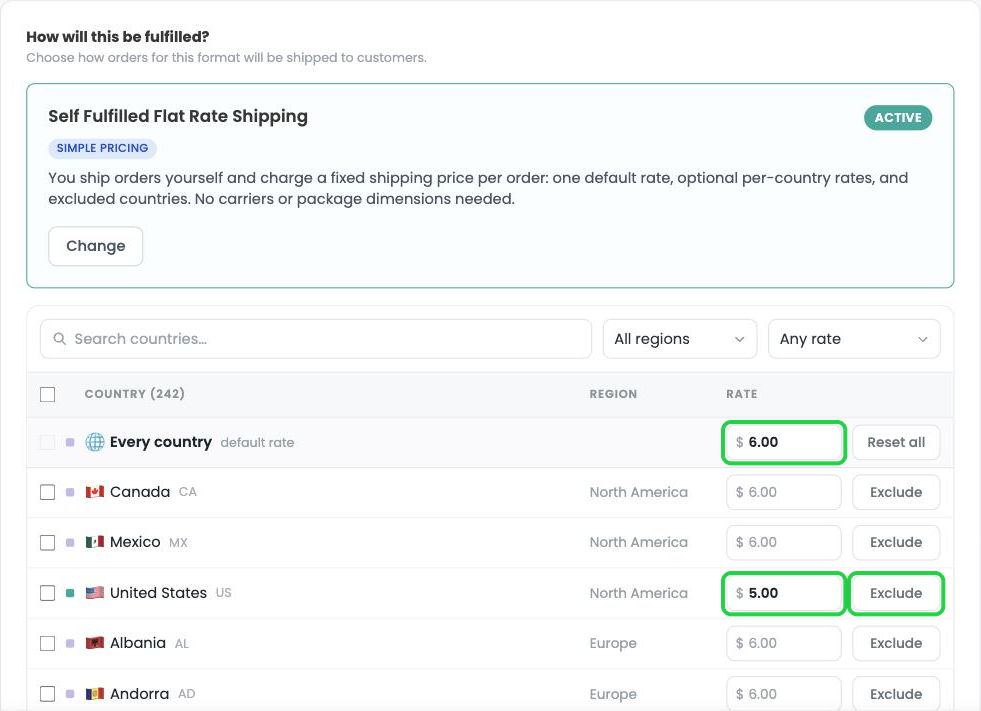
Learn more: See Self Fulfilled Shipping for Authors for packing, printing labels and shipping your orders.
Option B: Print on demand with BookVault
Print On Demand is powered by BookVault, a book printer, so merchandise is usually shipped yourself using Option A.
8Set collaborators and visibility
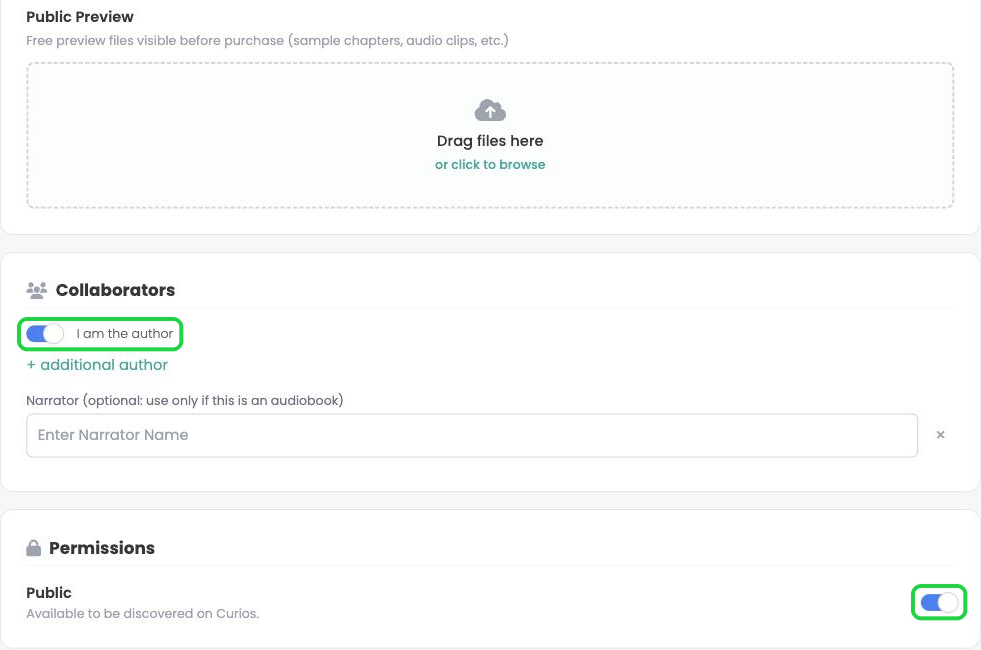
- Optional: under Preview Files, upload a free sample (for example, a PDF of the first chapter).
- Leave I am the author switched on, or switch it off to enter a pen name. Click + additional author to credit a co-author.
- Under Permissions, leave Public on so anyone can find it on Curios, or switch it off for Private (Unlisted): only people with the link can find it.
9Review, then save or publish
- Click Series Review at the bottom right. (If you picked more than one format, the button reads Next: followed by the next format until you reach the last one.)

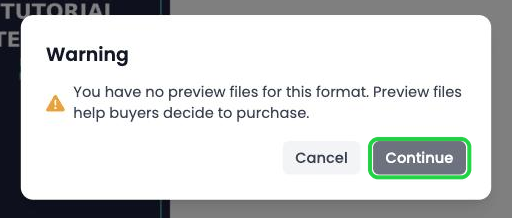
- If you didn't add a preview file, a warning appears. Click Continue to carry on without one.
- Check every detail, then click Save Draft (1) to save without going live, or Publish to put it on the Curios marketplace now.

10Check your product page and publish
After you save, Curios opens the product page. It shows PROJECT UNPUBLISHED until you publish.
- When everything looks right, click Publish Project at the top of the page.
You're always in control. You can change your price, shipping, images, description or release date at any time, even after you publish. Click the product on your Studio dashboard to open its page.
Stuck? Contact Curios support. We're here to help.
Related articles
- TutorialUpload a Multi-Format Book SeriesThis tutorial walks you through setting up a three-book series on Curios, with an ebook, an audiobook, a paperback and a combo pack for every book, all in one pass.
- TutorialCreate a Combo Pack on CuriosThis tutorial walks you through creating a combo pack, such as an ebook plus a signed paperback, sold together at one price.
- TutorialSell a Special Edition on CuriosThis tutorial walks you through listing a special edition, such as a signed or collector's edition, and choosing how orders are fulfilled.