
Turn a Standalone Book into Part of a Series
On this page
Turn a standalone book into part of a series
Published a book on its own and later wrote the next one? This tutorial shows you how to set up the series and move your standalone books into it from your Studio dashboard.
Set up the series first
Before you move a book, the series it's joining needs a cover, a title and a description. The easiest way is to set these up from the first book in the series (Step 1). Then move the other books into it (Step 2).
1Set up the series from the first book
- Log in at studio.curios.com and click Dashboard in the left menu.
- Under Your Products, find the first book in the series and click MANAGE next to it.
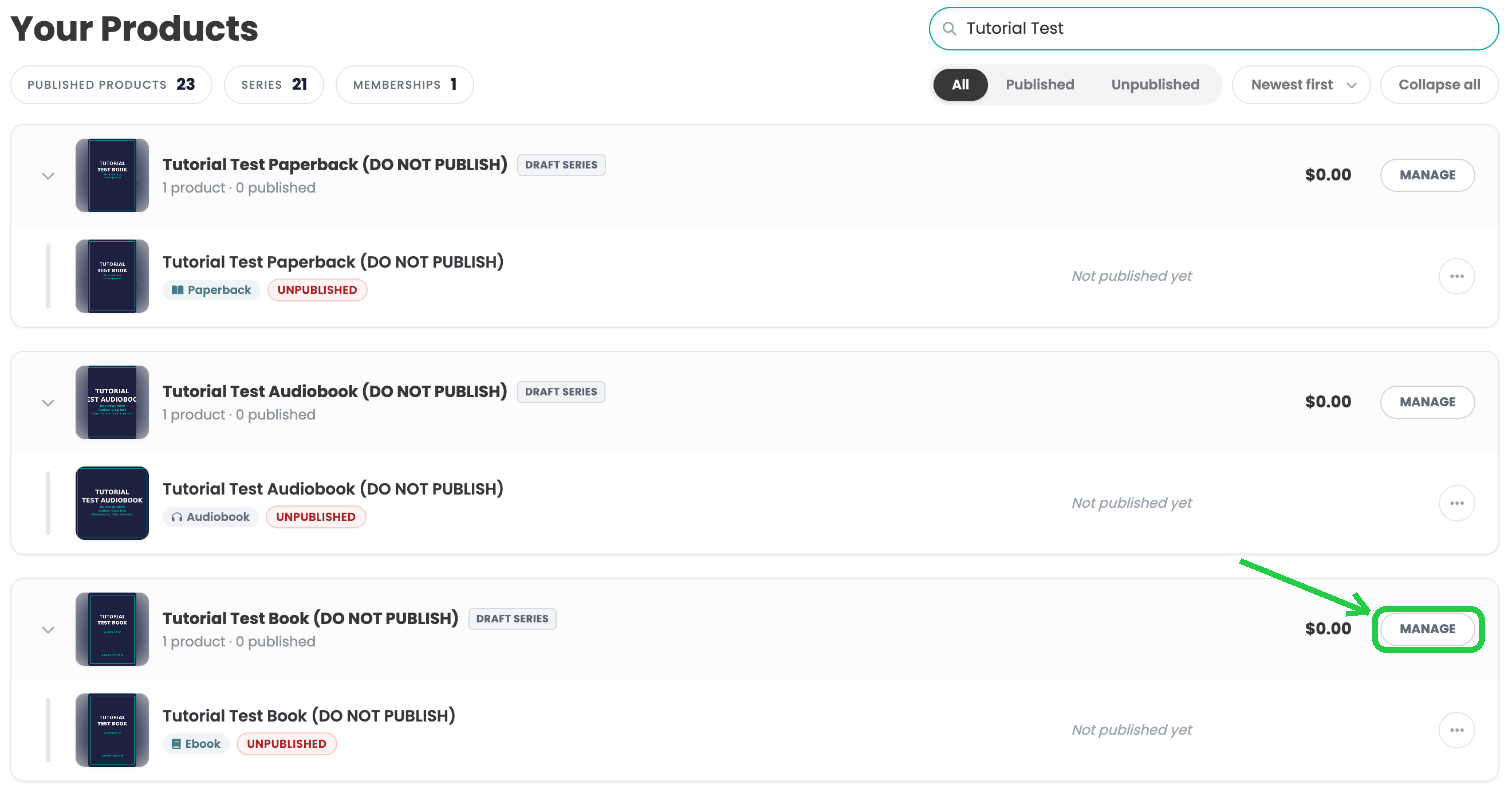
- Click the pencil icon on the cover image (1) and upload the cover for the series. This is the main image on your series page.
- Click EDIT SERIES (2).
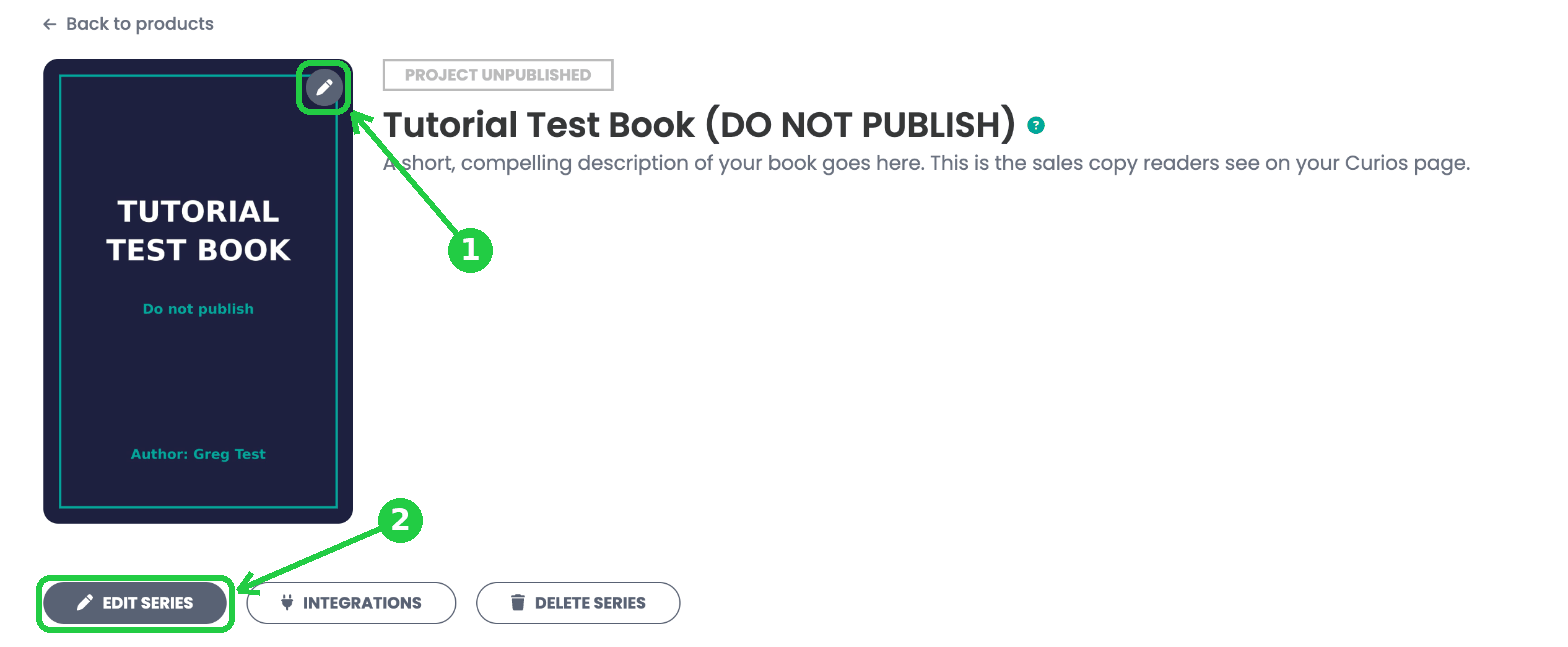
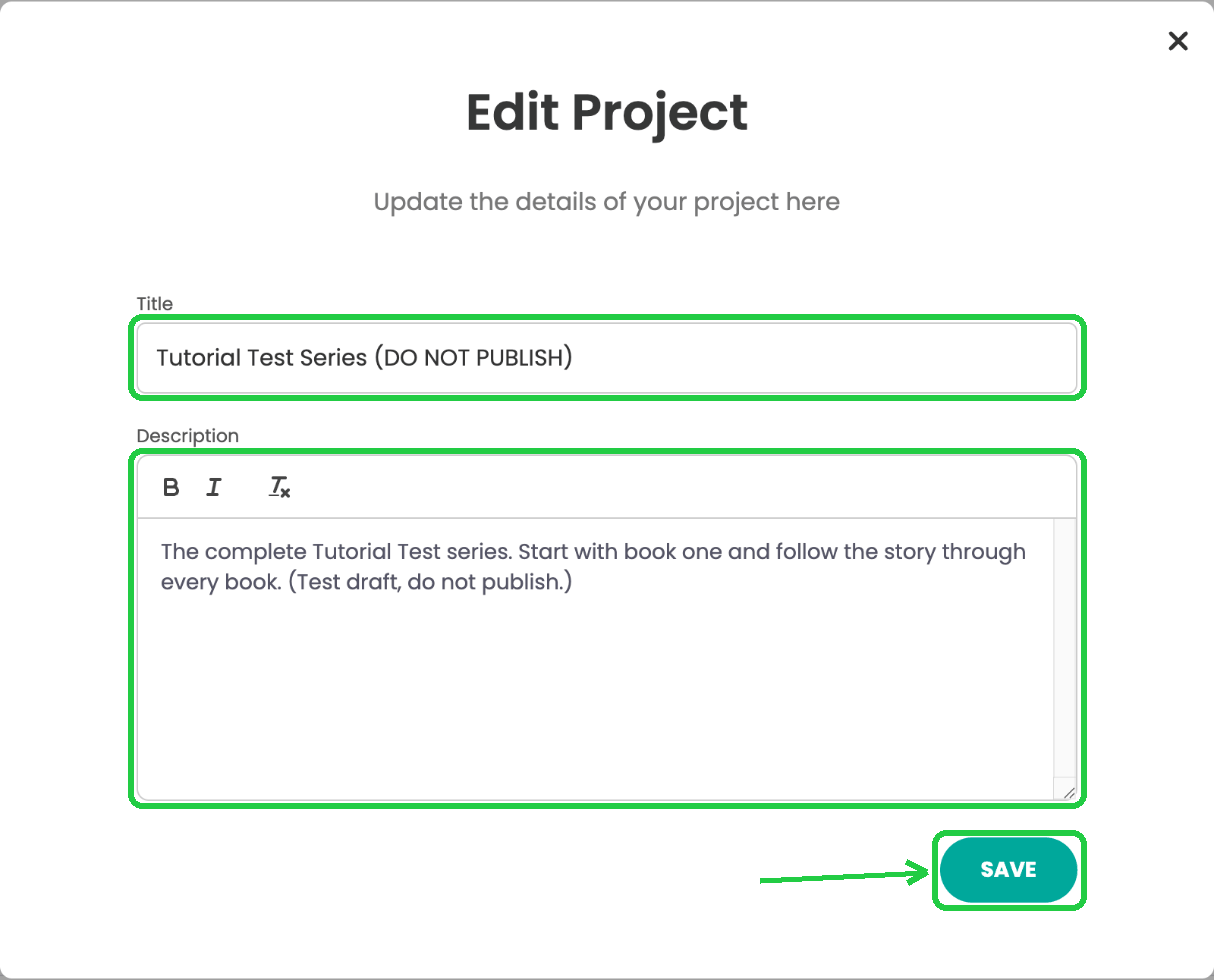
- Title: change it to the name of the series, not the name of the book.
- Description: add the copy for your series sales page.
- Click SAVE.
Tip: Write the series description for the whole series. Each book keeps its own book description, so readers still see what each book is about.
2Move each book into the series
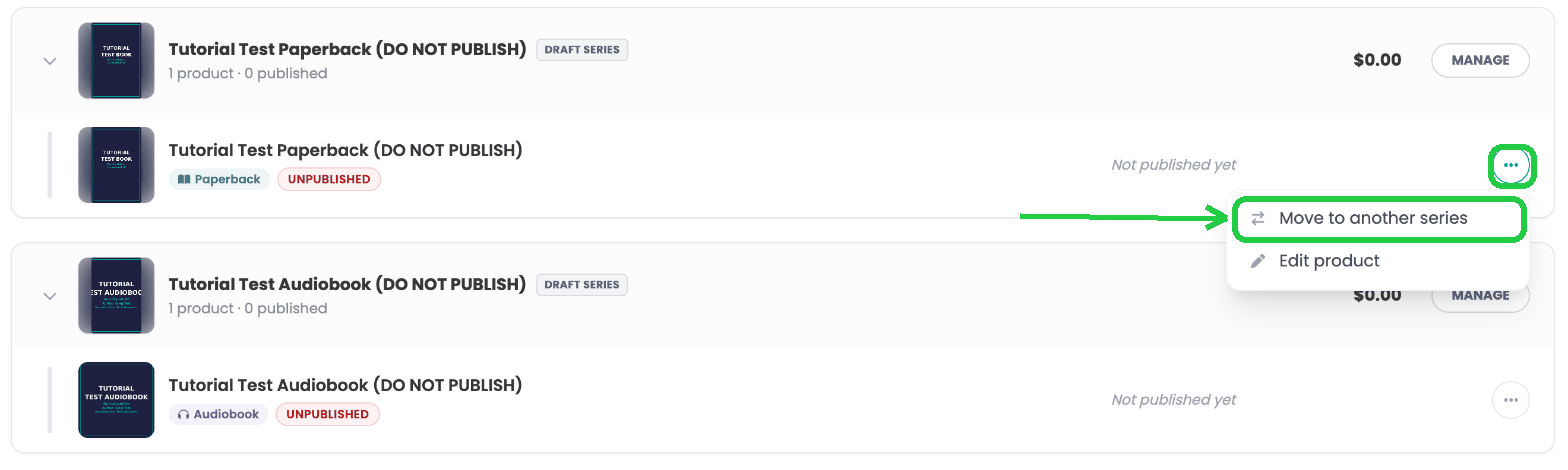
- Back on the Dashboard, find a product you want to add to the series.
- Click the three dots on the right of the product.
- Click Move to another series.
- Type the series name under Search your series and select it.
- Click Move product. You'll see Product moved to the new series!
- Repeat for every product (each format of each book) that belongs in the series.
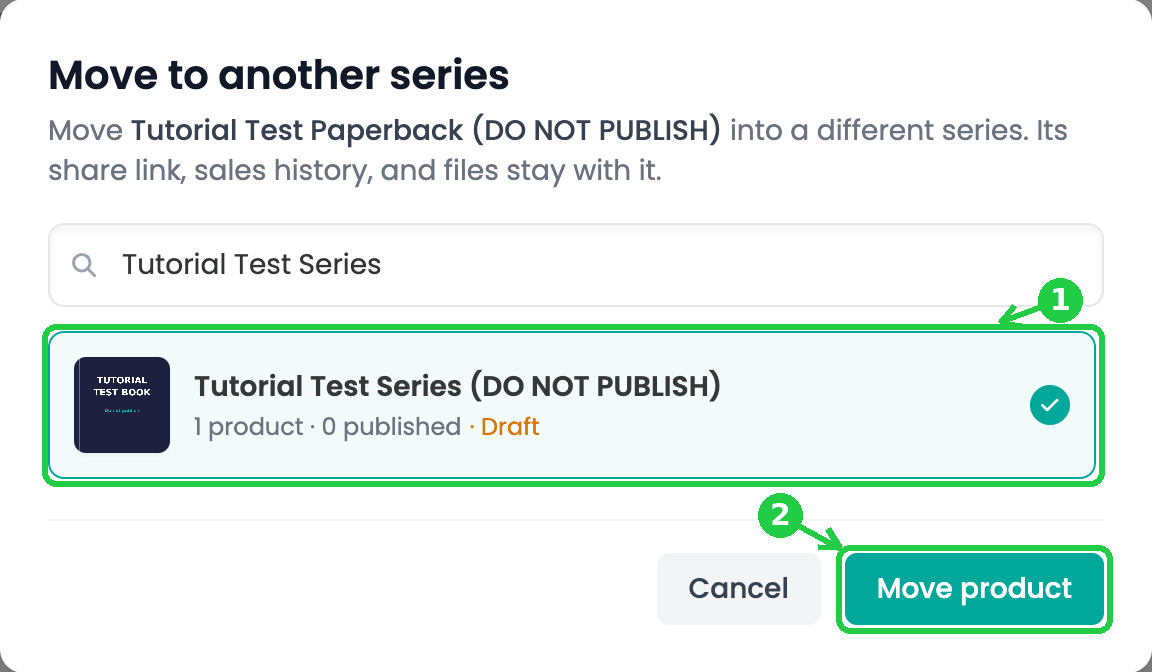
Good to know: Moving a product doesn't break anything. Its share link, sales history and files stay with it.
3Group the formats of each book
This is the step people miss. Products you move into a series arrive ungrouped. Until you group them, each format has its own separate page on curios.com, and a reader who lands on your ebook never sees that the audiobook or paperback exists.
Grouping links the formats of the same book together, so buyers see every format on one product page.
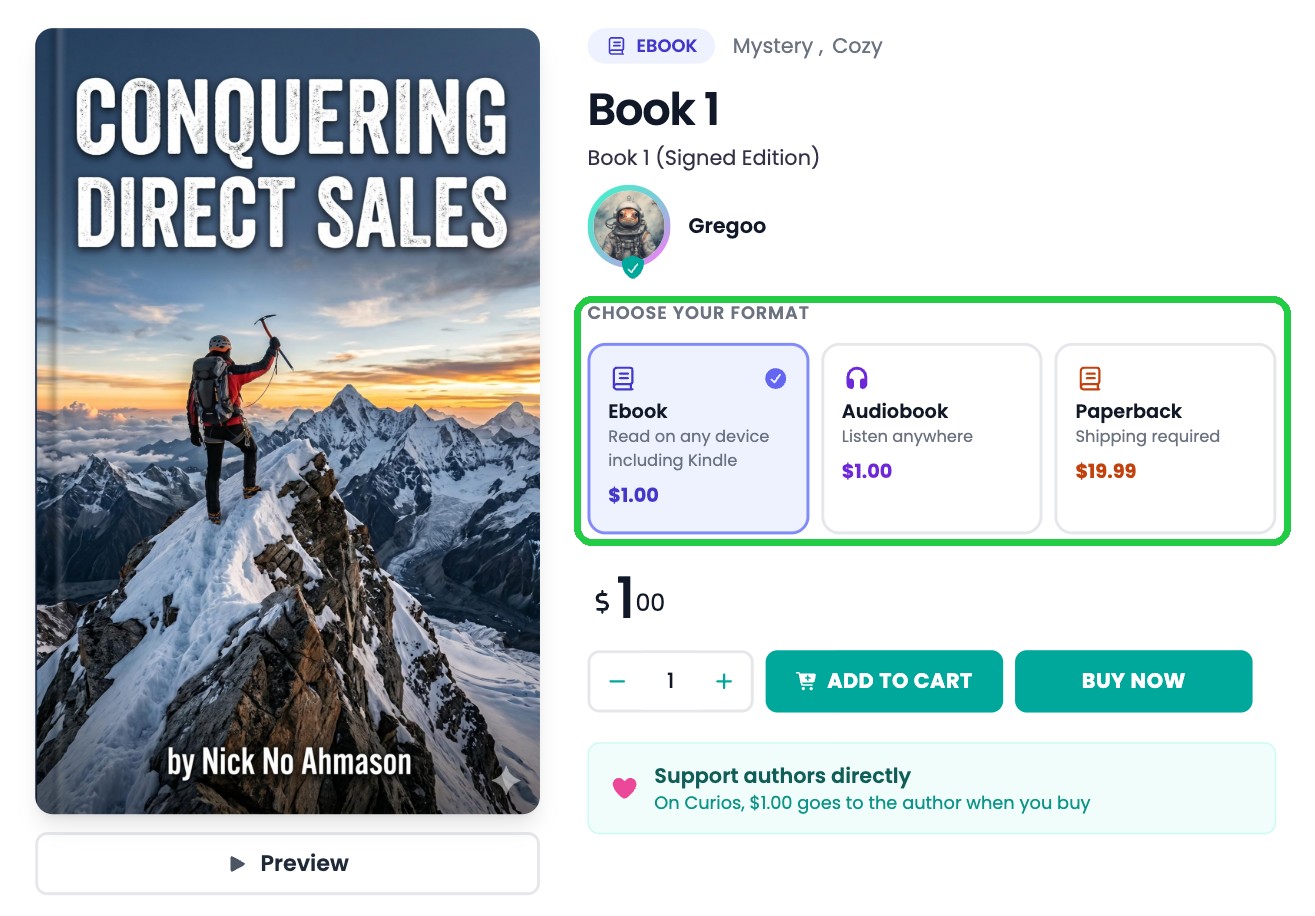
Grouped: this book's ebook, audiobook and paperback are grouped. Under CHOOSE YOUR FORMAT, the reader sees all three with their prices and switches between them with one click.
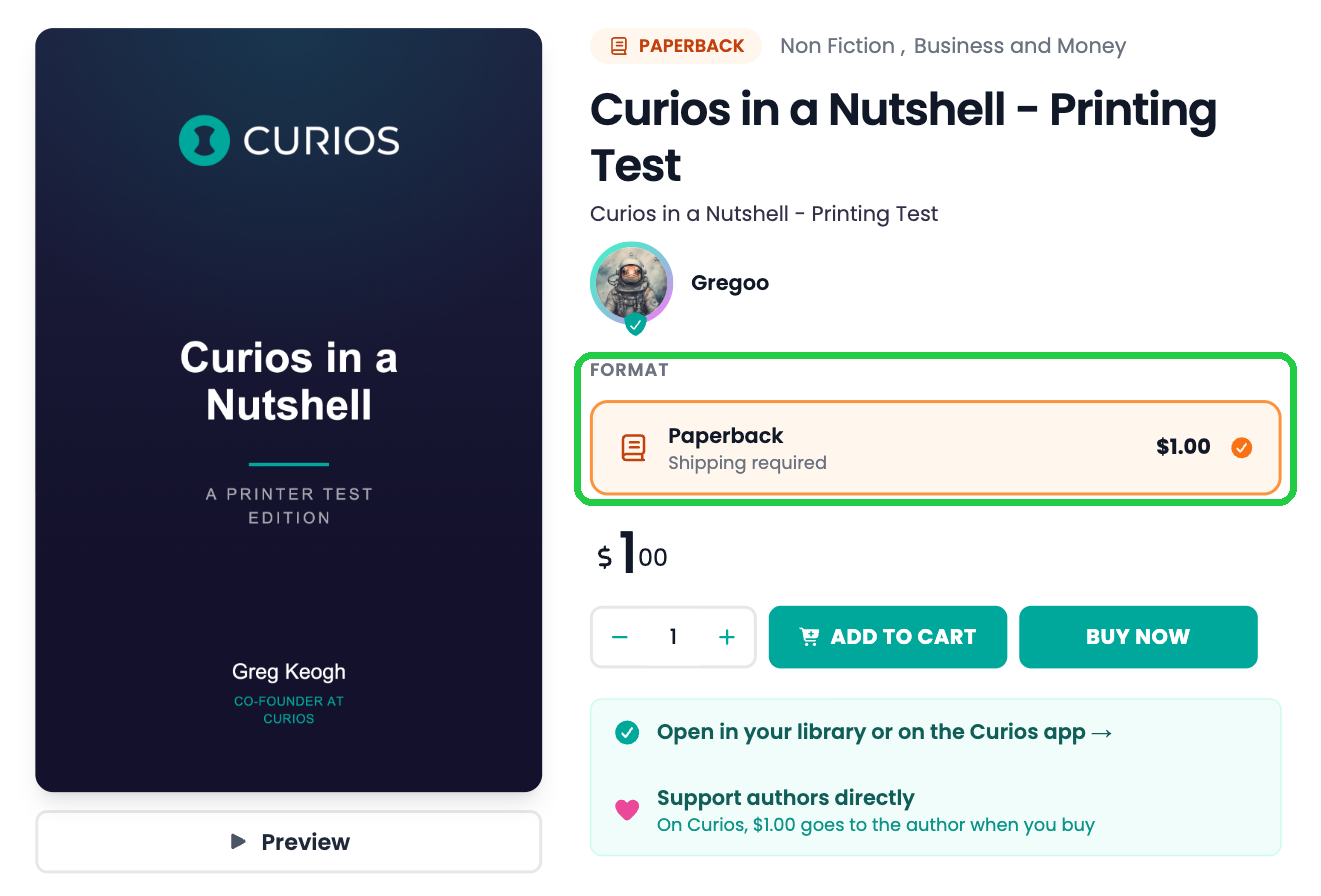
Not grouped: an ungrouped product shows only its own FORMAT. A reader who lands here has no idea the other formats exist.
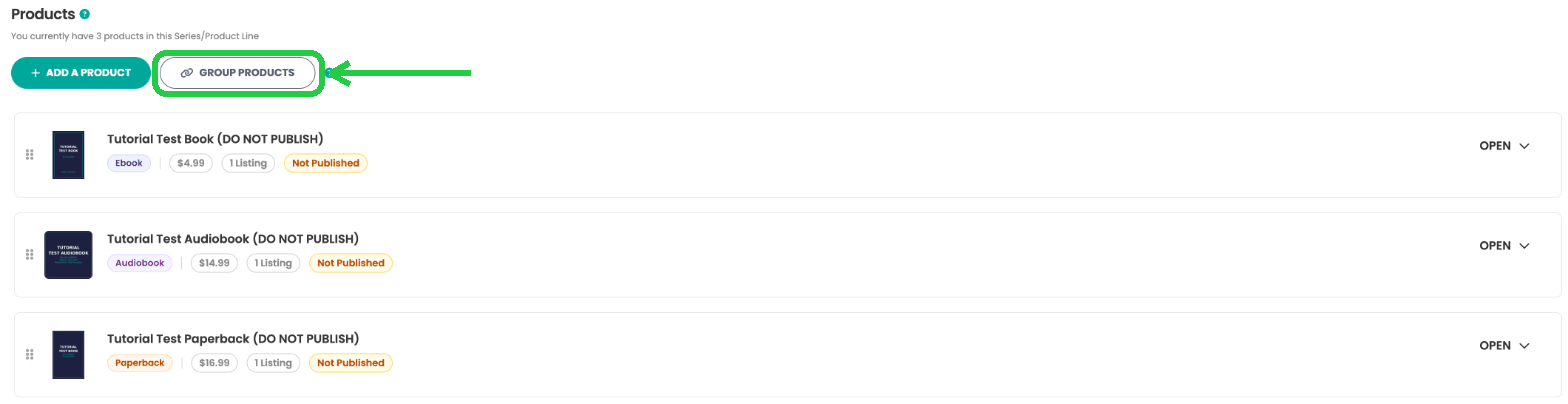
- On the Dashboard, click MANAGE on the series.
- Under Products, click GROUP PRODUCTS.
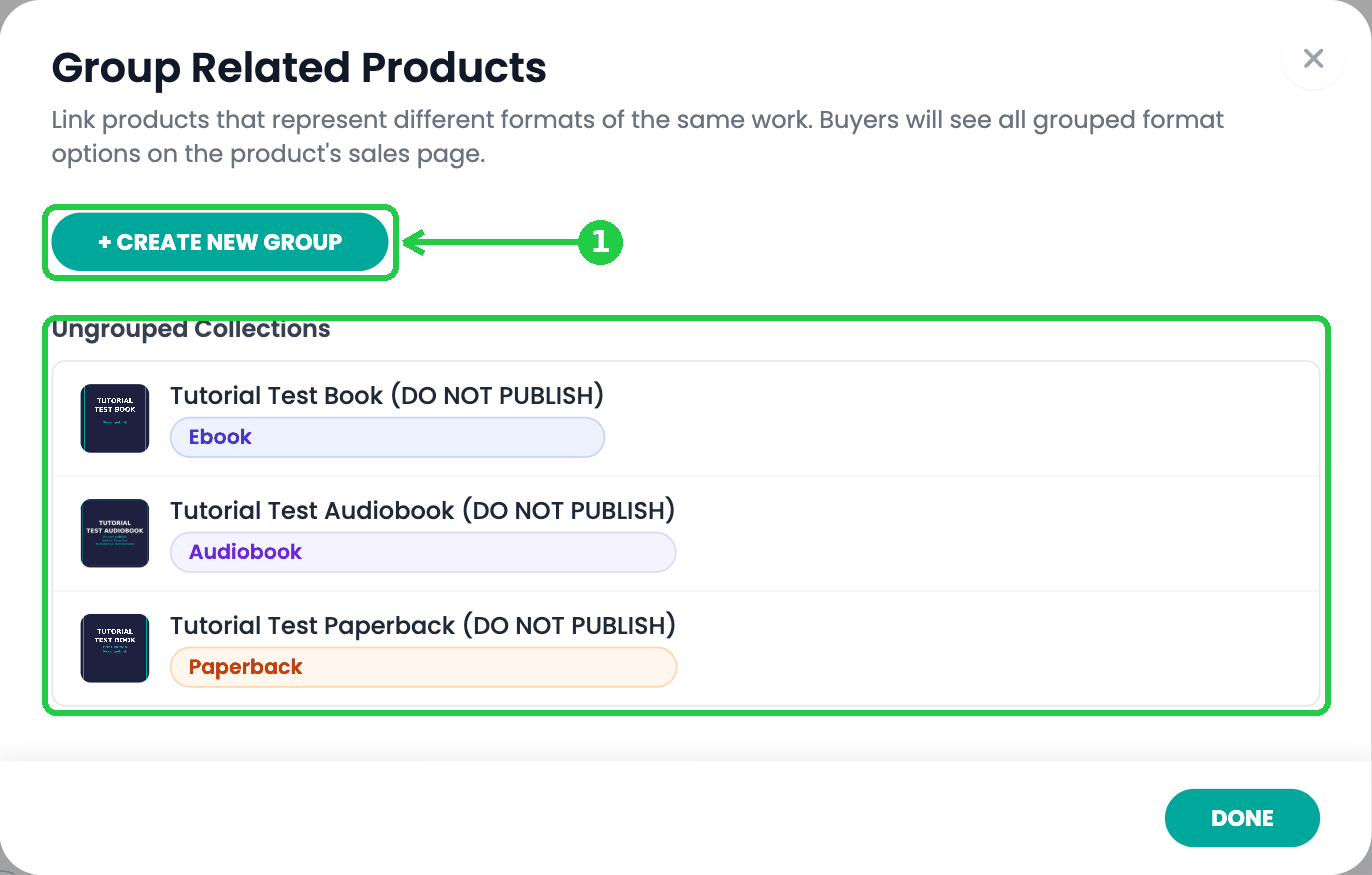
- The Group Related Products window opens. The products you moved are listed under Ungrouped Collections.
- Click + CREATE NEW GROUP (1).
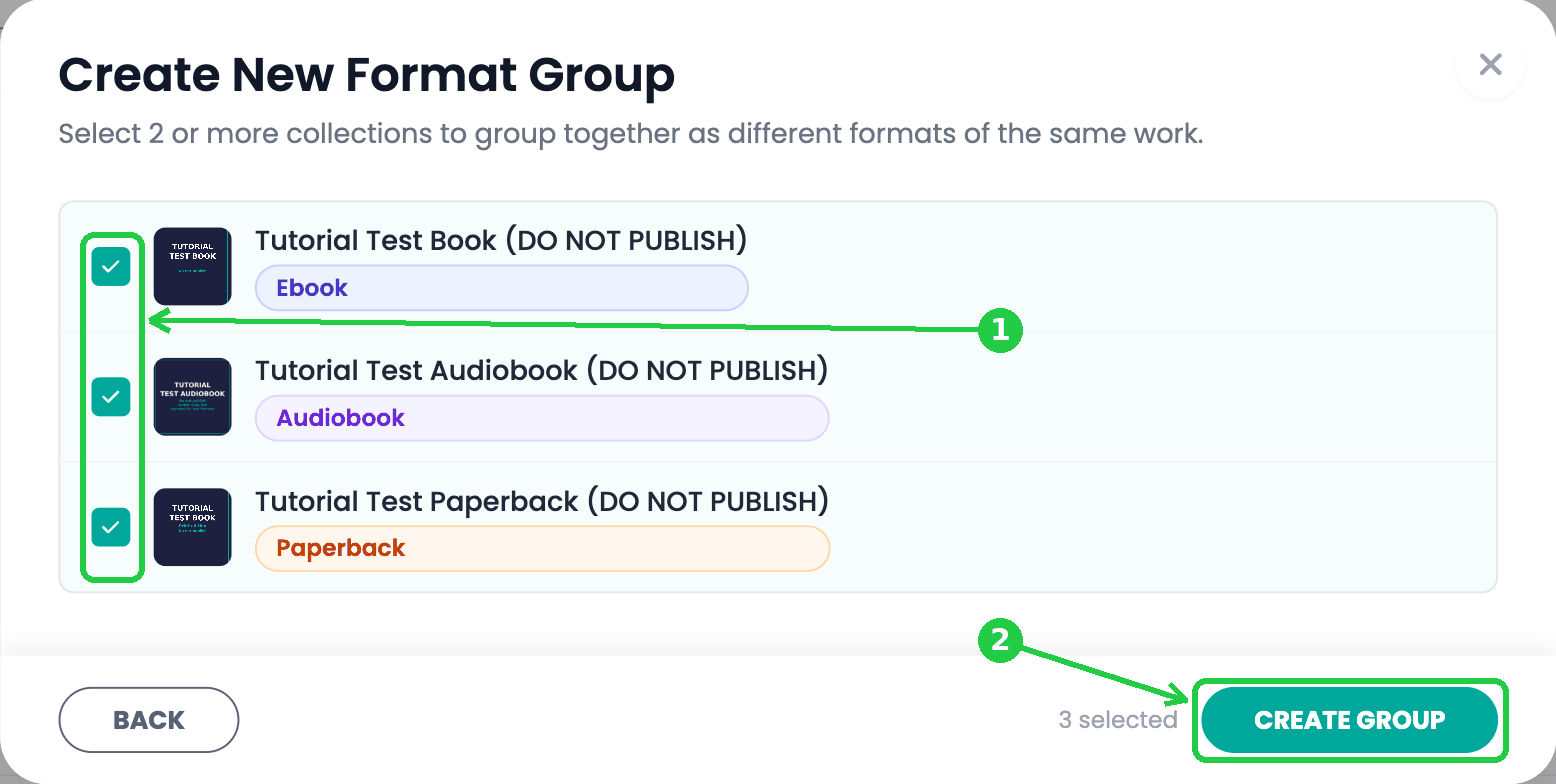
- In Create New Format Group, tick every format of the same book (1). You need at least two.
- Click CREATE GROUP (2). You'll see Collections linked successfully!
- The formats now appear together as Group 1. If your series has more books, click + CREATE NEW GROUP again for each one.
- Click DONE.
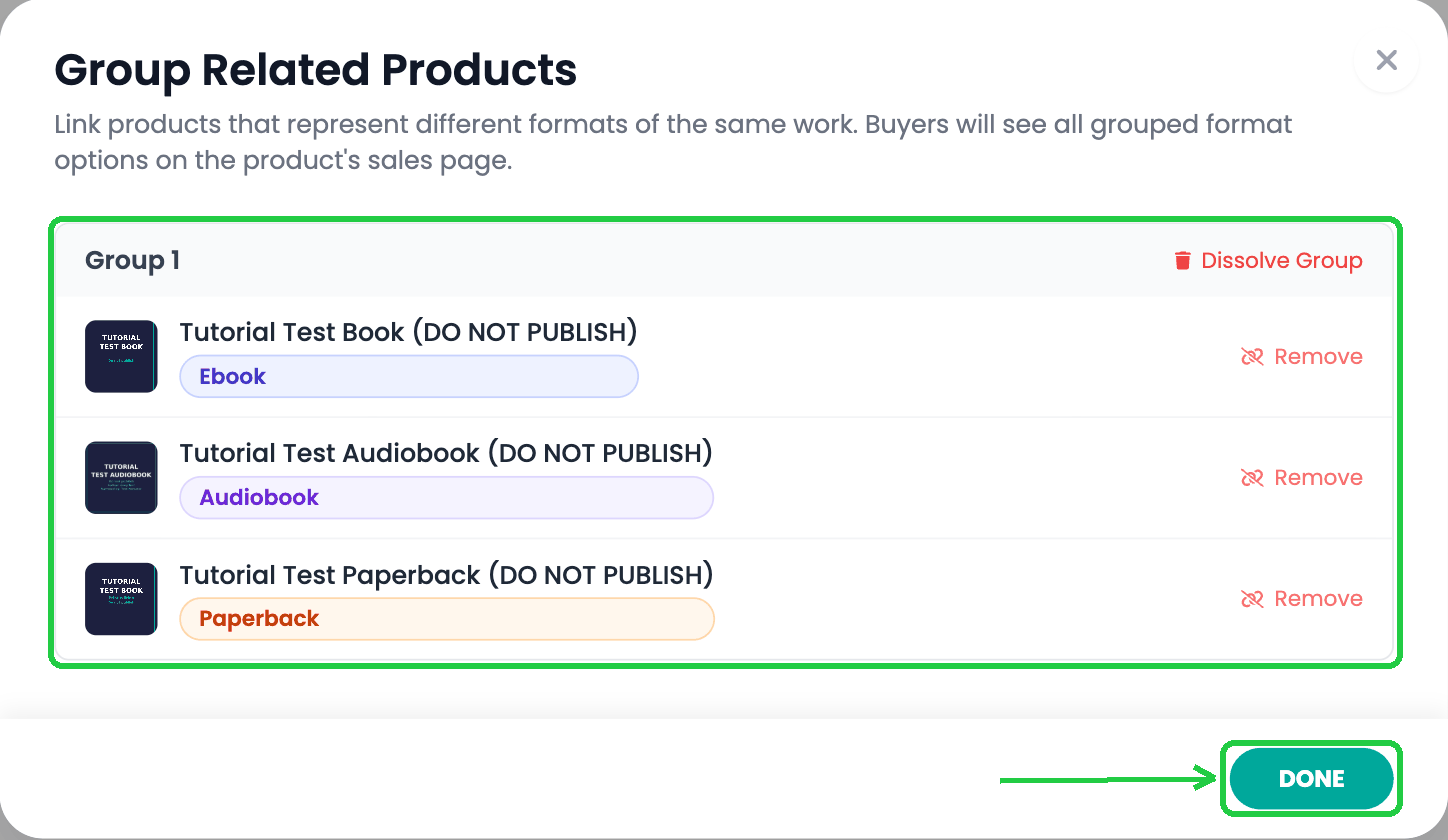
One group per book. Only group formats of the same work. Book 1's formats go in one group and book 2's in another. To add a format to an existing group later, open GROUP PRODUCTS and click Move to Group next to it under Ungrouped Collections. To take one out, click Remove.
4Check your series
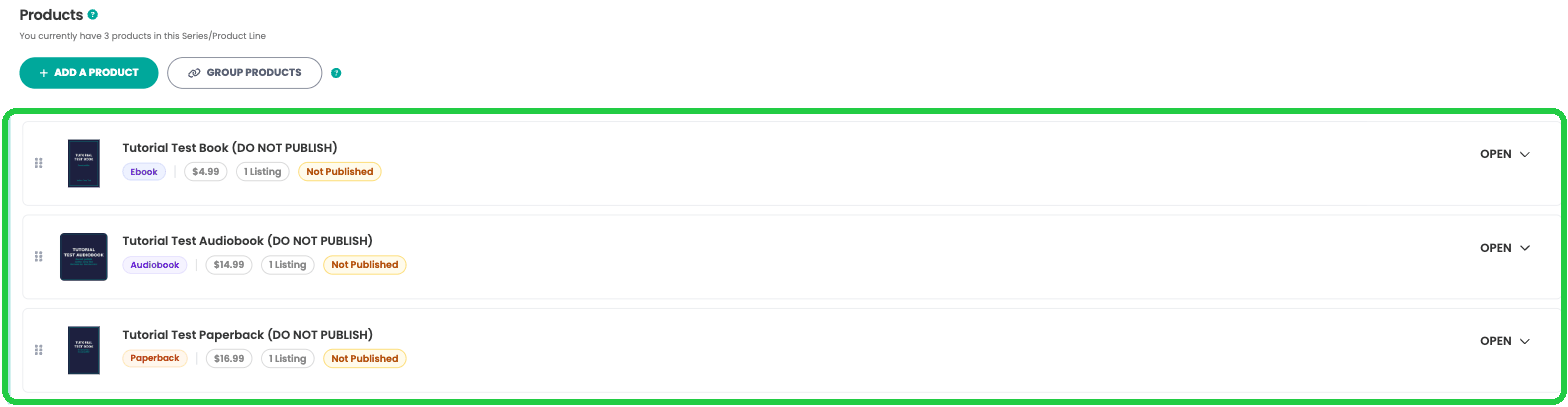
- On the series page, grouped formats are joined by a teal line down the left side. Anything outside a group is still ungrouped.
- Open one of the products on curios.com and check that every format appears under CHOOSE YOUR FORMAT.
Writing a new book for this series? You can add it straight to the series when you upload it: choose Part of an Existing Series on the Set Up Your Series page. See Upload a Multi-Format Book Series.
You're always in control. You can change the series cover, title or description at any time. Click MANAGE on the series from your Studio dashboard.
Stuck? Contact Curios support. We're here to help.
Related articles
- TutorialUpload a Multi-Format Book SeriesThis tutorial walks you through setting up a three-book series on Curios, with an ebook, an audiobook, a paperback and a combo pack for every book, all in one pass.
- TutorialCreate a Combo Pack on CuriosThis tutorial walks you through creating a combo pack, such as an ebook plus a signed paperback, sold together at one price.
- TutorialSell Merchandise on CuriosThis tutorial walks you through listing merchandise (such as t-shirts, mugs or posters) on Curios and shipping orders yourself.