
Upload a Multi-Format Book Series
On this page
Upload a multi-format book series
This tutorial walks you through setting up a three-book series on Curios, with an ebook, an audiobook, a paperback and a combo pack for every book, all in one pass.
One series, one wizard
Create the series and add every book to it without leaving the setup screens.
Every format per book
Sell each book as an ebook, audiobook, paperback and combo pack, each with its own price.
You control shipping
Ship print orders yourself, or hand them to BookVault print on demand.
In this example we upload three books. Each book gets four formats: an ebook, an audiobook, a paperback, and a combo pack that bundles the ebook, the paperback and merchandise. Both print formats use self-fulfilled shipping.
1Start a new book
- Log in at studio.curios.com.
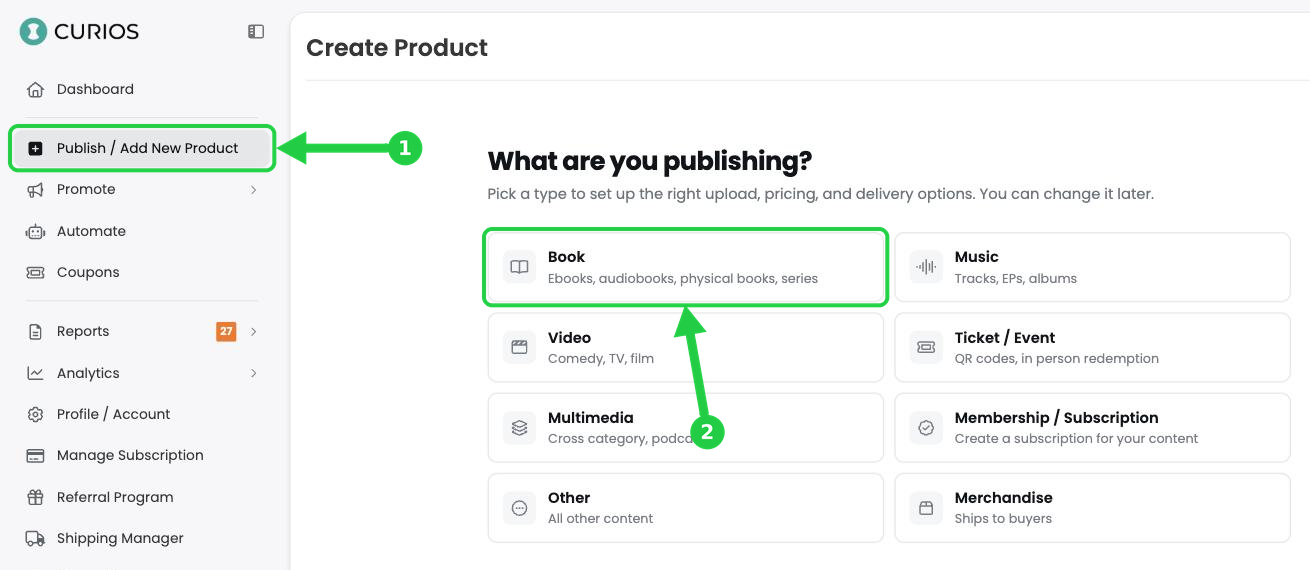
- In the left menu, click Publish / Add New Product.
- Under What are you publishing?, click Book.
2Establish the Series Information
Since this is a new series, we'll create it here. If you're adding a book to a series you've already set up, choose Part of an Existing Series instead.
- Click Start a New Series.
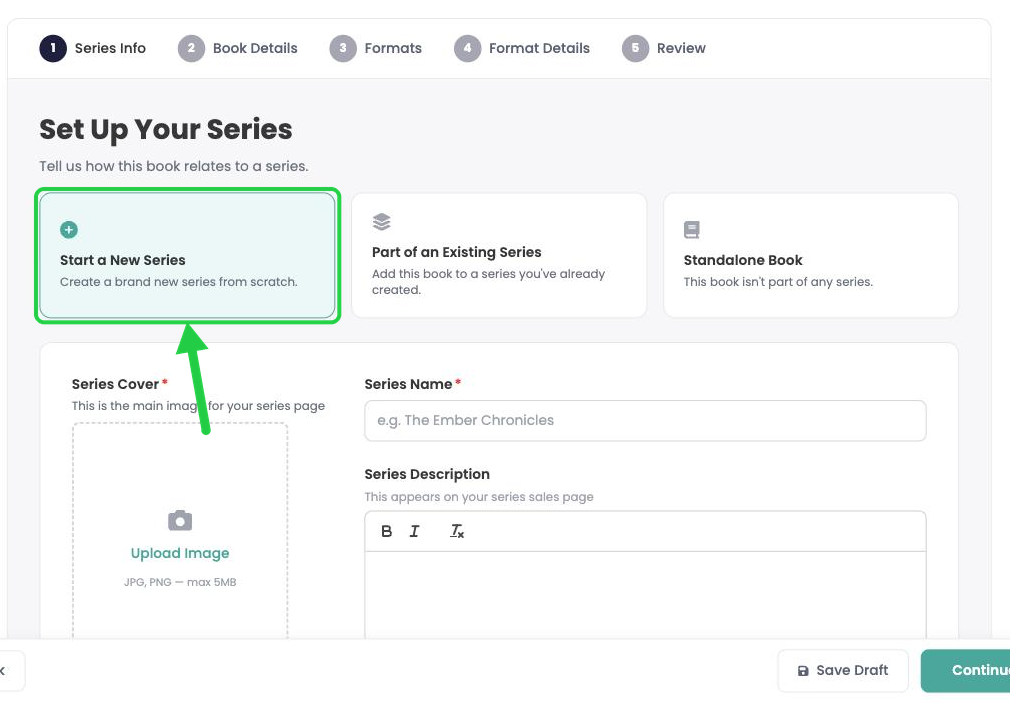
- Series Cover: click Upload Image and choose the main image for your series page (JPG or PNG, max 5MB).
- Series Name: enter the name of the series.
- Series Description: add the copy for your series sales page.
- Genre: choose a genre (required). Subgenres and a Second Genre are optional.
- Click Continue.
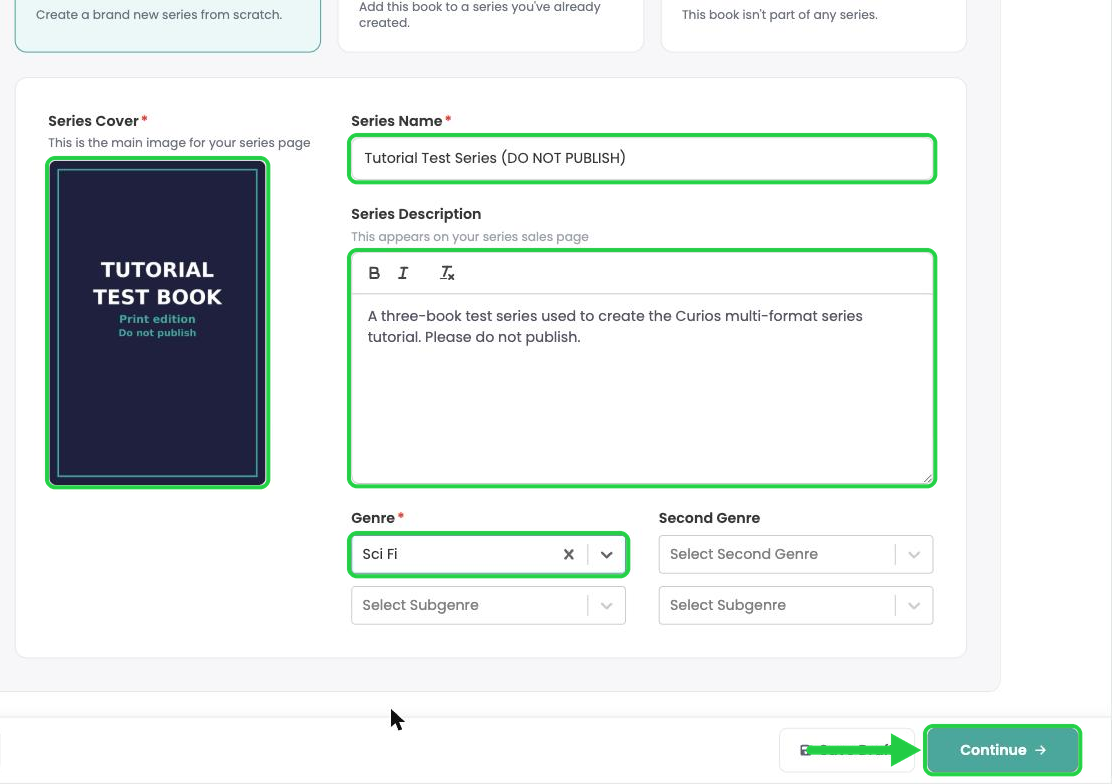
Tip: The genre is set once for the whole series, so you won't be asked for it again on each book.
3Add the first book
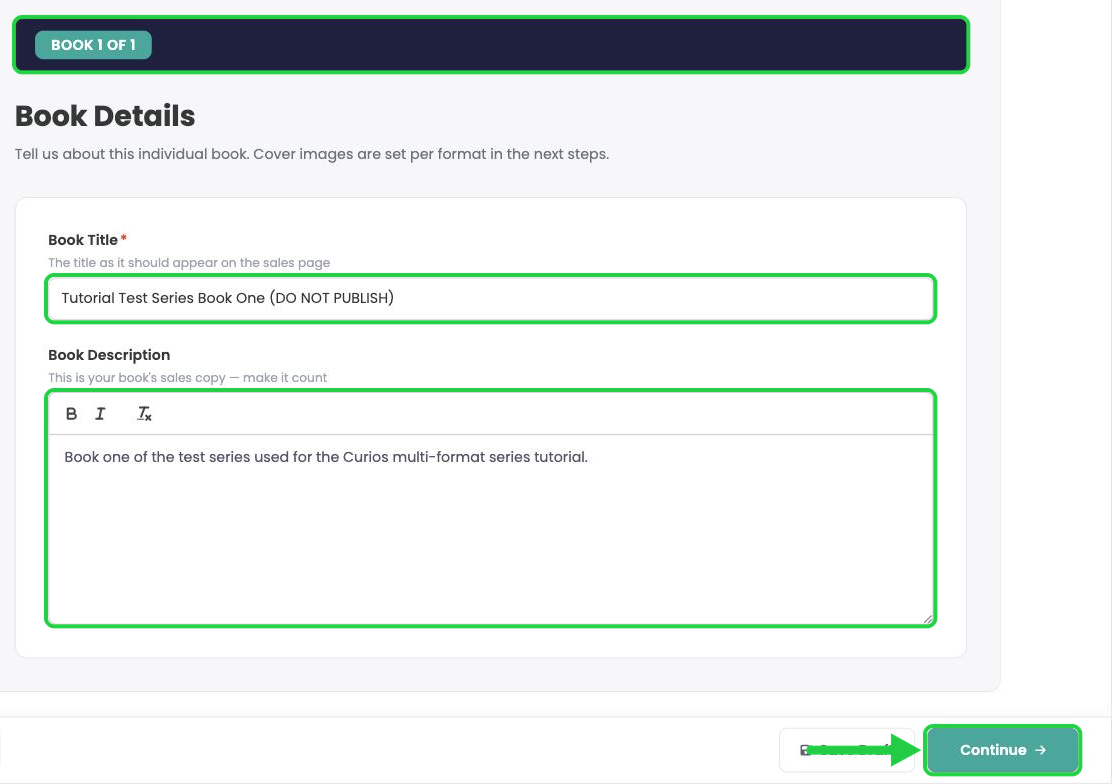
The dark bar at the top shows which book you are working on, starting with BOOK 1 OF 1.
- Book Title: enter the title of book one exactly as it should appear on the sales page.
- Book Description: paste the sales copy for this book.
- Click Continue.
4Choose the formats for this book
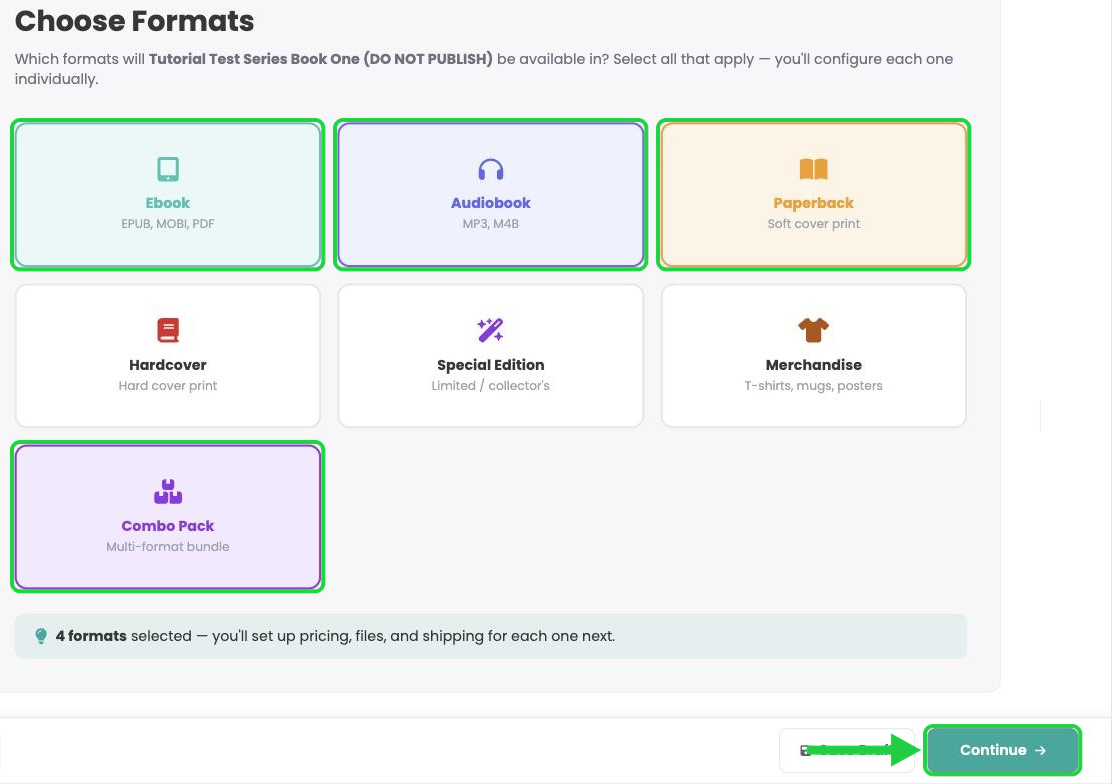
- For this example we will be uploading an Ebook, Audiobook, Paperback, and Combo Pack so we can cover most bases. For your example choose the appropriate formats.
- Check the line under the cards reads 4 formats selected, then click Continue.
5Set up each format
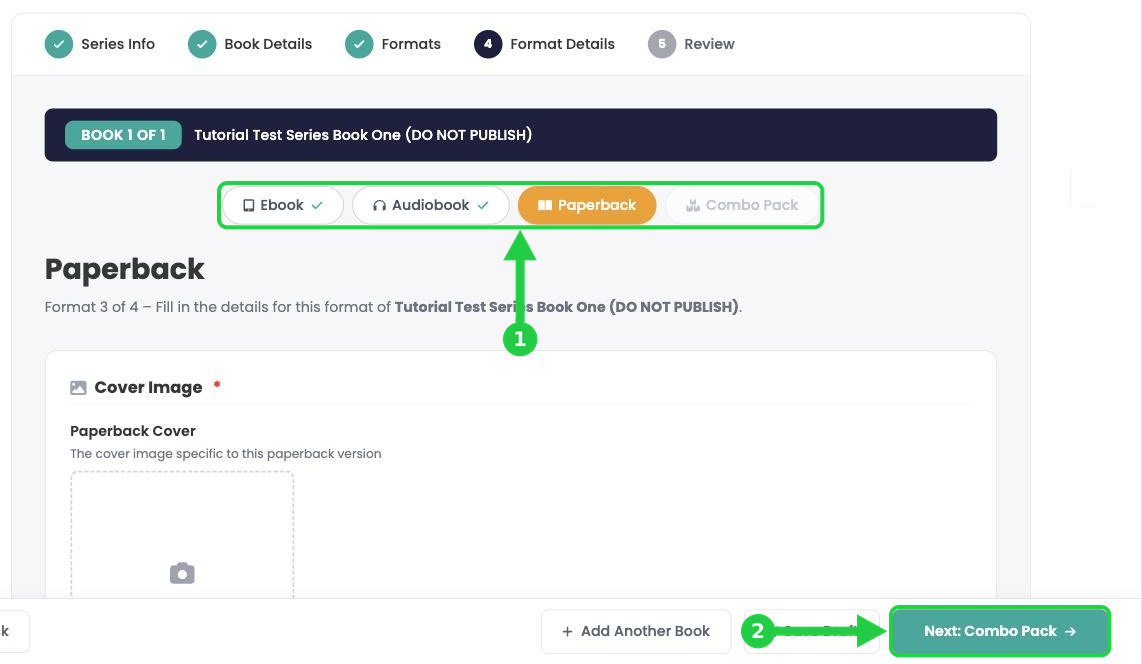
You now set up the formats one at a time. The tabs at the top show where you are, and each tab gets a check mark once it's done. The button at the bottom right reads Next: followed by the next format.
Ebook
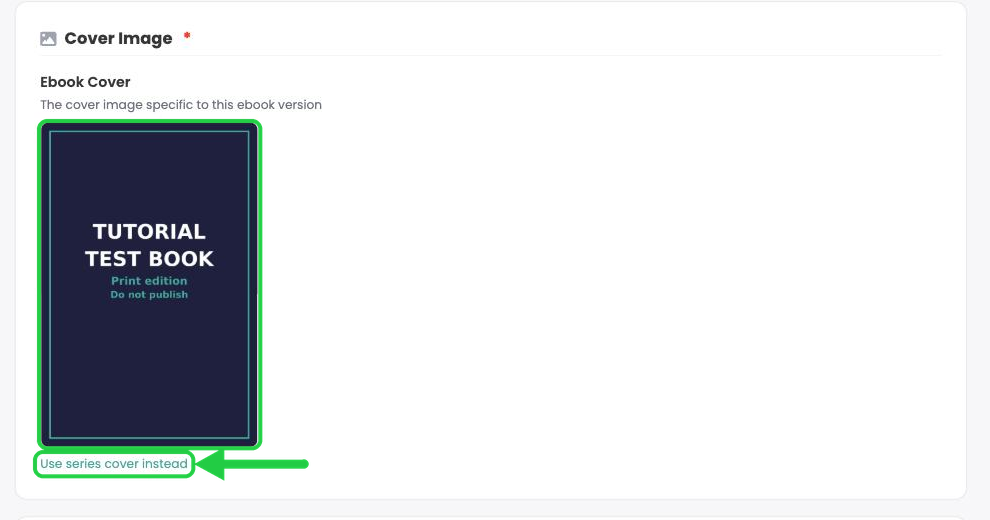
- Upload the ebook cover under Cover Image. To reuse the series cover, click Use series cover instead.
- Set the Listing Type and Buy Now Price.
- Under Files to Deliver, upload your EPUB (or PDF or MOBI). Curios creates a preview from your EPUB automatically.
- Set Permissions, then click Next: Audiobook.
Need more detail? Every field on this page is covered step by step in Upload and Sell Your Ebook.
Audiobook
- Upload the audiobook cover.
- Set the Listing Type and Buy Now Price.
- Under Files to Deliver, upload your chapter files (MP3, M4B, M4A or WAV) and drag them into order.
- Audio doesn't get an automatic preview, so upload a short sample under Preview Files.
- Add the Narrator if you like, set Permissions, then click Next: Paperback.
Need more detail? See Upload and Sell Your Audiobook.
6Set up the paperback with self-fulfilled shipping
- Upload the paperback cover and set the Listing Type and Buy Now Price.
Under How will this be fulfilled? you have a few options for shipping:
- Self Fulfilled Calculated Shipping: you pack and ship each order, and the shipping cost is calculated per order from your package size, weight and chosen carriers.
- Self Fulfilled Flat Rate Shipping: you pack and ship each order and charge one fixed shipping price, with optional per-country rates or excluded countries.
- Print On Demand: BookVault prints and ships each order for you automatically, once your book is set up on BookVault.
- 3rd Party Warehouse & Logistics: a warehouse partner stores and ships your stock (marked Coming Soon).
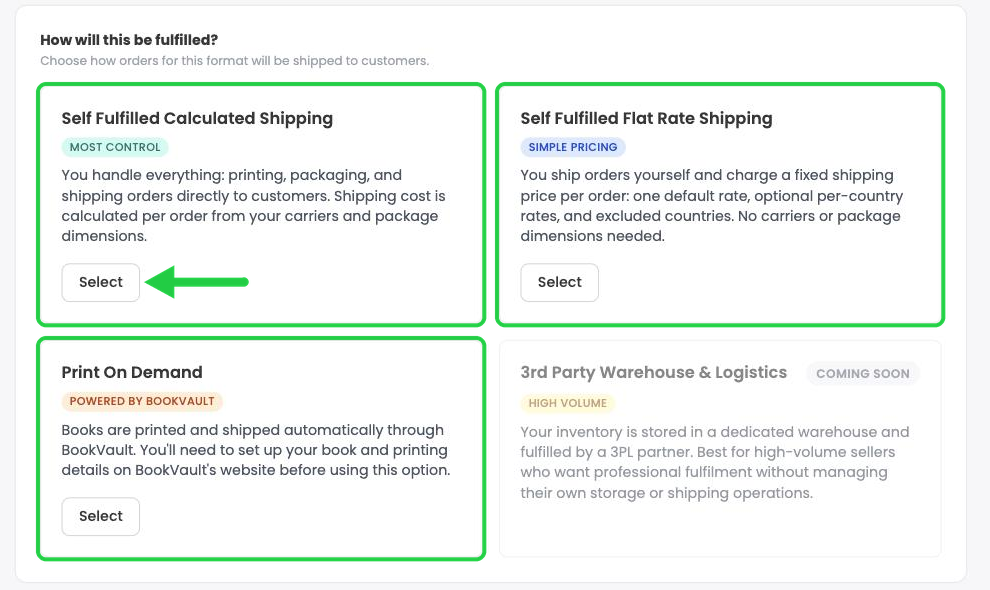
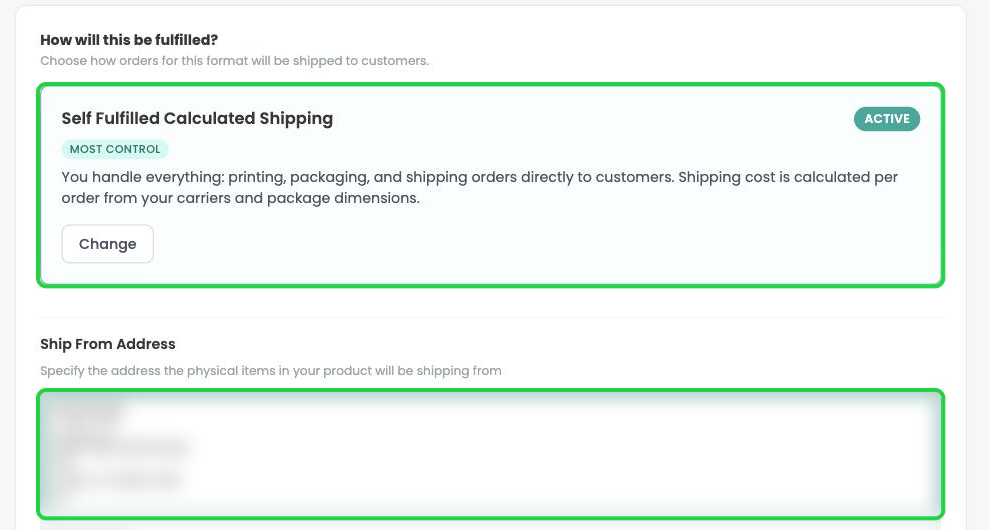
For this example we'll ship the paperback ourselves using calculated shipping.
- Click Select under Self Fulfilled Calculated Shipping. It is marked ACTIVE.
- Under Ship From Address, click the address your books ship from, or click + Add New Address.
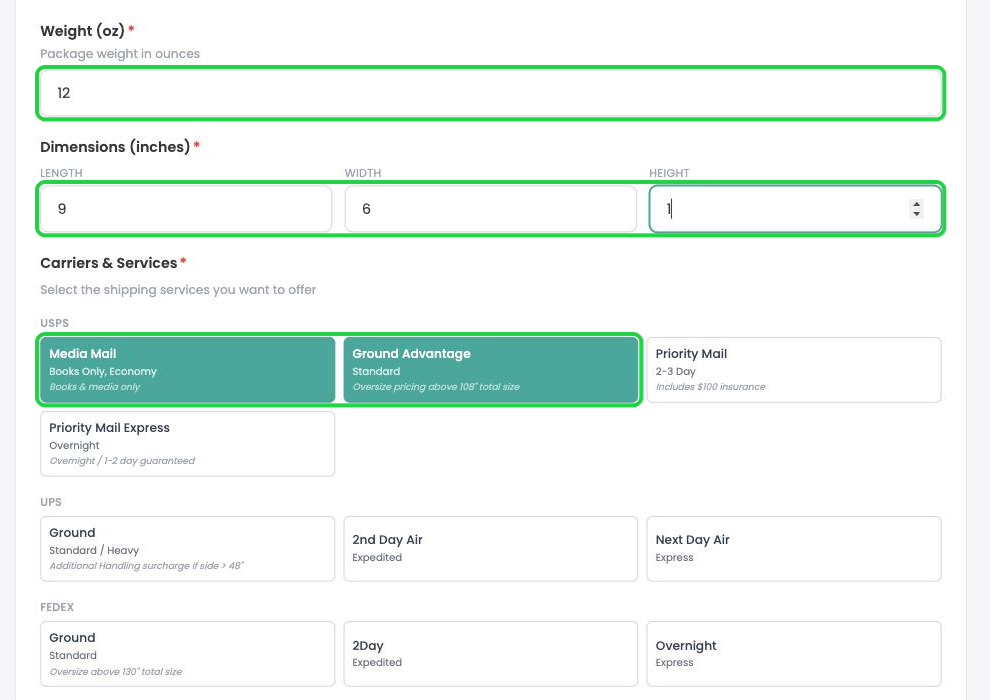
- Enter the packed Weight (oz) and the Dimensions (inches).
- Under Carriers & Services, click each service you want to offer, such as Media Mail and Ground Advantage.
- Set Permissions, then click Next: Combo Pack. If you haven't added a preview, click Continue on the warning.
Learn more: See Self Fulfilled Shipping for Authors for packing and shipping orders, and Set Up Print on Demand via BookVault if you'd rather BookVault print and ship for you. Sell Your Paperback on Curios covers every paperback option.
7Set up the combo pack
- In this example we will be doing a combo pack of an ebook, paperback and some merch. Please pick the appropriate items for whatever you are including.
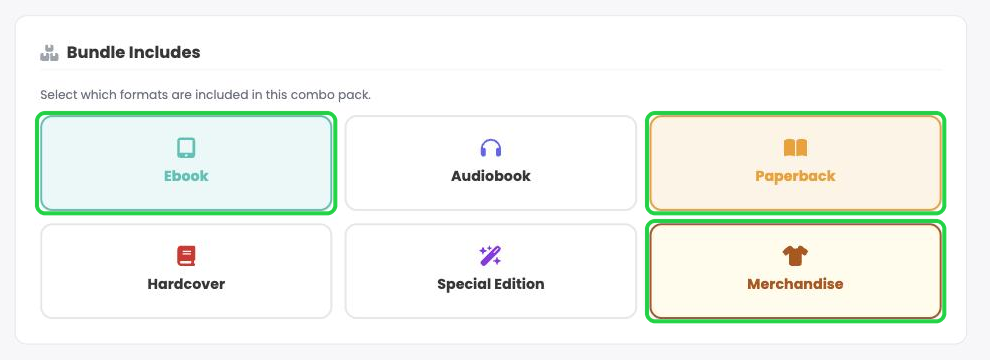
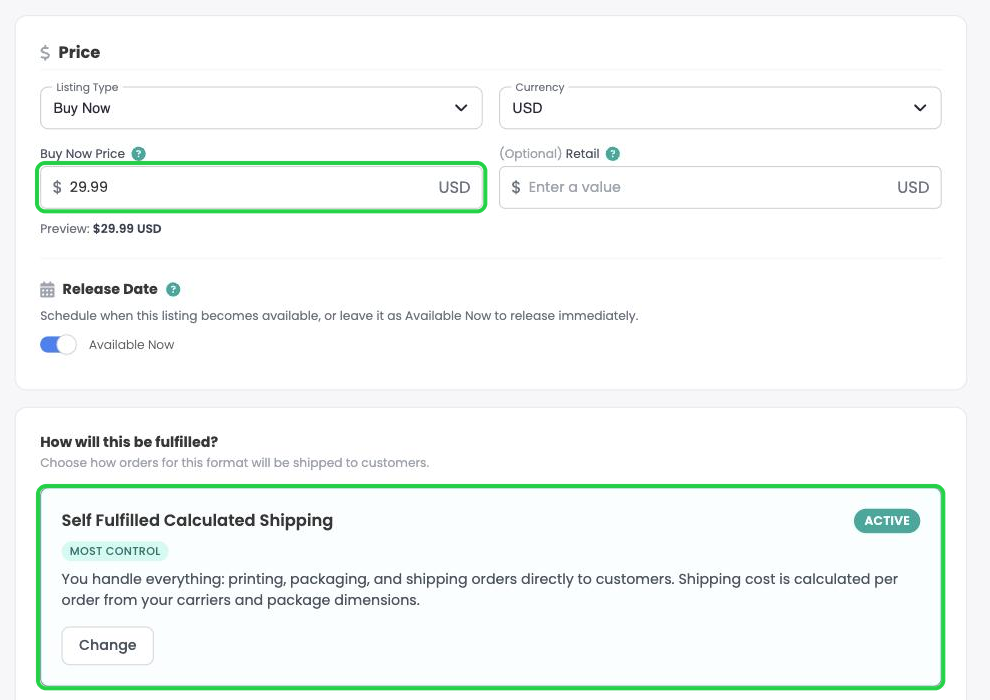
- Upload a combo pack cover (a photo of the bundle works well) and set the Buy Now Price for the whole bundle.
Because the bundle includes a paperback and merchandise, you choose how it ships. You have the same options as the paperback: calculated shipping, flat rate shipping, print on demand through BookVault, or a 3rd party warehouse (coming soon). We'll use self-fulfilled calculated shipping again.
- Click Select under Self Fulfilled Calculated Shipping and pick your Ship From Address.
- Enter the Weight (oz) and Dimensions (inches) of the packed bundle, and choose your carrier services. (Media Mail isn't offered once merchandise is included, because it's for books and media only.)
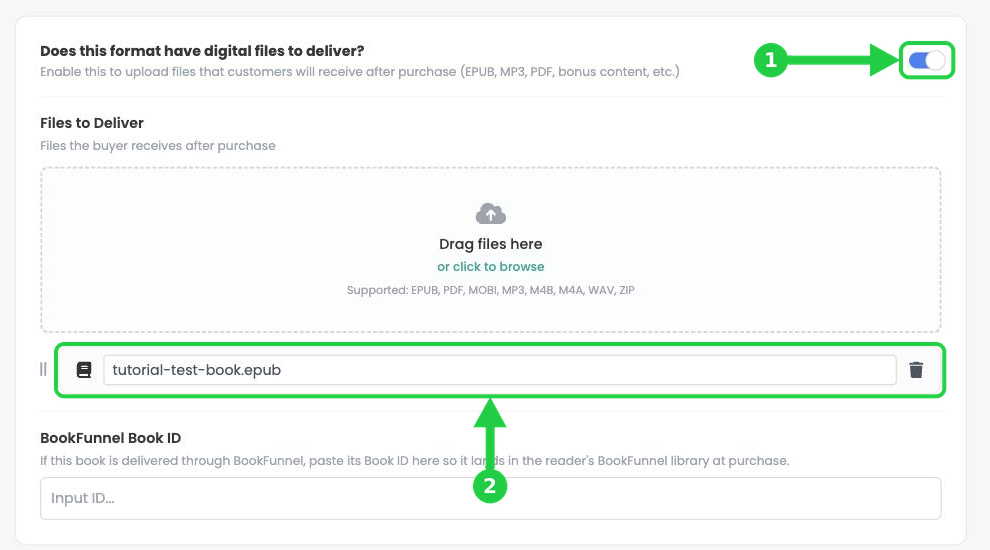
- Does this format have digital files to deliver? is switched on because the bundle includes the ebook (1). Upload the ebook file under Files to Deliver (2).
Learn more: See Create a Combo Pack on Curios and Sell Merchandise on Curios.
8Add the next book
- Set the combo pack's Permissions, then click Add Another Book at the bottom of the page.
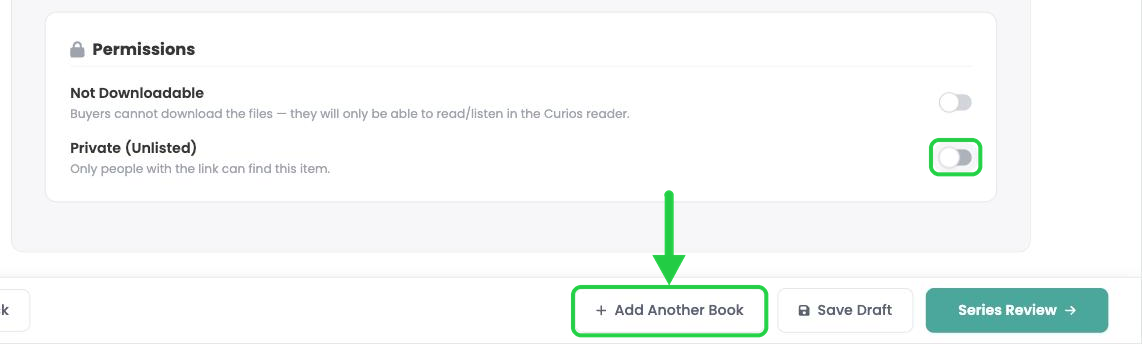
- The bar now reads BOOK 2 OF 2. Enter the Book Title and Book Description for book two, click Continue, and choose its formats.
- Set up each format the same way as book one. Your shipping details aren't copied from book one, so enter them again for each print format.
- Click Add Another Book again for book three.
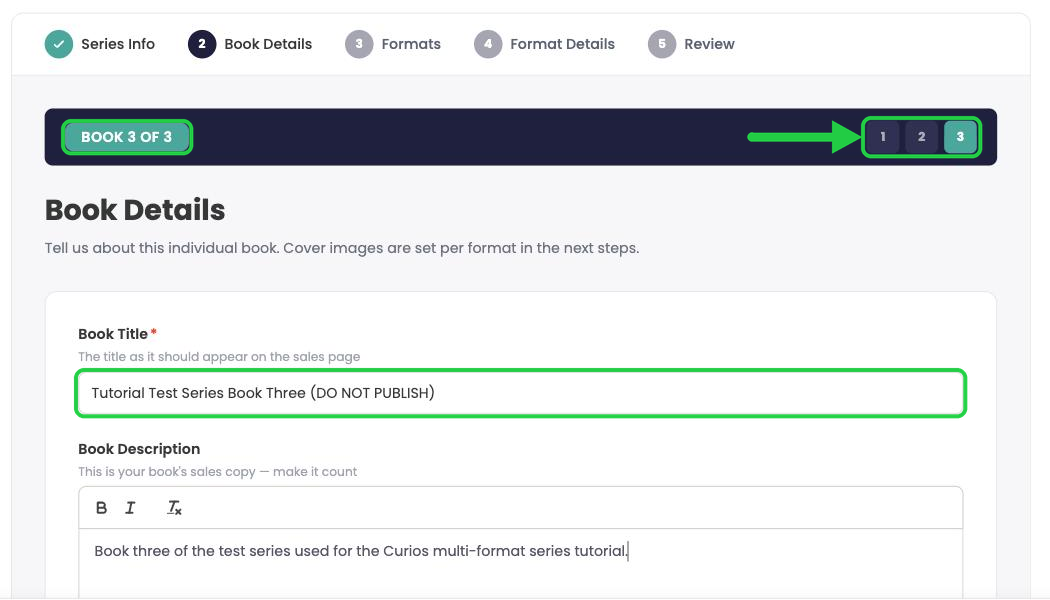
Tip: Use the numbered buttons on the right of the dark bar to jump back to any book. If a new book opens on its last format tab, click Back to step back to the first format.
9Review, then save or publish
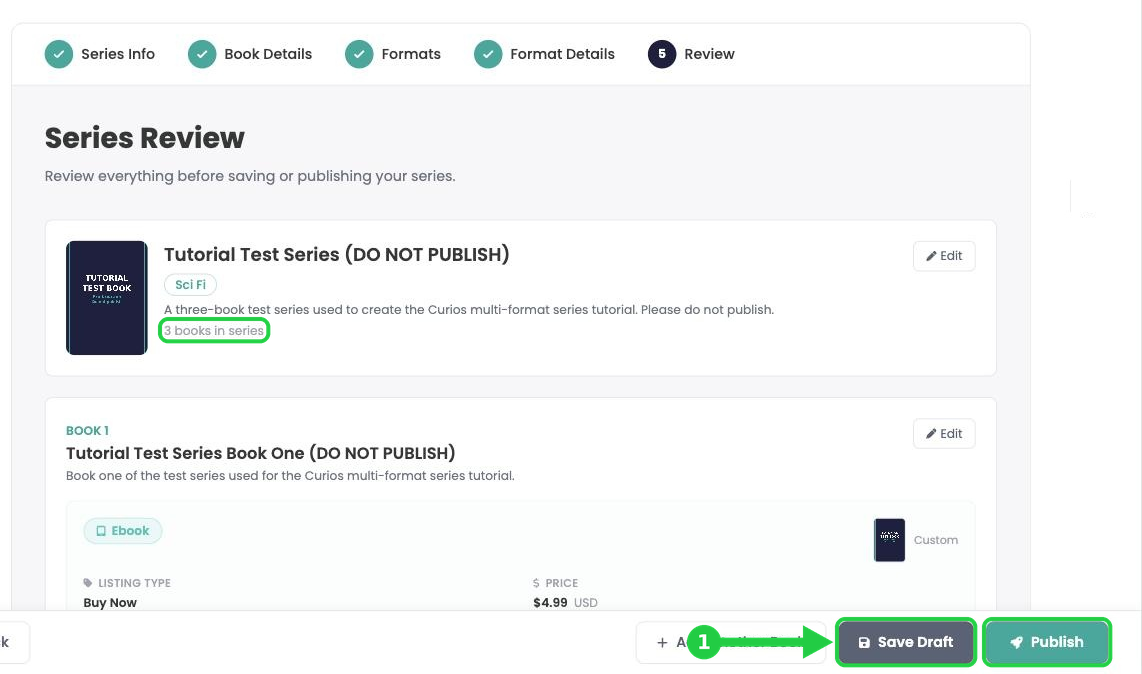
- On the last format of your last book, click Series Review.
- Check the series card at the top (it should say 3 books in series), then scroll through each book and format.
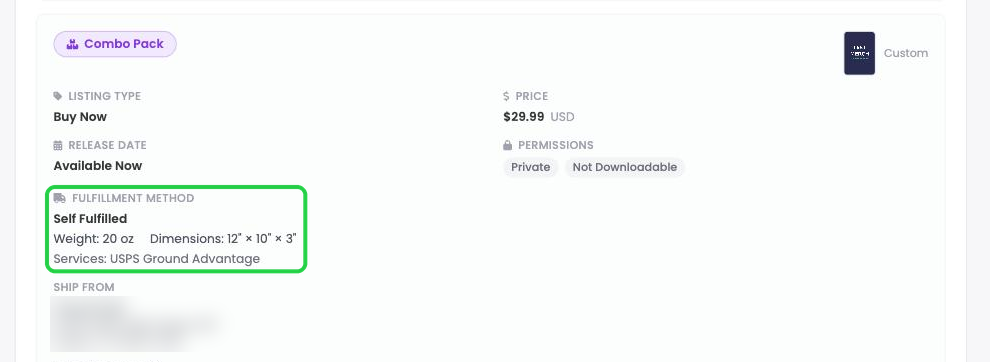
- Click Save Draft (1) to save without going live, or Publish to put the whole series on the Curios marketplace.
10Find your series on the dashboard
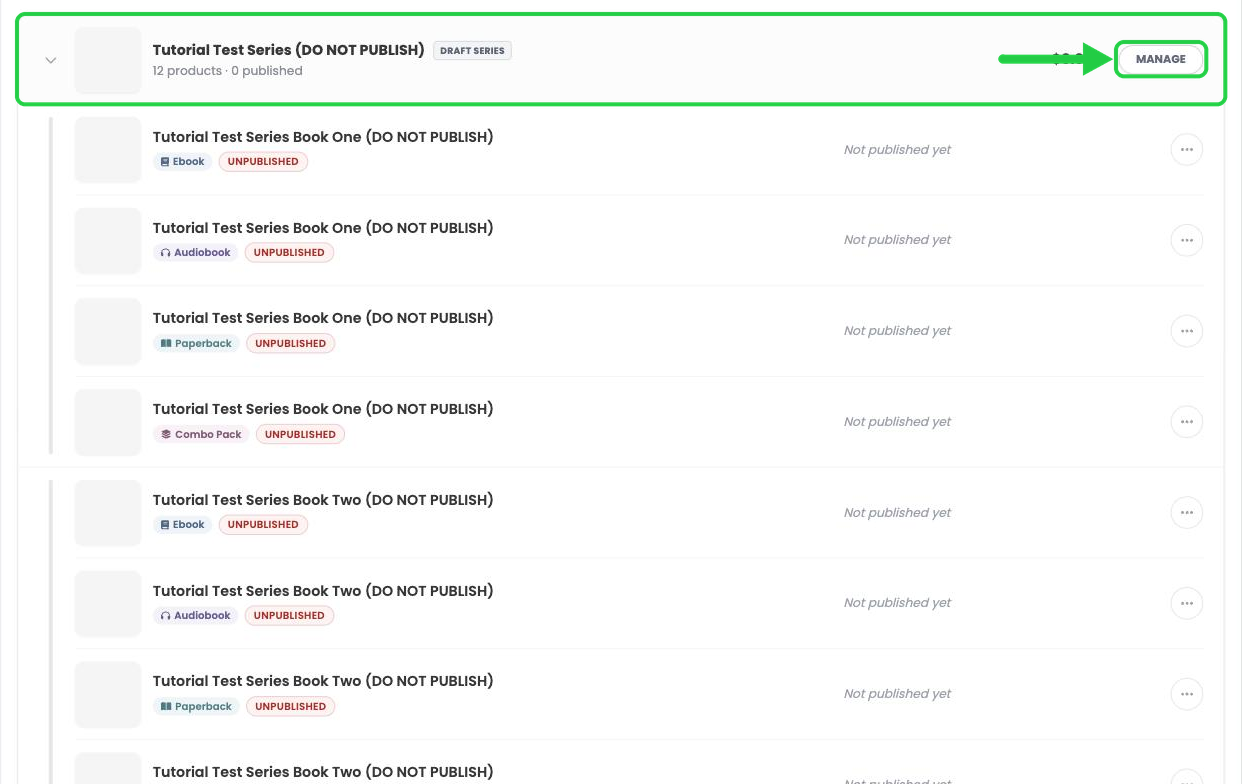
- Click Dashboard in the left menu. Your series appears under Your Products with a DRAFT SERIES label and a count of its products (12 in this example: 3 books × 4 formats).
- Click MANAGE to open the series, or click any book and format below it to edit or publish it.
Adding more later? You can add another book to this series at any time. See Add a Book to an Existing Series. To add a format to a book you've already published, see Add a Format to an Existing Book.
You're always in control. You can change your price, shipping, images, description or release date at any time, even after you publish. Click the product on your Studio dashboard to open its page.
Stuck? Contact Curios support. We're here to help.
Related articles
- TutorialCreate a Combo Pack on CuriosThis tutorial walks you through creating a combo pack, such as an ebook plus a signed paperback, sold together at one price.
- TutorialSell Merchandise on CuriosThis tutorial walks you through listing merchandise (such as t-shirts, mugs or posters) on Curios and shipping orders yourself.
- TutorialSell a Special Edition on CuriosThis tutorial walks you through listing a special edition, such as a signed or collector's edition, and choosing how orders are fulfilled.