
Upload and Sell Your Ebook
On this page
Publish your ebook and start selling
This tutorial walks you through uploading an ebook to Curios, from creating the listing to publishing it on the marketplace.
Keep 100% of your price
Sell at the price you choose, or give the book away for free.
Know your readers
You get the contact information of everyone who buys or claims your book.
Keep control of your IP
You own your work and can change or remove it at any time.
Is this book part of a series?
This tutorial covers a standalone book. For a series, follow Upload a Multi-Format Book Series or Add a Book to an Existing Series.
1Start a new book
- Log in at studio.curios.com.
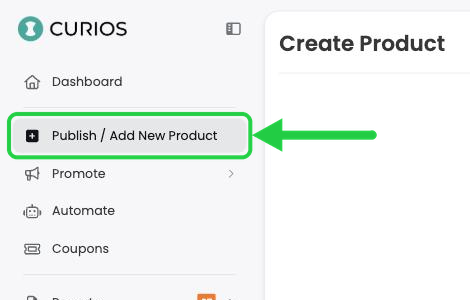
- In the left menu, click Publish / Add New Product.
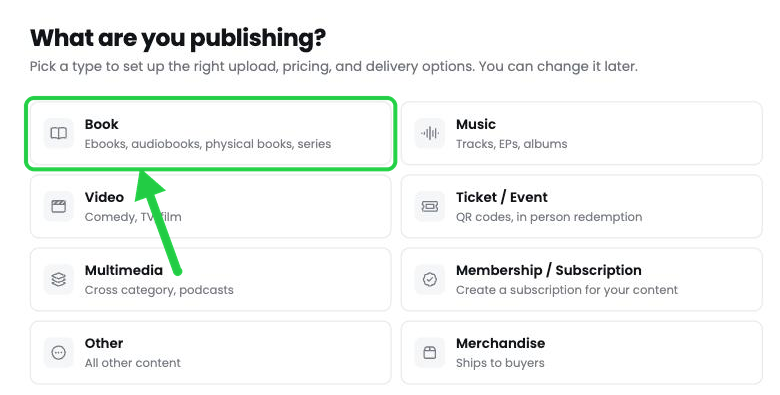
- Under What are you publishing?, click Book.
2Establish the Series Information
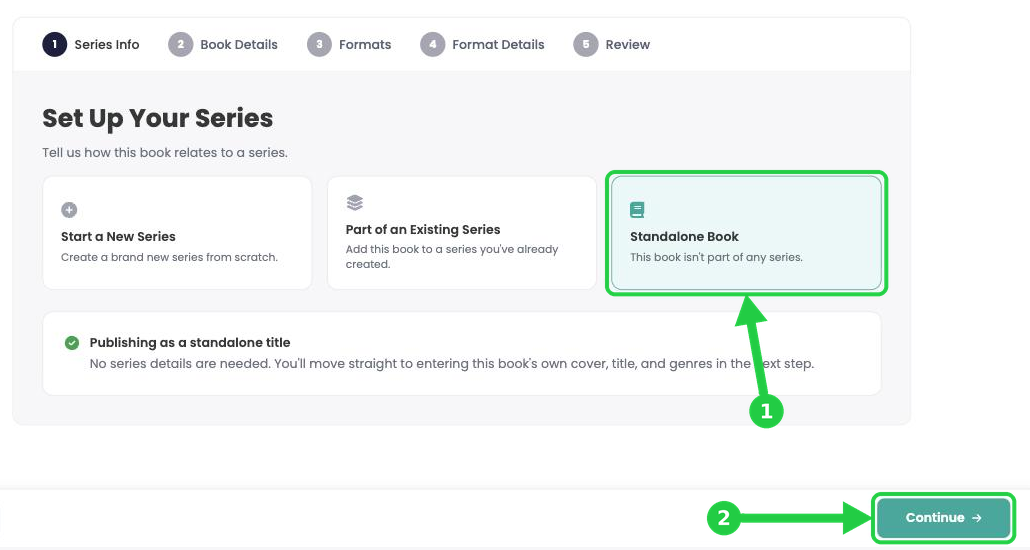
For this example we will select standalone book, but if this book is part of a series then you can specify that here.
- Click Standalone Book.
- Click Continue at the bottom right.
3Add your book details
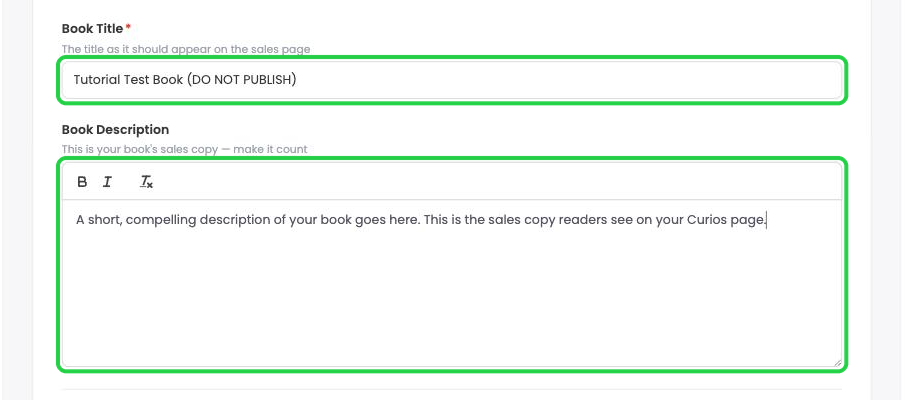
- Book Title: enter the title exactly as it should appear on your sales page.
- Book Description: paste your sales copy. You can use bold and italics.
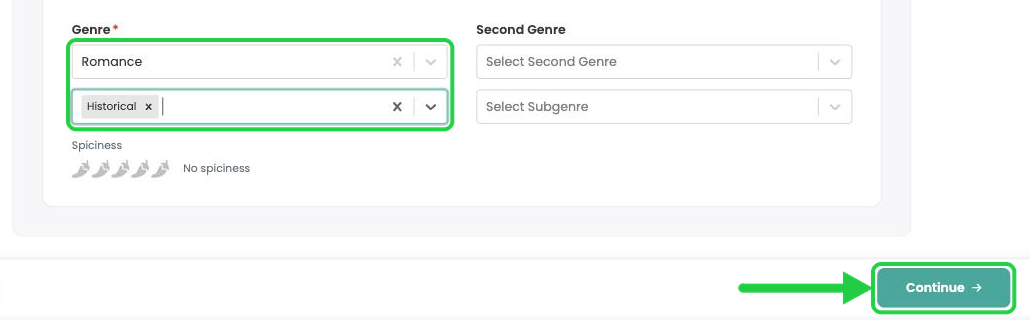
- Genre: choose a genre (required), then choose one or more subgenres.
- Optional: add a Second Genre if your book fits two categories.
- If you chose Romance, set the Spiciness rating.
- Click Continue.
4Choose the Ebook format
- Click Ebook.
- Click Continue.
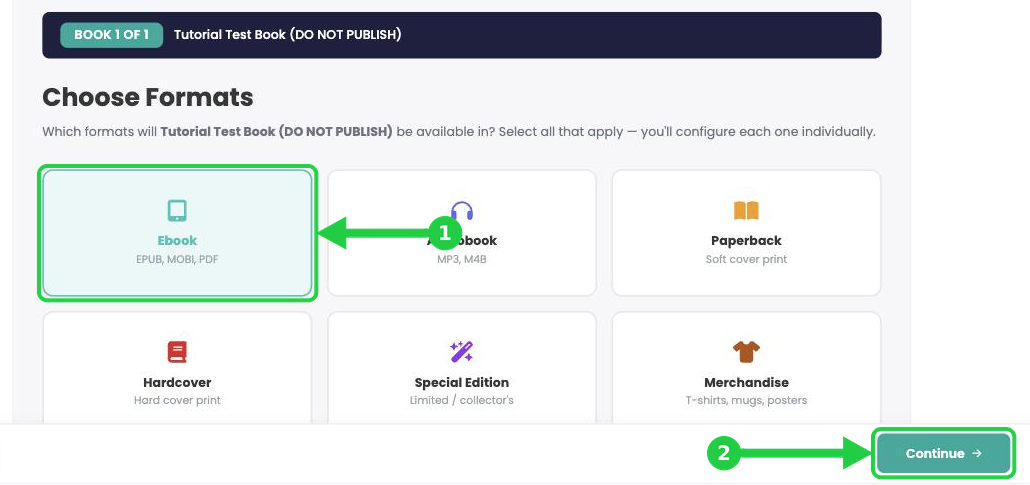
Tip: Selling the audiobook or paperback too? Select every format now and you'll set each one up in turn. You can also add formats later with Add a Format to an Existing Book.
5Upload your ebook cover
Everything for your ebook (cover, price, files and permissions) is set on this one page. Work from top to bottom.
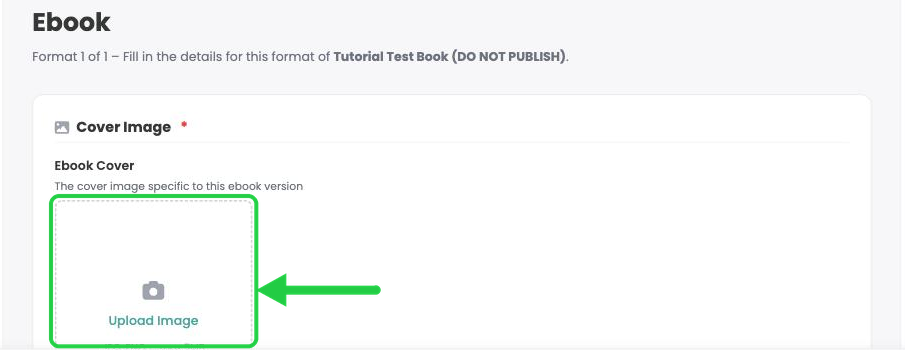
- Under Cover Image, click Upload Image and choose your cover file.
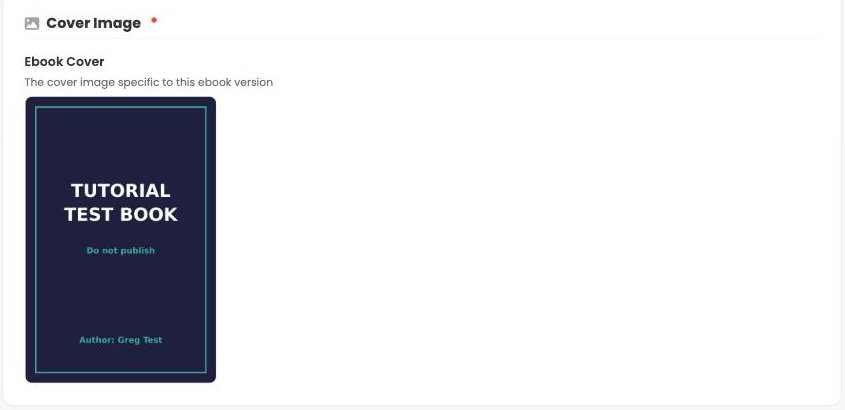
- Your cover appears when the upload finishes.
Cover specs: JPG or PNG, up to 5 MB. We recommend 1,600 × 2,400 pixels.
6Set your price and release date
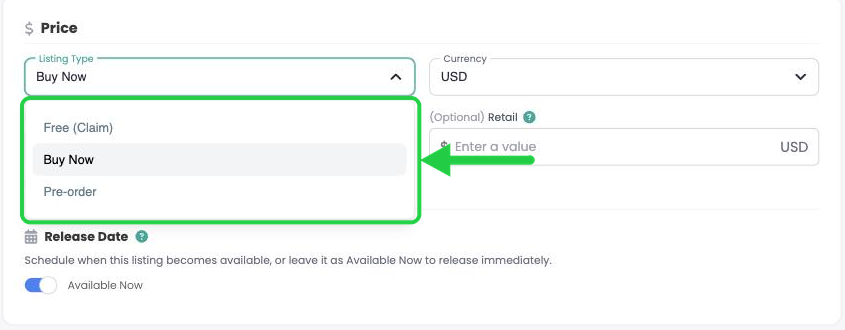
- Click Listing Type and choose one:
- Free (Claim): readers get the book for free, and you get the email address of everyone who claims it.
- Buy Now: readers buy the book at the price you set.
- Pre-order: take orders before release day. See Setting Up a Pre-Order on Curios.
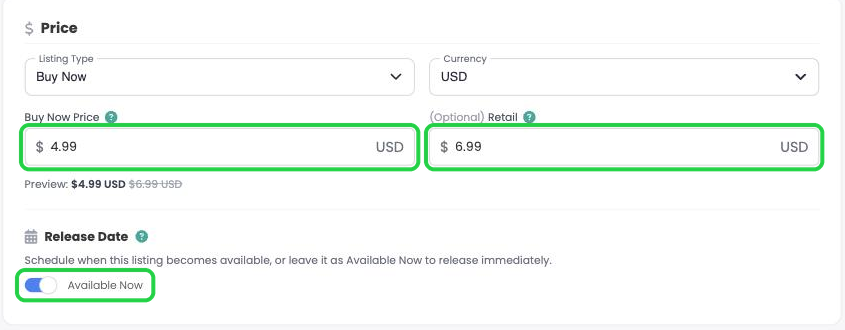
- Buy Now Price: enter your ebook's price.
- (Optional) Retail: enter a higher "was" price to show a discount. Readers see it crossed out next to your Buy Now price.
- Release Date: leave Available Now switched on to release the book as soon as you publish. Switch it off to schedule a date and time (in your local time zone).
7Upload your ebook file
- Under Digital Delivery Files, drag your EPUB into the Files to Deliver box, or click or click to browse.
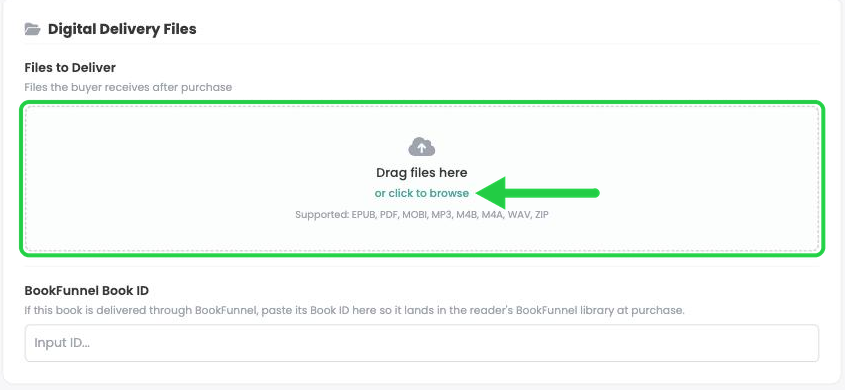
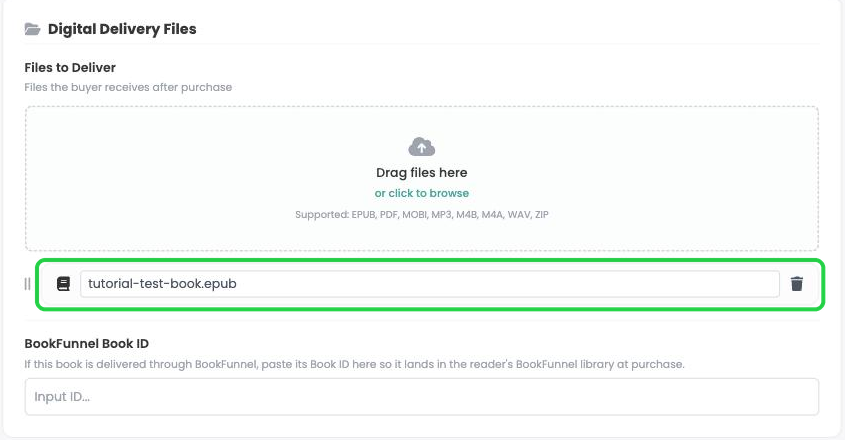
- Your file appears under the upload box when it's done. This is the file readers receive after they buy.
- Optional: if you deliver through BookFunnel, paste the book's BookFunnel Book ID. See Connect BookFunnel to Your Curios Account.
8Check your preview file
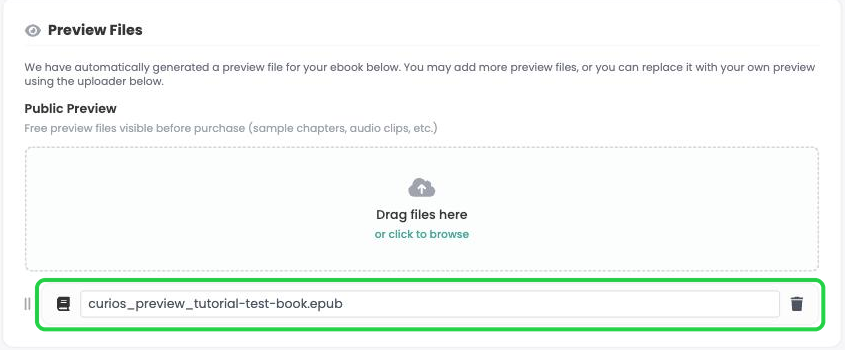
When you upload an EPUB, Curios automatically creates a free sample from it and lists it under Public Preview. Readers can open it before they buy.
- Keep the sample Curios made, or
- Click the trash icon to delete it, then upload your own sample. You can also add more preview files.
9Set collaborators and permissions
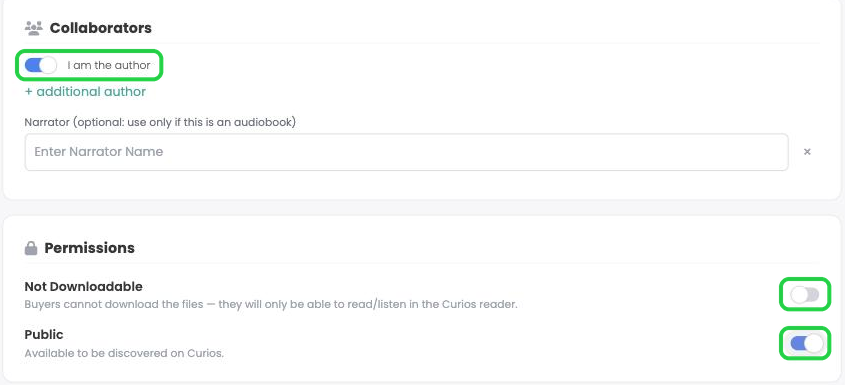
- Under Collaborators, leave I am the author switched on if the book is published under your name. Click + additional author to credit a co-author.
- Leave Narrator blank. It's only for audiobooks.
- Under Permissions, set two switches:
- Downloads. Off (the default) shows Not Downloadable: readers read in the Curios reader. On shows Downloadable: readers can download the file after purchase.
- Visibility. On (the default) shows Public: anyone can discover the book on Curios. Off shows Private (Unlisted): only people with the link can find it.
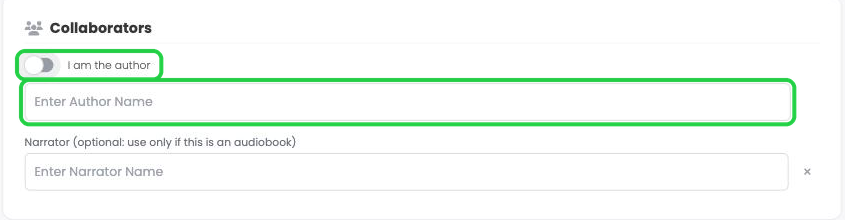
Using a pen name? Switch off I am the author and type the author name as it should appear on the book.
10Review, then save or publish
- Click Series Review at the bottom right of the page.
- Check every detail. Click Edit on any section to fix it.
- Click Save Draft (1) to save without going live, or Publish (2) to put the book on the Curios marketplace now.
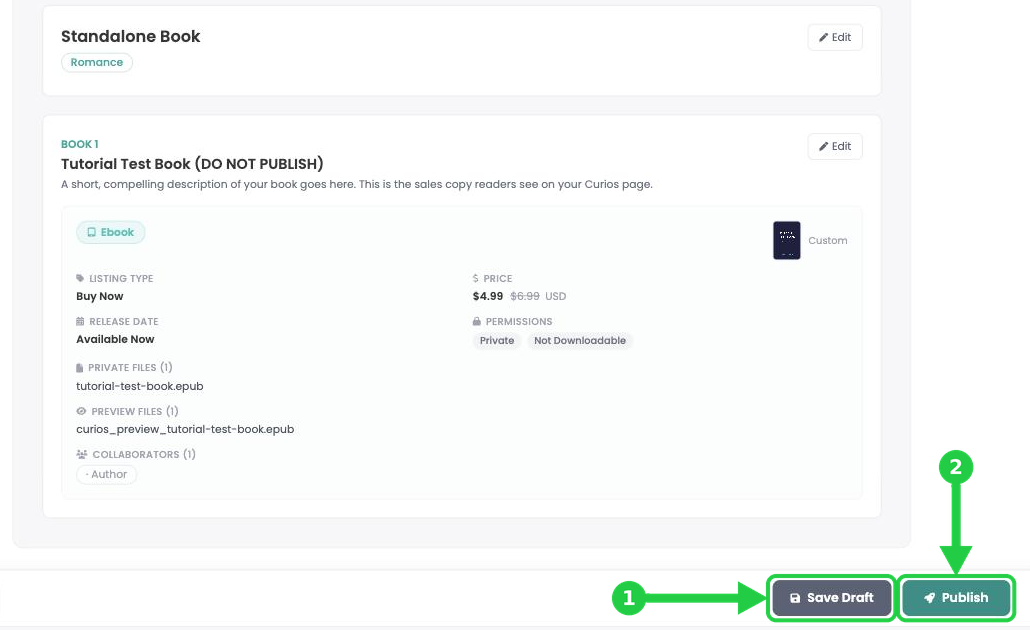
Tip: We recommend Save Draft first. You can check the finished product page before anyone sees it.
11Check your product page and publish
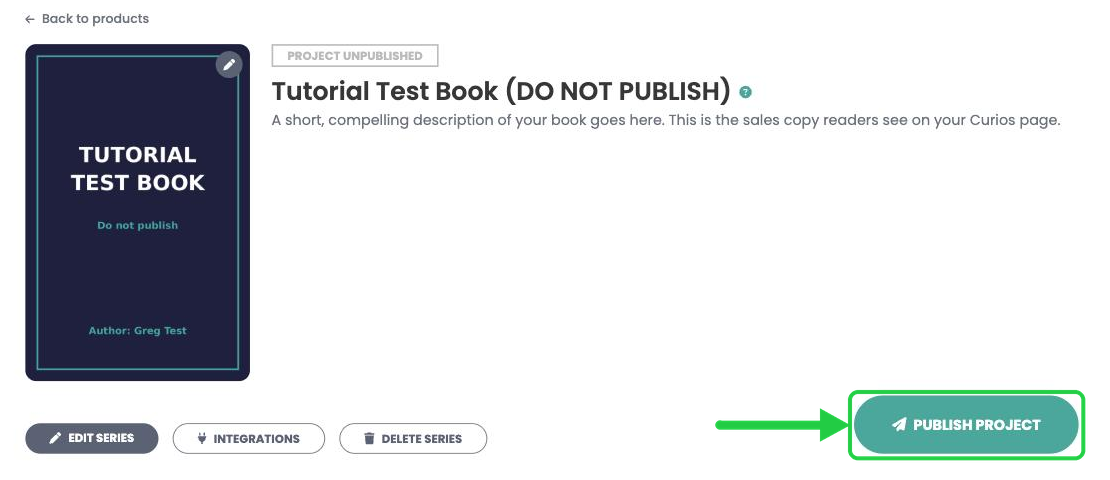
After you save, Curios opens your book's product page. It shows PROJECT UNPUBLISHED until you publish.
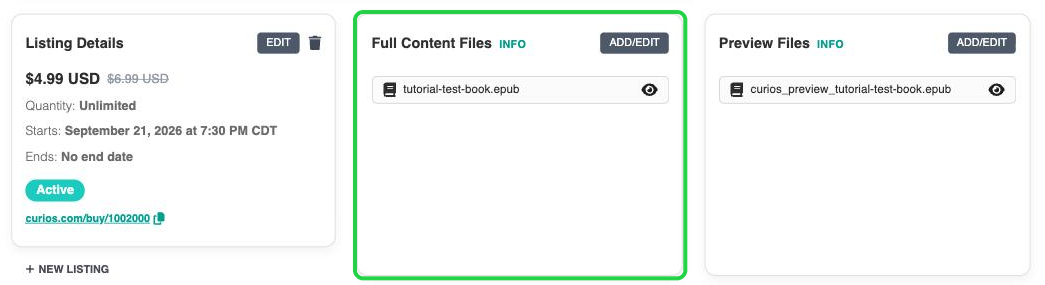
- Scroll down to your ebook. Make sure Full Content Files lists your ebook file. If it's empty, click ADD/EDIT and upload the file again.
- Your buy link (curios.com/buy/…) is under Listing Details. Copy it to share your book.
- When everything looks right, scroll to the top and click Publish Project.
You're always in control. You can change your price, files, cover, description or release date at any time, even after you publish. Click the book on your Studio dashboard to open its product page.
Stuck? Contact Curios support. We're here to help.
Related articles
- TutorialTurn a Standalone Book into Part of a SeriesThis tutorial shows you how to turn a standalone book into part of a series: set up the series, move each book into it, then group each book's formats so readers see every format on one product page.
- TutorialUpload a Multi-Format Book SeriesThis tutorial walks you through setting up a three-book series on Curios, with an ebook, an audiobook, a paperback and a combo pack for every book, all in one pass.
- TutorialCreate a Combo Pack on CuriosThis tutorial walks you through creating a combo pack, such as an ebook plus a signed paperback, sold together at one price.