
How to Upload Your Content to Curios
On this page
Whether you're an author, musician, comedian, or any other type of creator, uploading your content to Curios follows the same straightforward process. This universal guide will walk you through the steps that work for any digital content type.
Before You Start
- Prepare your files: Have your digital content ready (books, audio, video, etc.)
- Create cover art: A high-quality image that represents your content
- Write descriptions: Compelling text that explains what you're offering
- Set your price: Decide if you want to charge or offer it free
Step 1: Access Creator Studio
Go to studio.curios.com and log in with your email address. If you don't have an account, you'll be prompted to create one.
Step 2: Get Started
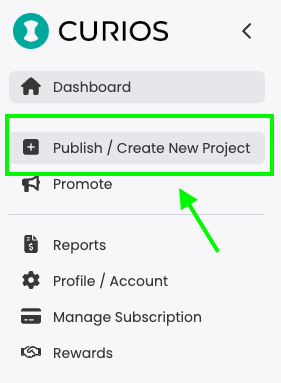
- Click "+ Publish" from the left hand menu of your dashboard
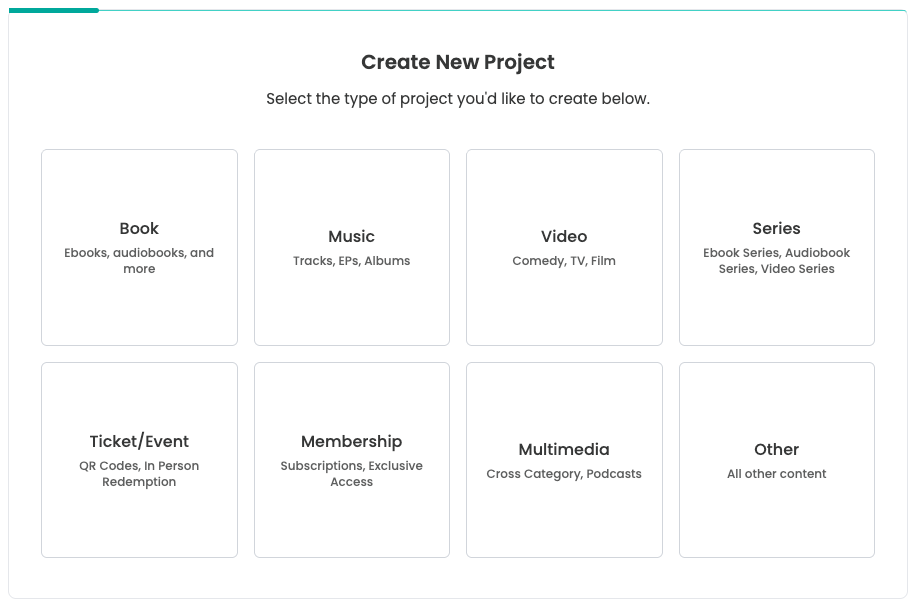
- Choose your content type: Book, Music, Video, Art, Event, Membership, or Other or if you are going to upload a Series, select Series
Step 3: Add Project Information
- Cover Image: Upload a high-quality cover (recommended: 1600x2400px for books, 2400x2400px for music)
- Title: Give your content a clear, descriptive title
- Description: Write compelling copy that explains what buyers will get
Step 4: Upload Your Content Files
Upload the main files that customers will receive after purchase:
Books: EPUB, PDF, or MOBI files
Music: MP3, WAV, or FLAC files
Video: MP4, MOV, or other video formats
Other: Any digital file type is supported
Pro tip: You can drag and drop multiple files, rename them, and reorder them as needed.
Step 5: Upload Preview Content
Add free preview content that anyone can access to sample your work:
Ebooks: We auto generate a preview for you, you can delete and replace this file or add to it as well
Audiobooks: upload a mp3 file where the listener can get a good preview of the narration
Music: 30-60 second clips or full preview tracks
Video: Trailers or short clips
Any content: Behind-the-scenes content, press kits, or bonus materials
Step 6: Set Your Pricing and Options
- Pricing: Choose "Buy Now" to set a price, or "Free" to give it away
- Add Collaborators: Co-authors, narrators, featured artists
- Genre/Category: Help people discover your content
- Release Date: Set to "Available Now" or schedule for later
- Privacy: Choose Public (discoverable) or Private (link-only access)
Step 7: Review and Publish
- Review all your information for accuracy
- Choose "Save Draft" to continue working later, or "Review and Publish" to go live
- Once published, your content will be available on the Curios marketplace
- You'll get a unique link to share with your audience
Curios makes it easy to sell directly, but discovery still starts with you. You need to bring your audience—email subscribers, followers, fans—and point them to your work. Those early sales and claims are how Curios learns who your content is for.
After Publishing
- Share your link: Promote your content on social media, email, and your website
- Track performance: Monitor sales and downloads in your Creator Studio dashboard
- Collect emails: Every purchase gives you the buyer's email address
- Update anytime: You can always edit content, pricing, or add new files
Related articles
- TutorialOffer Discounts to Your Fans: How to Use Coupons in Creator StudioHand a code to your newsletter, your launch week, or one grateful fan. You decide the discount, which products it touches, how long it lasts, and how many times it can be used.
- TutorialTrack Your Meta Ad Conversions on Curios: Setting Up Meta Pixel and the Conversions APICurios places your Meta Pixel on your marketplace pages and reports every sale server-side through the Conversions API, so Facebook and Instagram ads can be optimized against real purchases.
- TutorialLet Your Creator Friends Sell Your Work: How to Use the Curios Affiliate ProgramDecide which products other creators can promote and what they earn per sale. Curios handles the tracking and the payout math, so your friends just share a link.