
Add a Format to an Existing Book
On this page
This tutorial will explain how to add a format to an existing book on Curios. For example, if you already have an ebook listed and want to add an audiobook or paperback version.
Note: You are in control of your content at Curios. Anything you specify or set you can change at anytime.
Step 1: Login to studio.curios.com and then click on the book that you want to add a new format to.
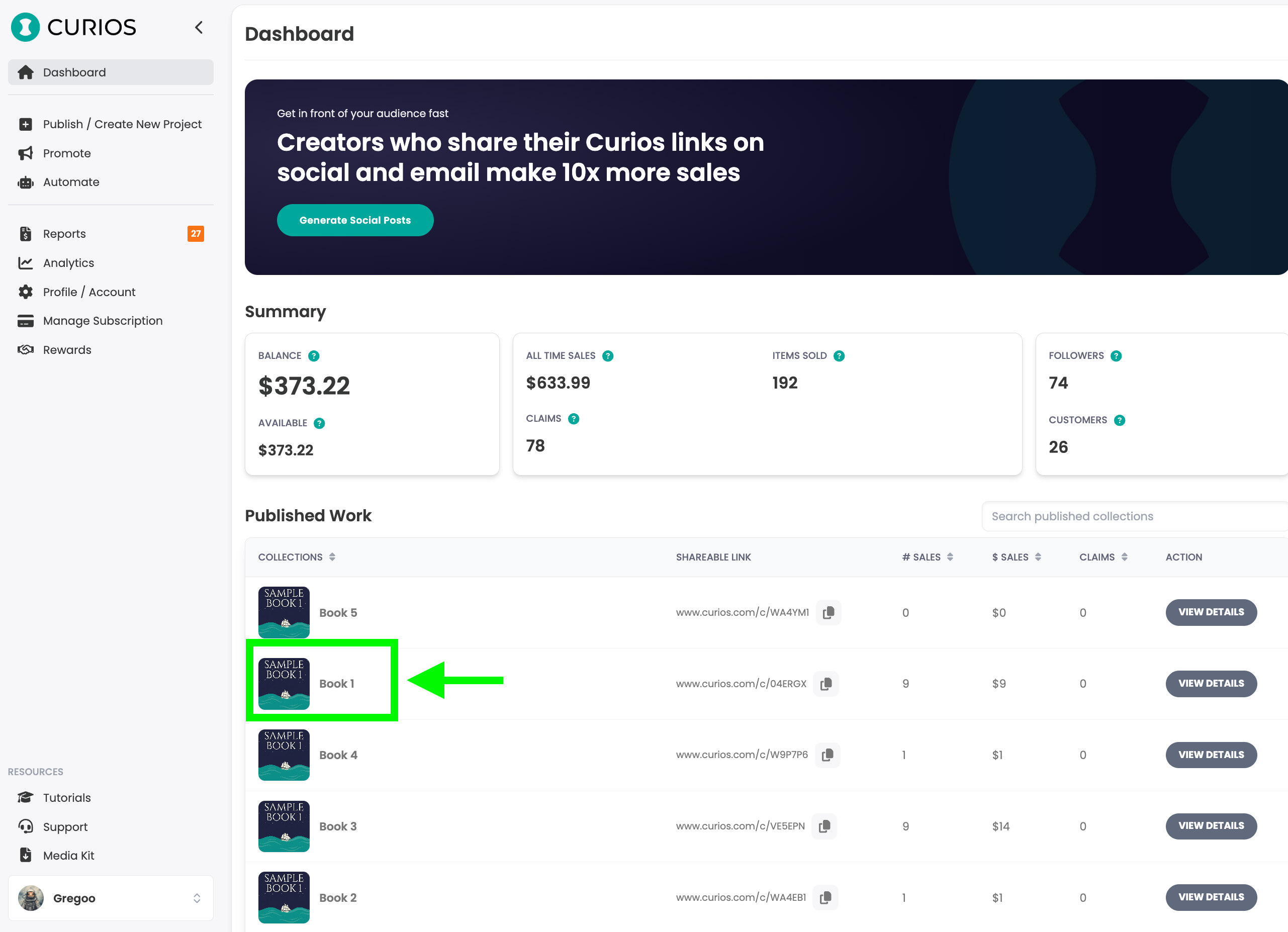
Step 2: This will open the Project Detail Page. If the book is part of a series or has multiple formats you will see all of those products listed on this page.
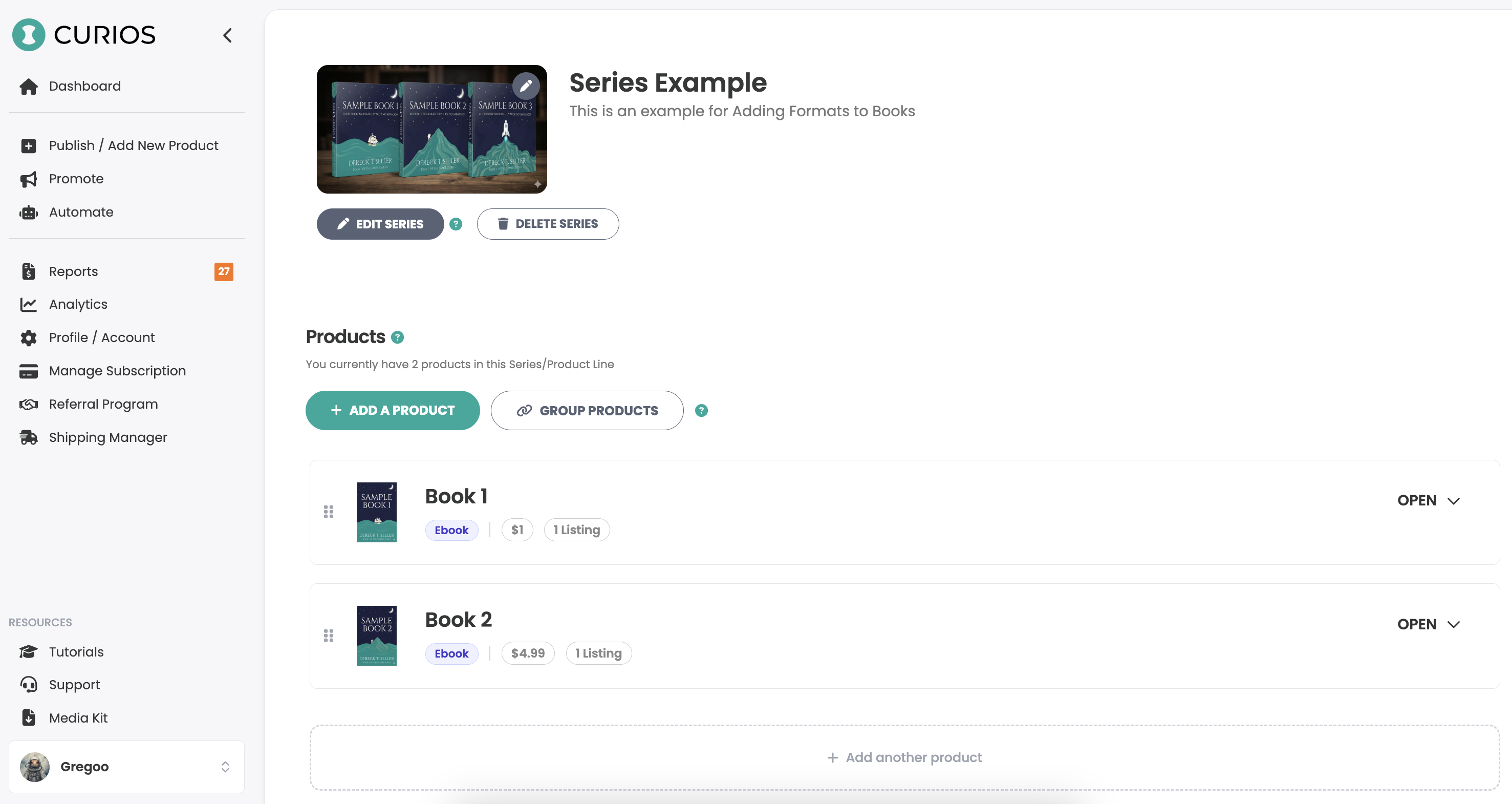
Step 3: Click on the "+ Add a Product" button.
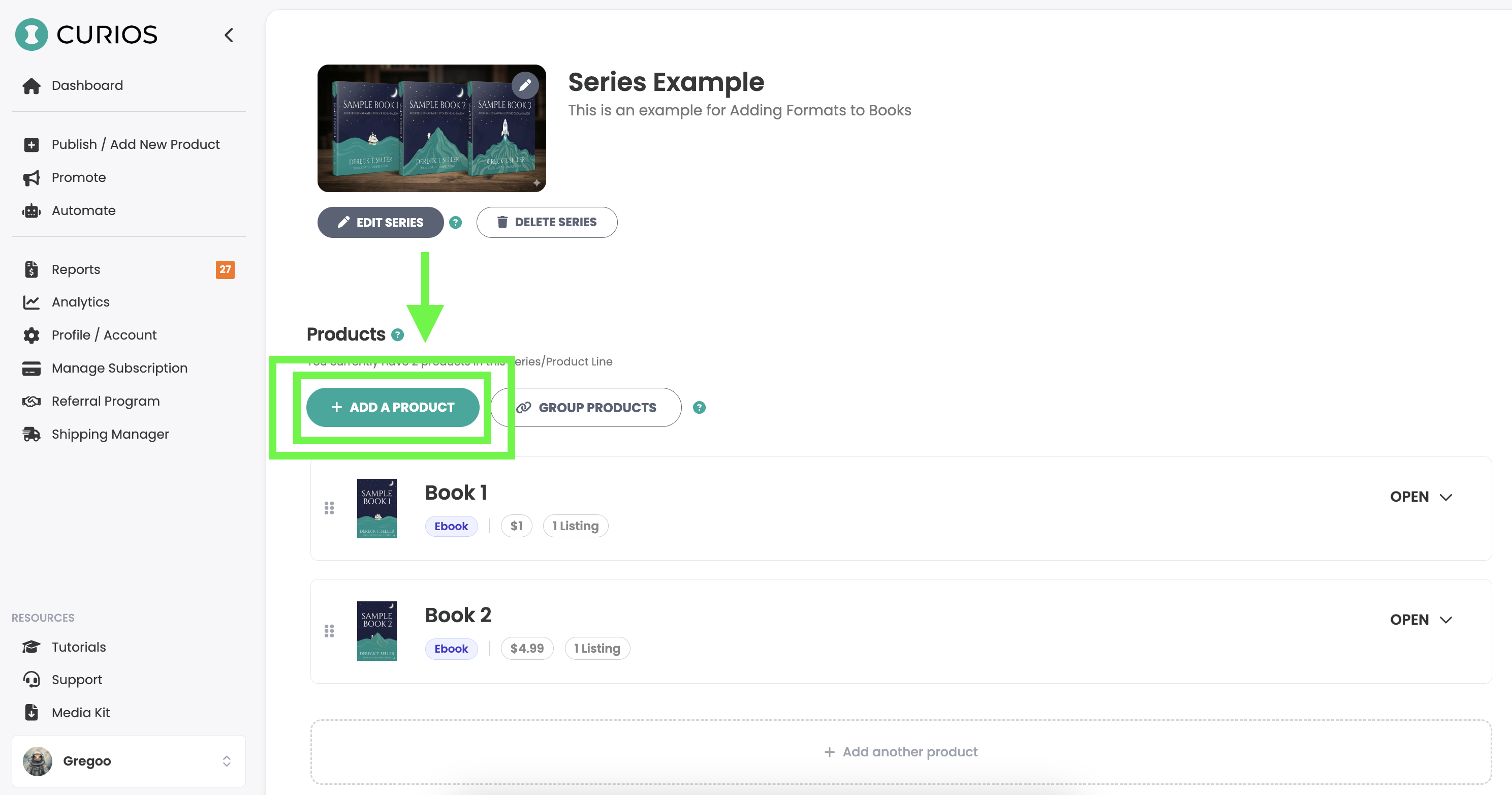
Note: Each format of a book is its own product. For example, if you have an ebook, audiobook, and paperback version of the same book, that is 3 products. A product can also contain multiple digital files — for instance, an ebook bundle could have 5 epub files.
Step 4: Enter the Title, description and genre for this format. This will be the same title and description as your existing format — each format shares the same book details. For example, if "The Guide to Direct Selling" is already listed as an ebook, you would enter "The Guide to Direct Selling" again when adding the audiobook or paperback version.

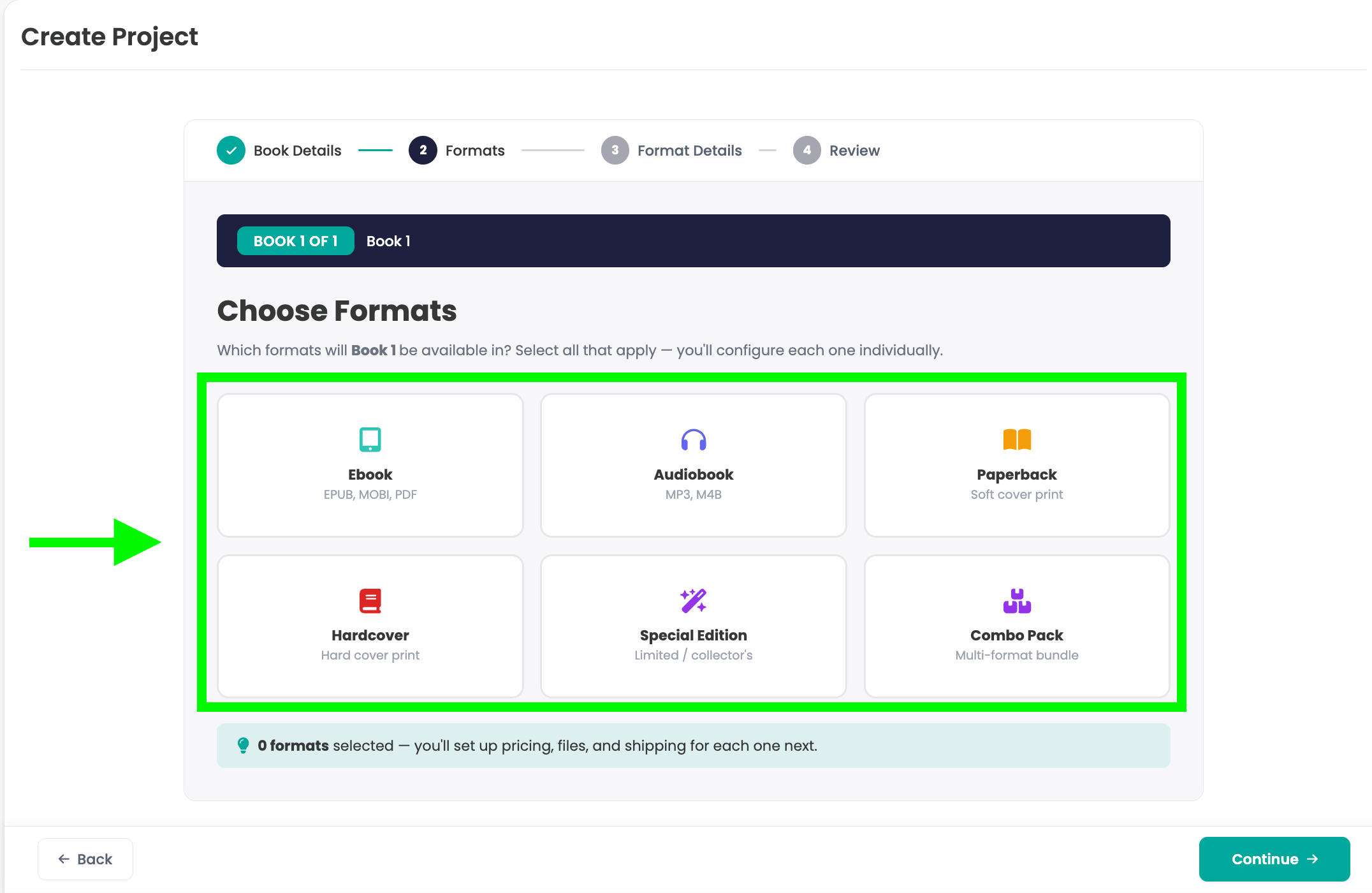
Step 5: Choose what formats you will make available for this book and then click the continue button in the bottom right hand side of the screen.
Note: This is a "multi-select" so you can select all the formats that apply.
Step 6: For Each Format, upload the cover image, set your price type, set your price, set the release date, upload the digital files if there are any, setup the fulfillment type if it is or contains a physical item, add collaborators if there are any and specify the permissions.
Click "Series Review" to continue to the next step.

Note: There is a whole tutorial breaking down these details found here: Upload Multi-Format Book Series
Step 7: Confirm details entered on the previous screens and then you have two options.
Option 1: Click "+ Add Another Book" to add additional formats or to add additional formats to other books in the same series. You will then run through Step 4 - Step 6 again.
Option 2: Click "Create Collection" to add the format to your book.
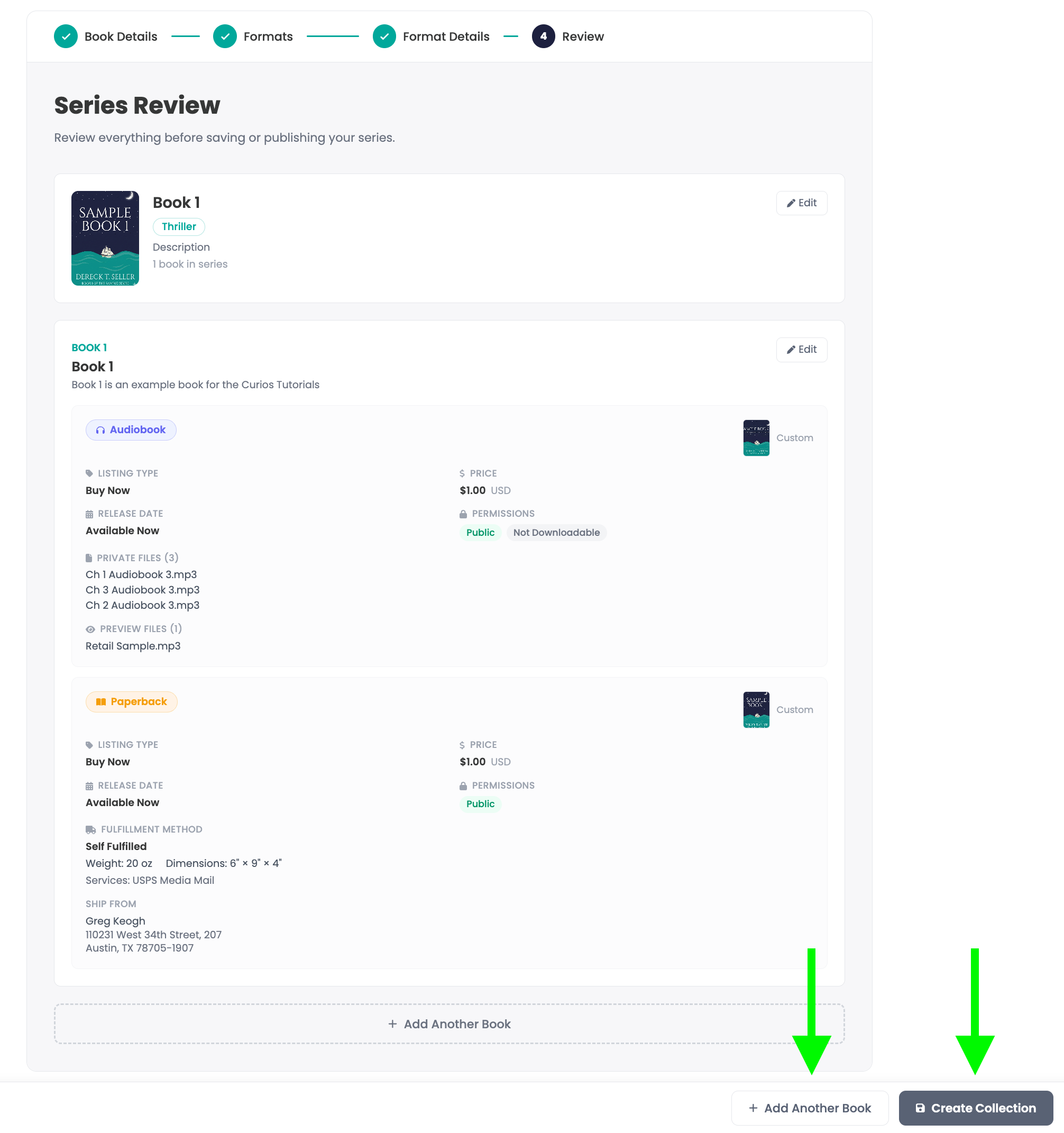
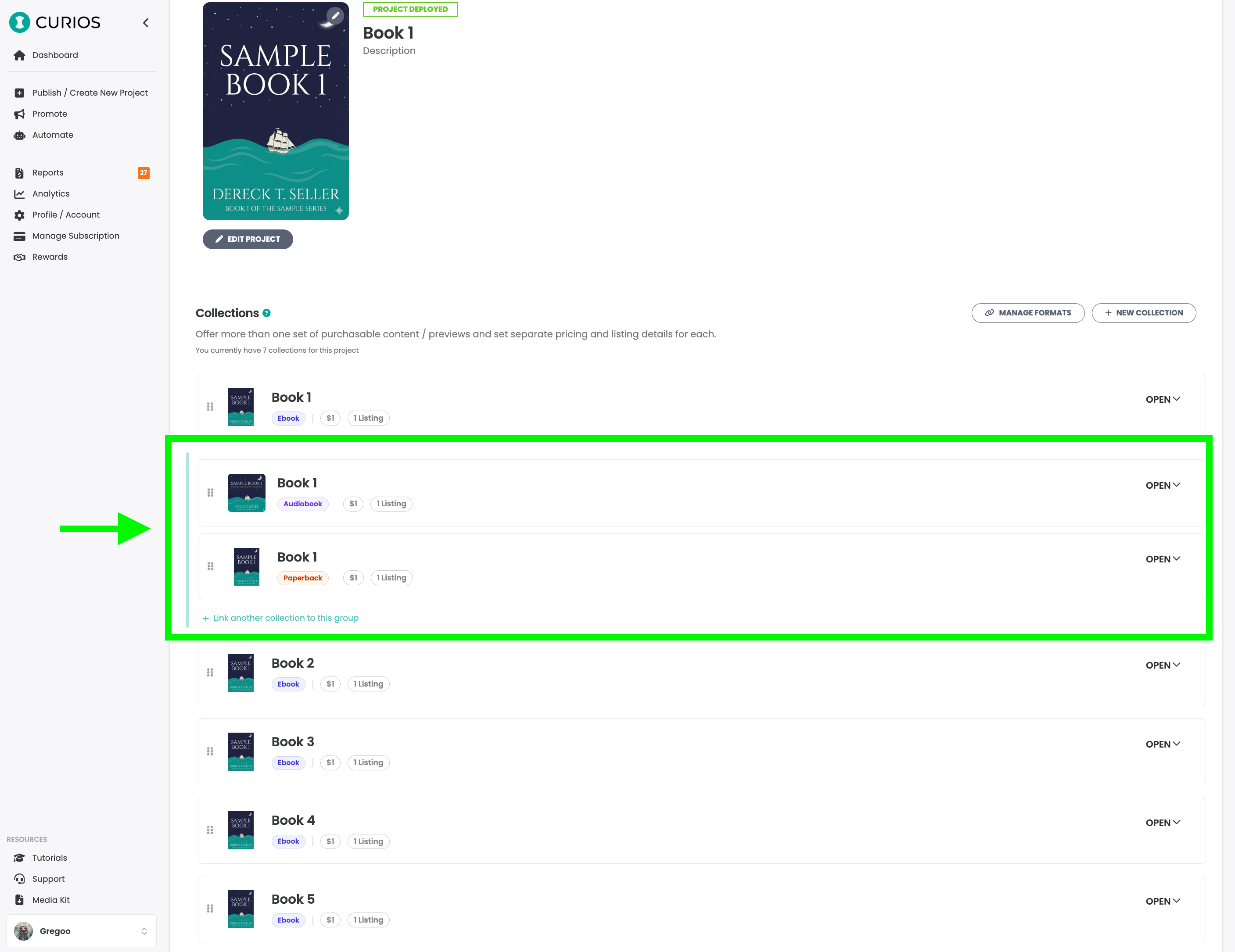
Step 8: If you clicked "Create Collection" you should see your new format(s) added for the book. Be sure to check all details for these items.
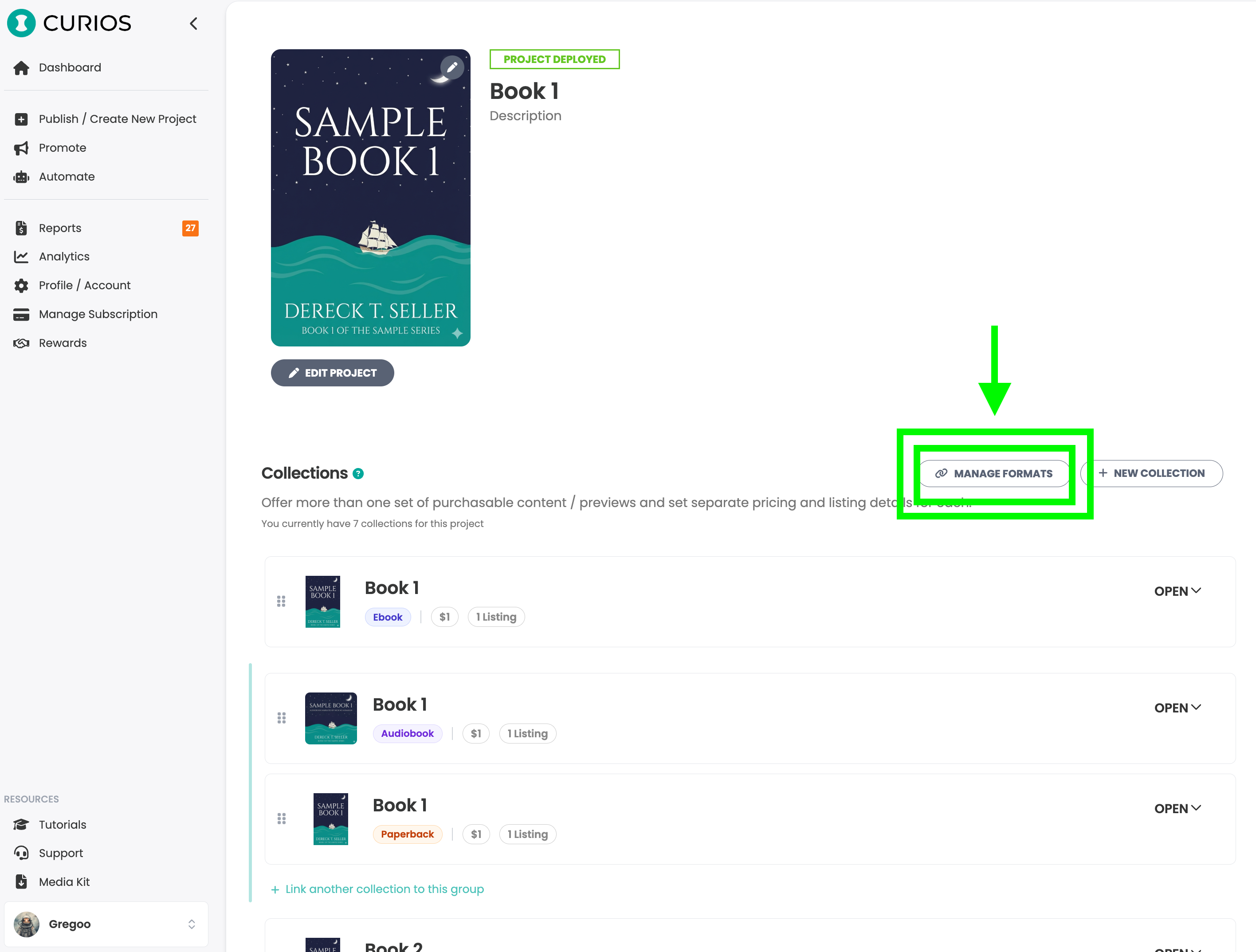
Step 9: Group formats together by clicking the "Group Products" button.
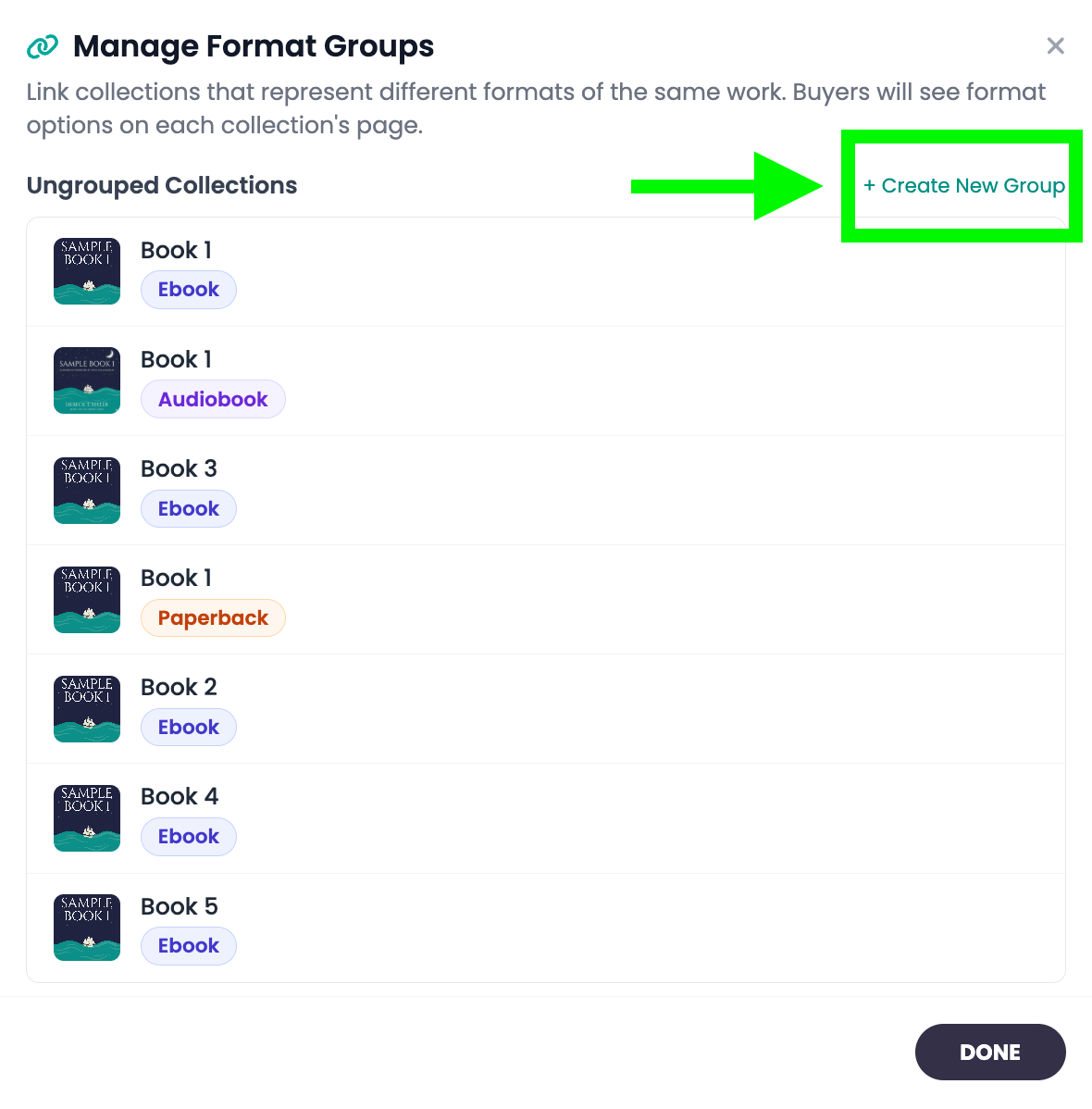
Step 10: Click the "+ Create New Group" button near the top.
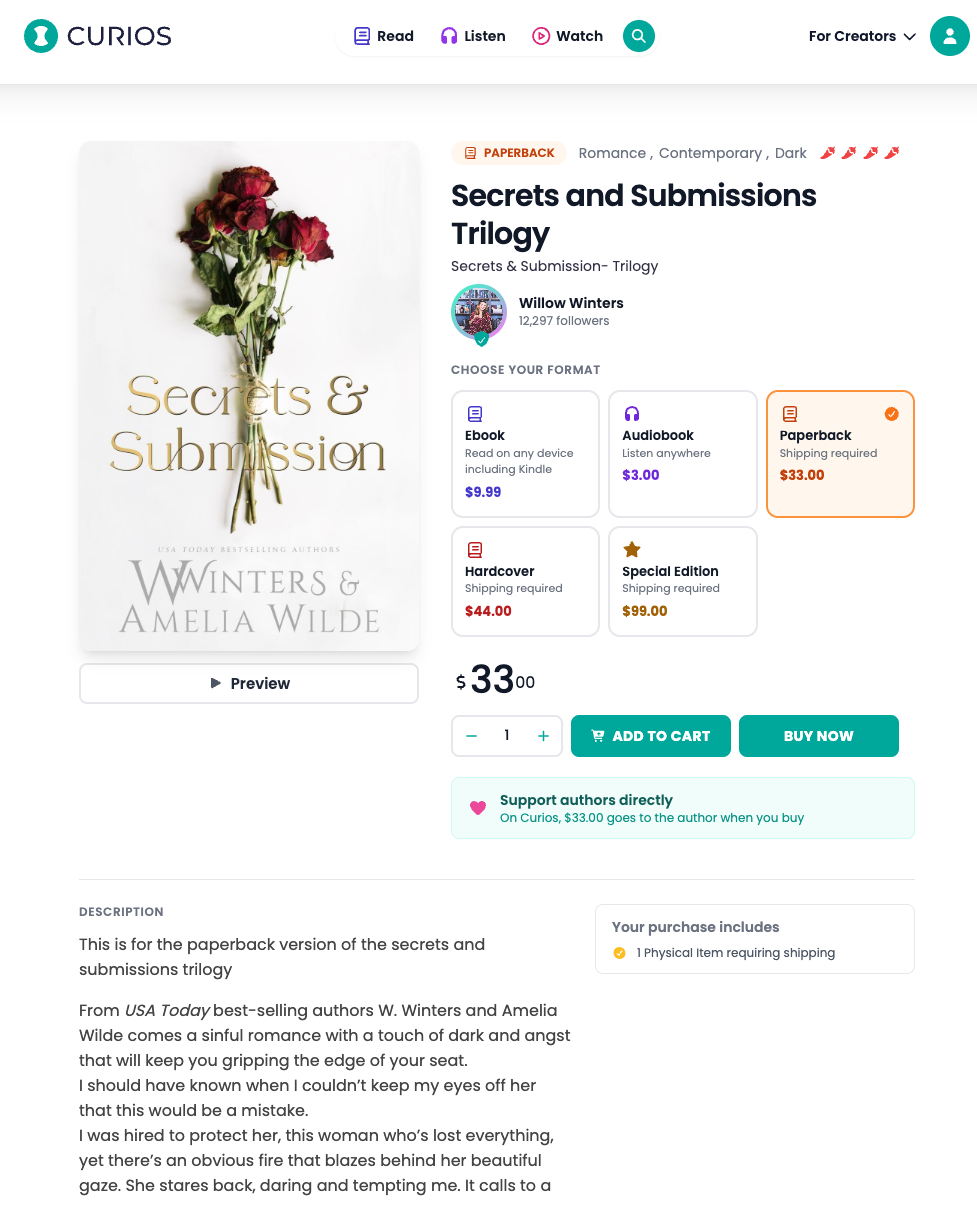
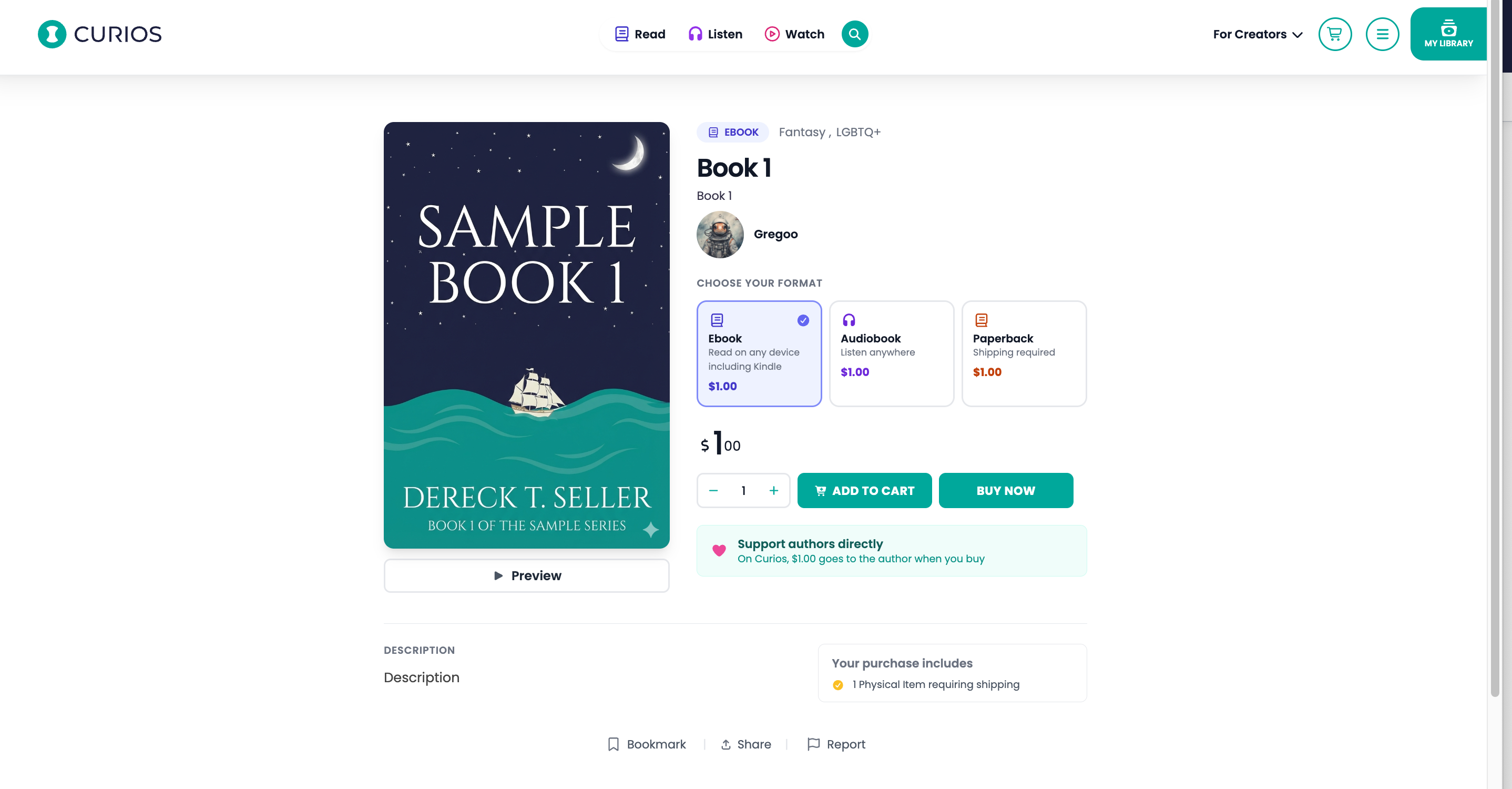
Note: Groups link multiple formats together so you can offer a multi format page like the example below:
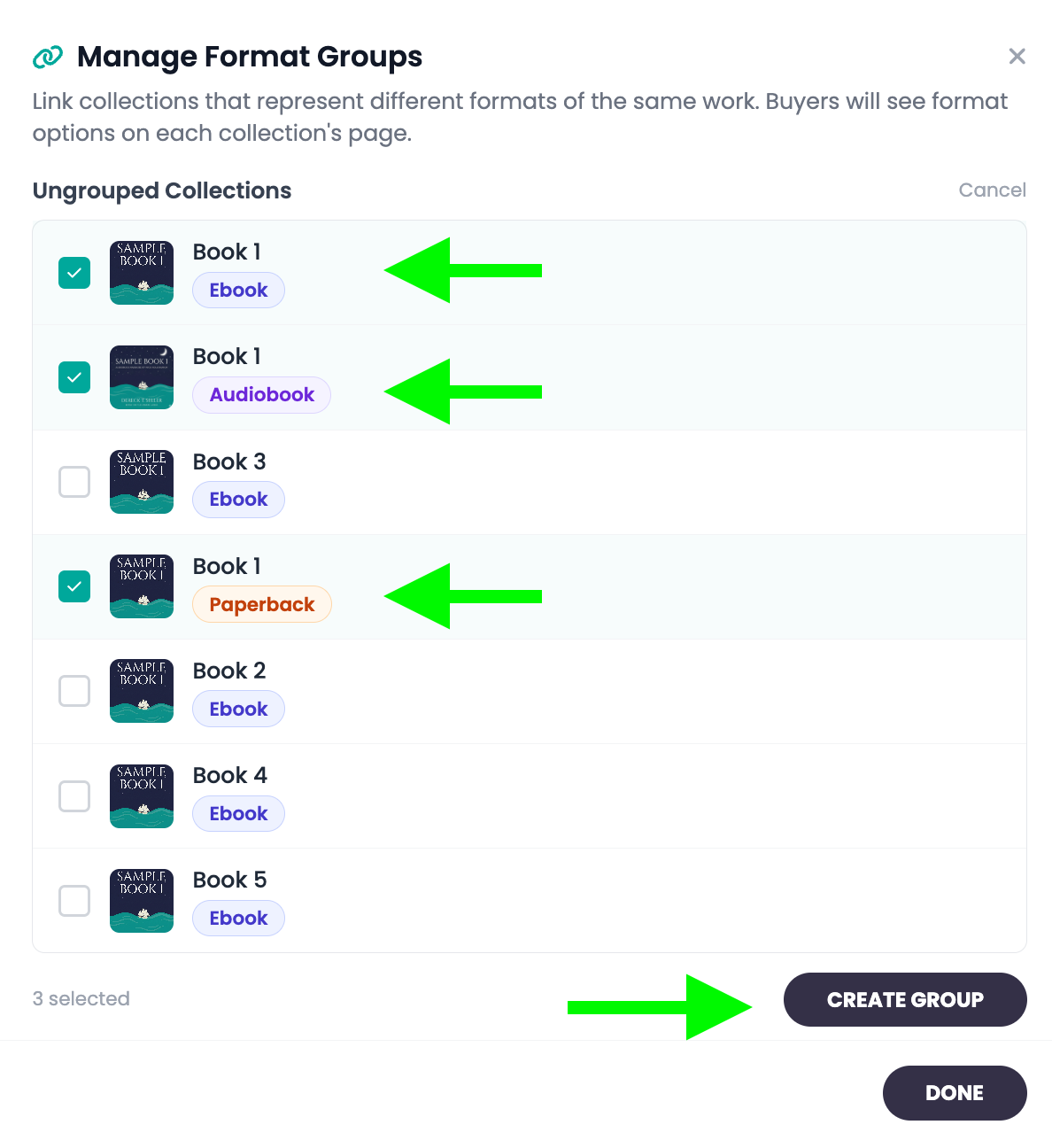
Step 11: Check the books that you would like to group together and then click "Create Group".
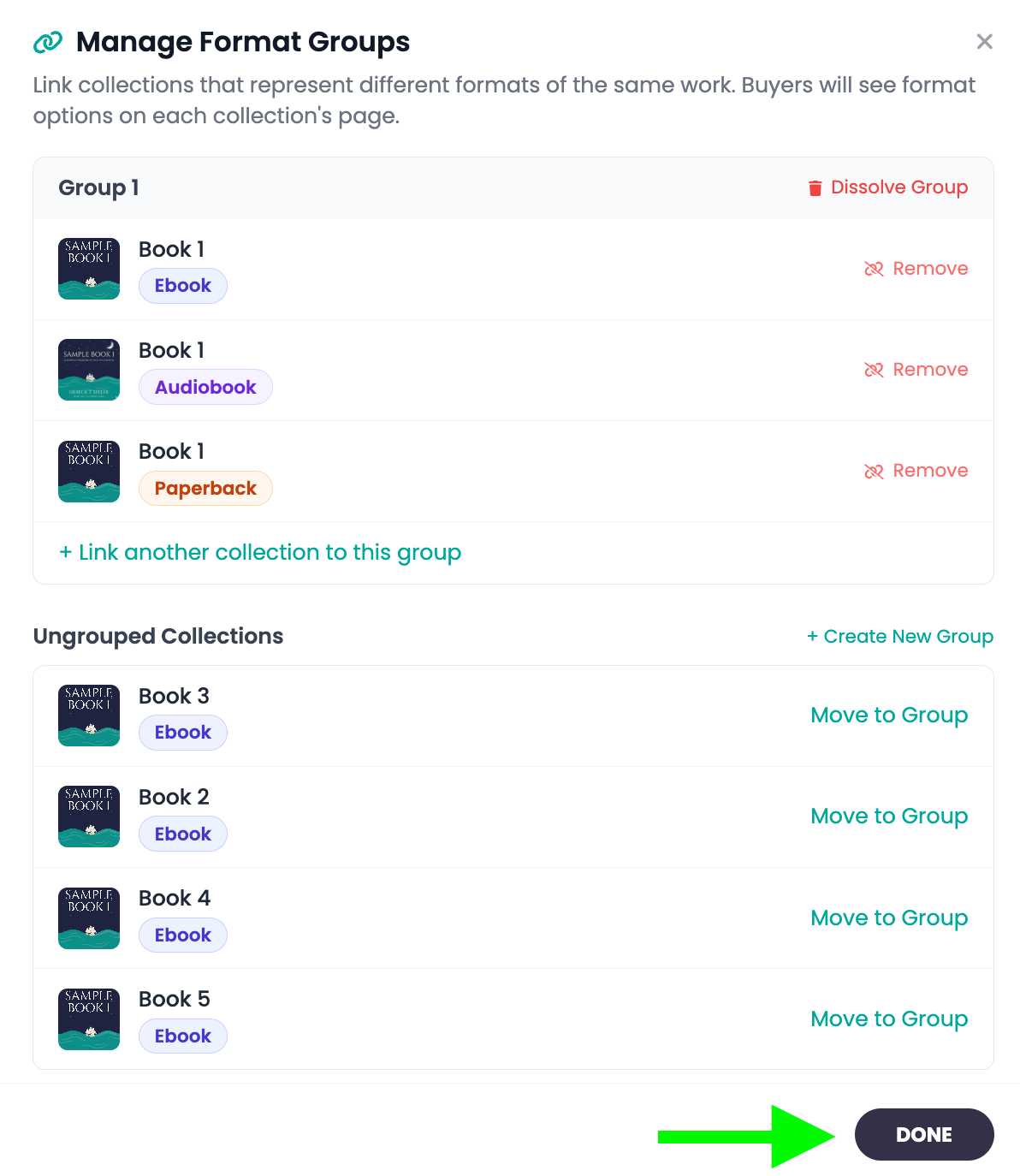
Once you have created all the groups click "Done".
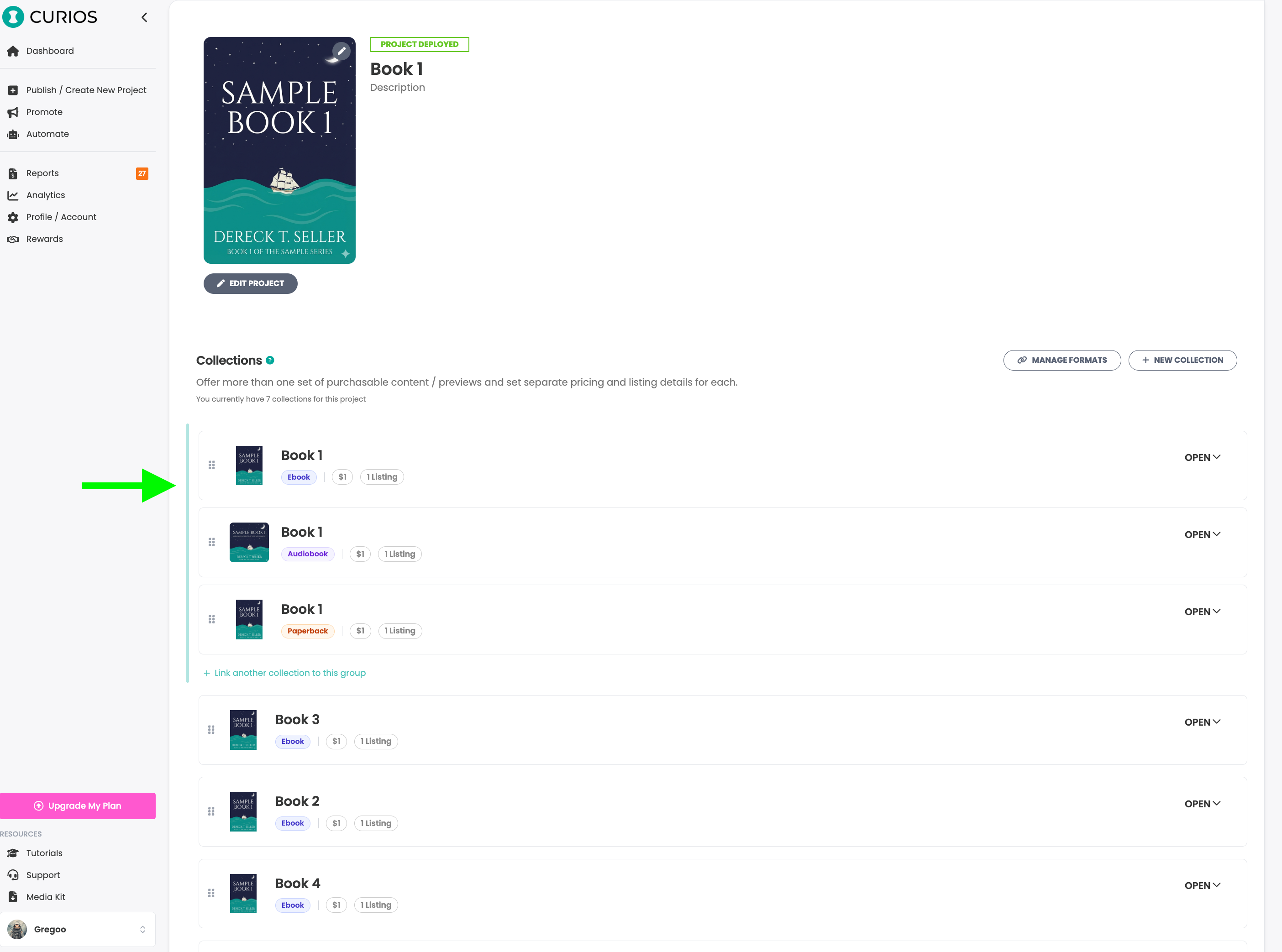
Step 12: You can visually see what formats are grouped together by the vertical teal line connecting the products.
Check your work. Click on the dashboard tab on the left hand menu and then click on the marketplace link for one of your multi format books.
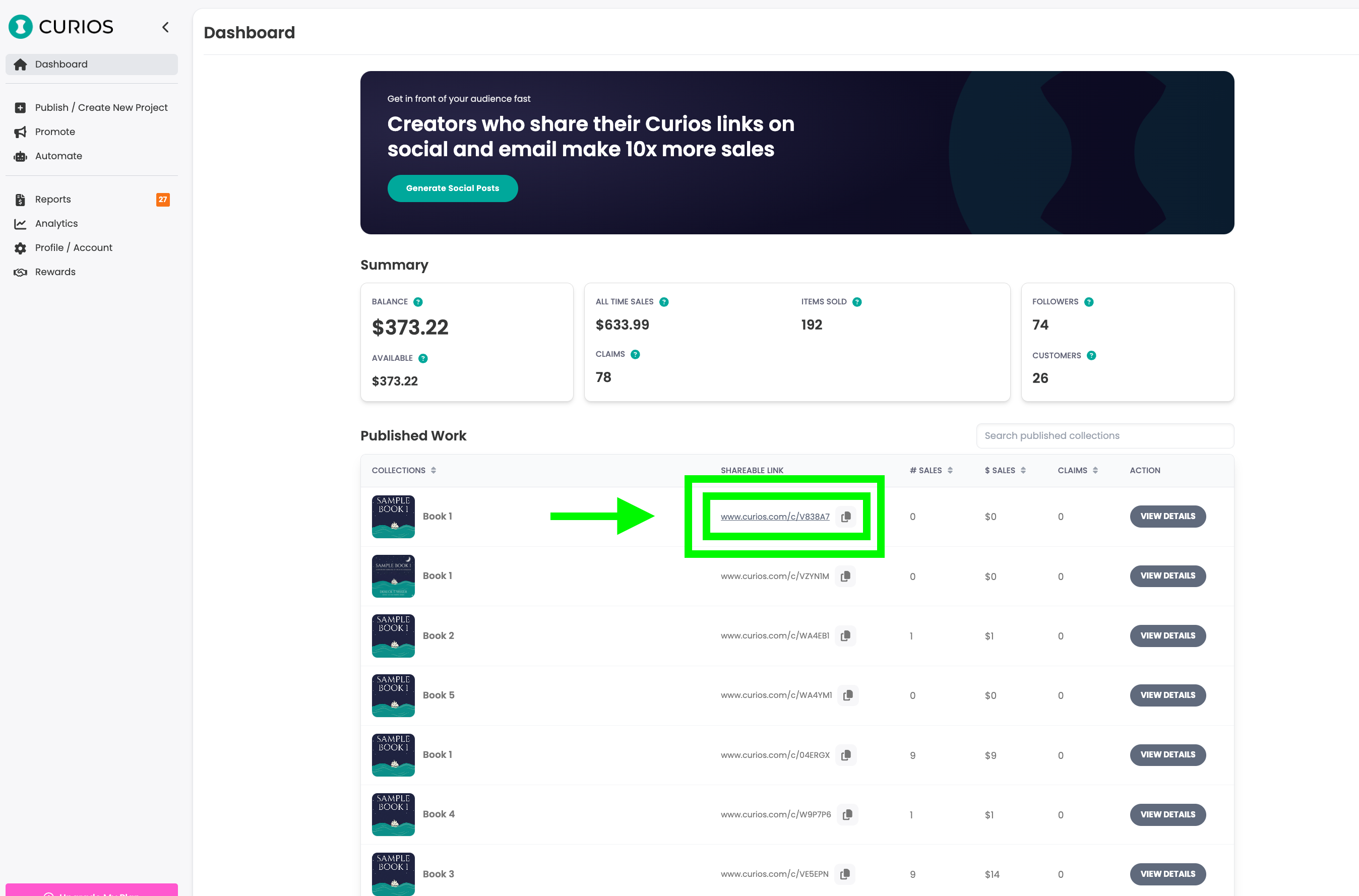
Clicking the link will open the marketplace page where you can ensure you have grouped everything to your satisfaction.
Related articles
- TutorialTurn a Standalone Book into Part of a SeriesThis tutorial shows you how to turn a standalone book into part of a series: set up the series, move each book into it, then group each book's formats so readers see every format on one product page.
- TutorialUpload a Multi-Format Book SeriesThis tutorial walks you through setting up a three-book series on Curios, with an ebook, an audiobook, a paperback and a combo pack for every book, all in one pass.
- TutorialCreate a Combo Pack on CuriosThis tutorial walks you through creating a combo pack, such as an ebook plus a signed paperback, sold together at one price.